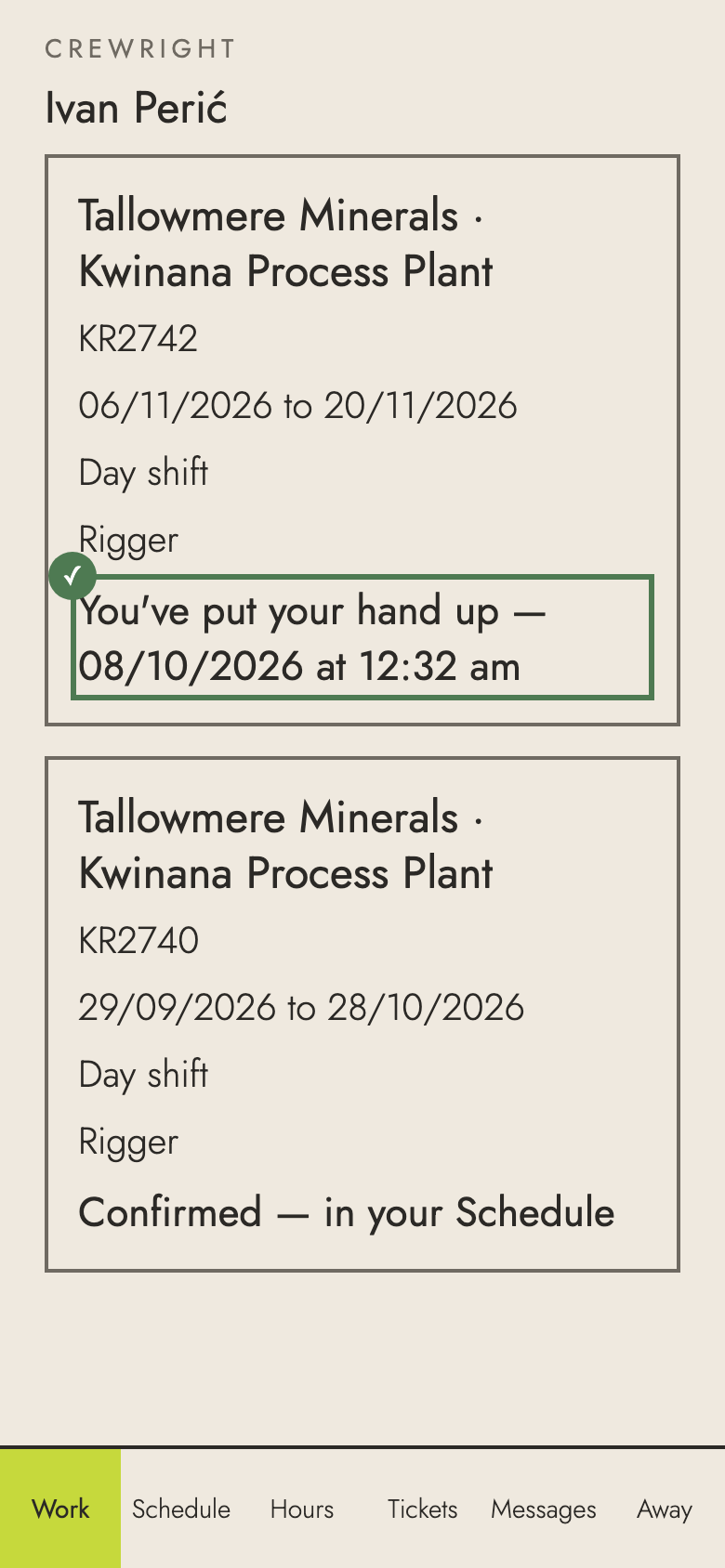
Help · Worker (the phone app)
Accept an offer
When the office has work for you, it shows under Work with the client, the site, the dates and the shift. Saying yes puts your hand up; the office then tells you if you have it.
1. Open Work. Each offer shows the client, the site, the dates and the shift.
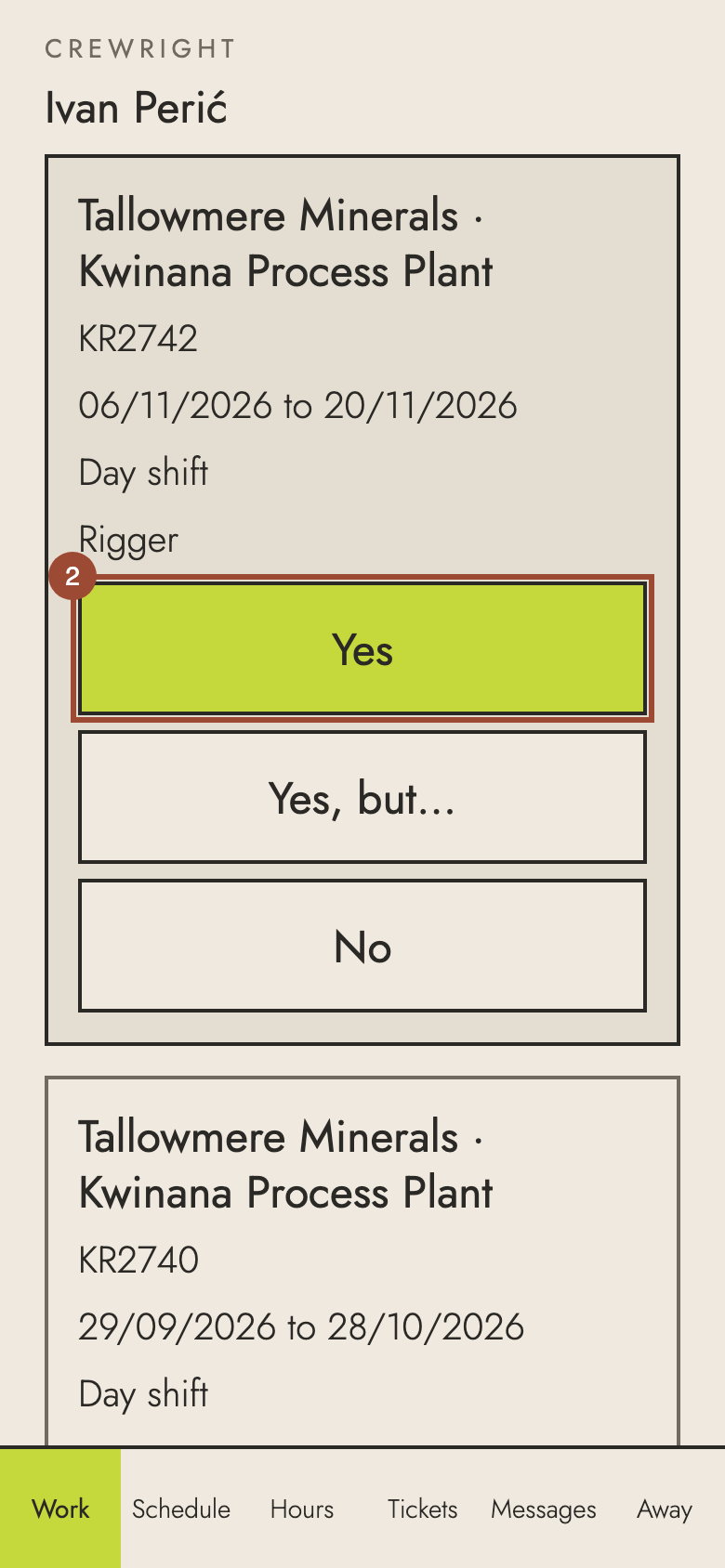
2. Press Yes to put your hand up. Yes, but… lets you say what you can't do; No turns it down.
✓ Done. Nobody is placed yet: if you get the work, the office tells you here and you confirm it.