Add a client and a site
A new client rings with work. Add the client once, then each site you send people to. Orders, timesheets and invoices all hang off them.
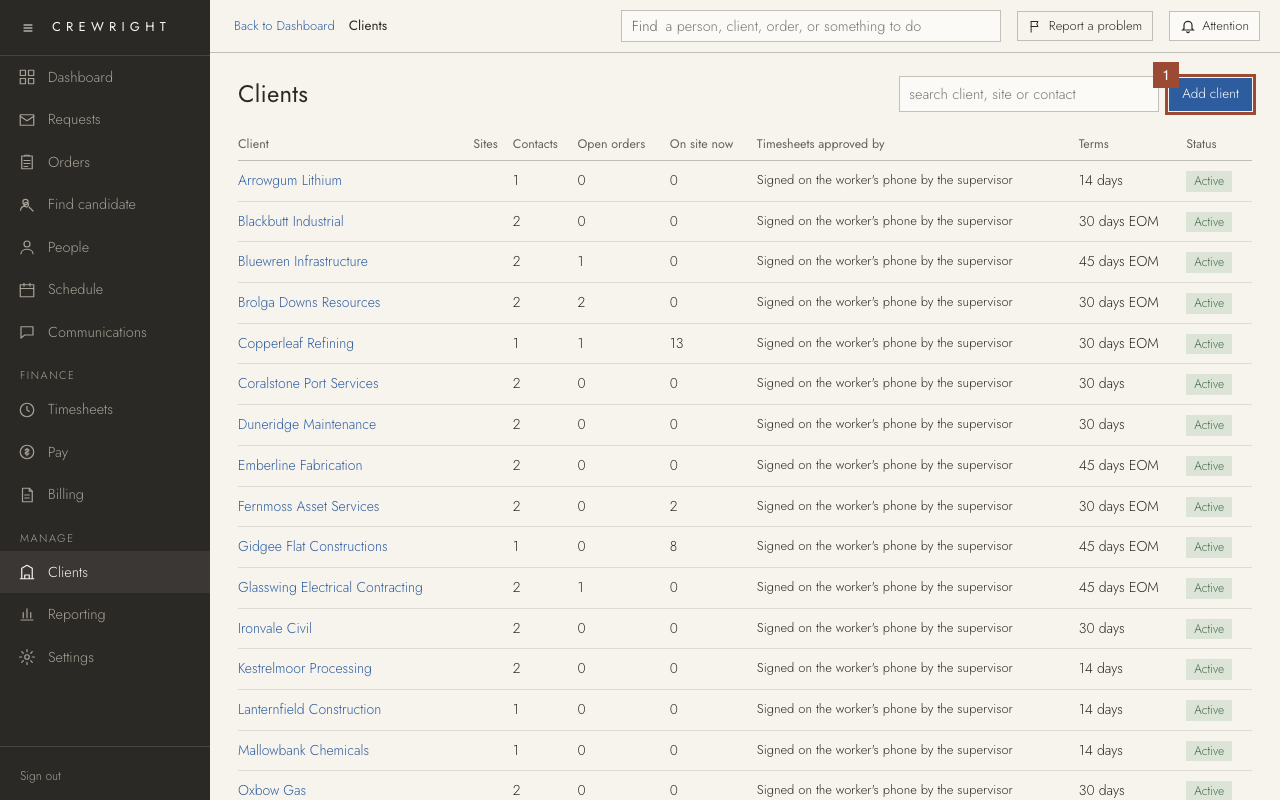
1. On Clients, press Add client.
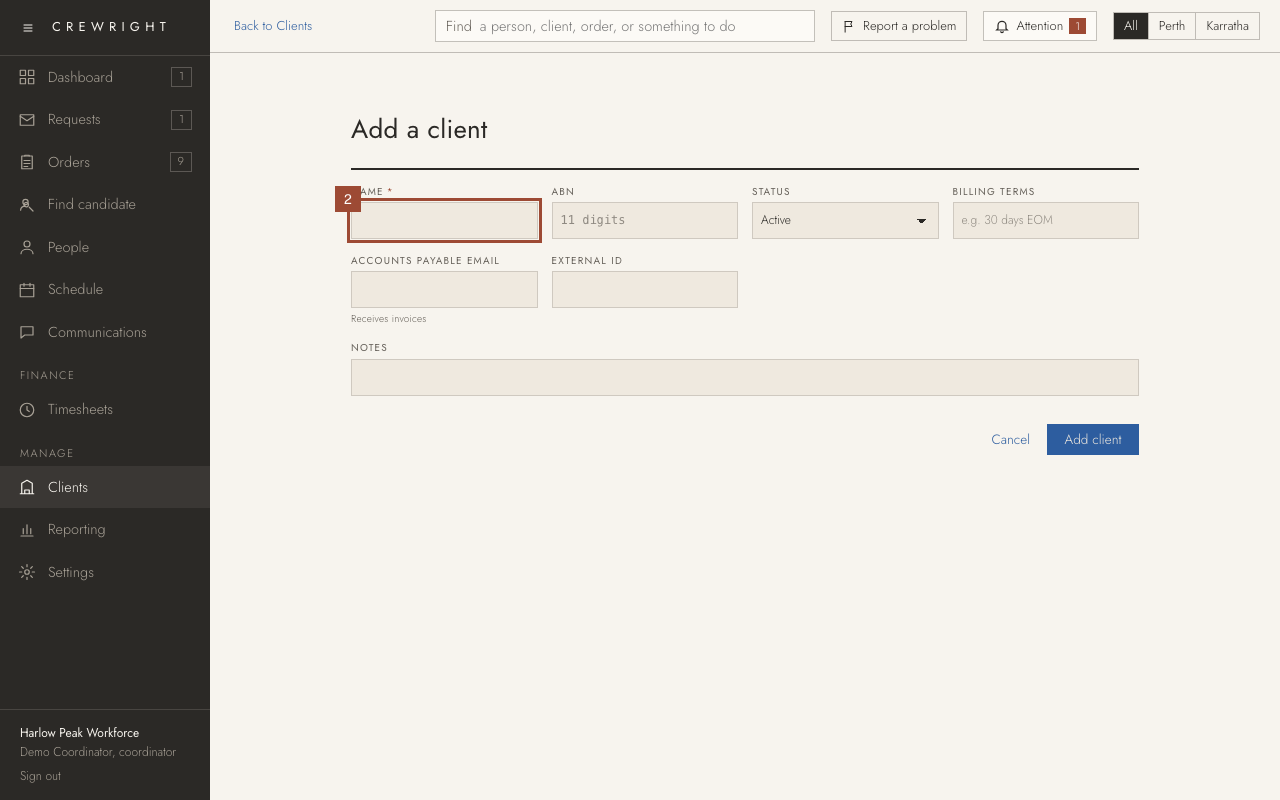
2. Type the client's Name. The rest can wait: ABN, billing terms and the accounts email can be added when you have them.
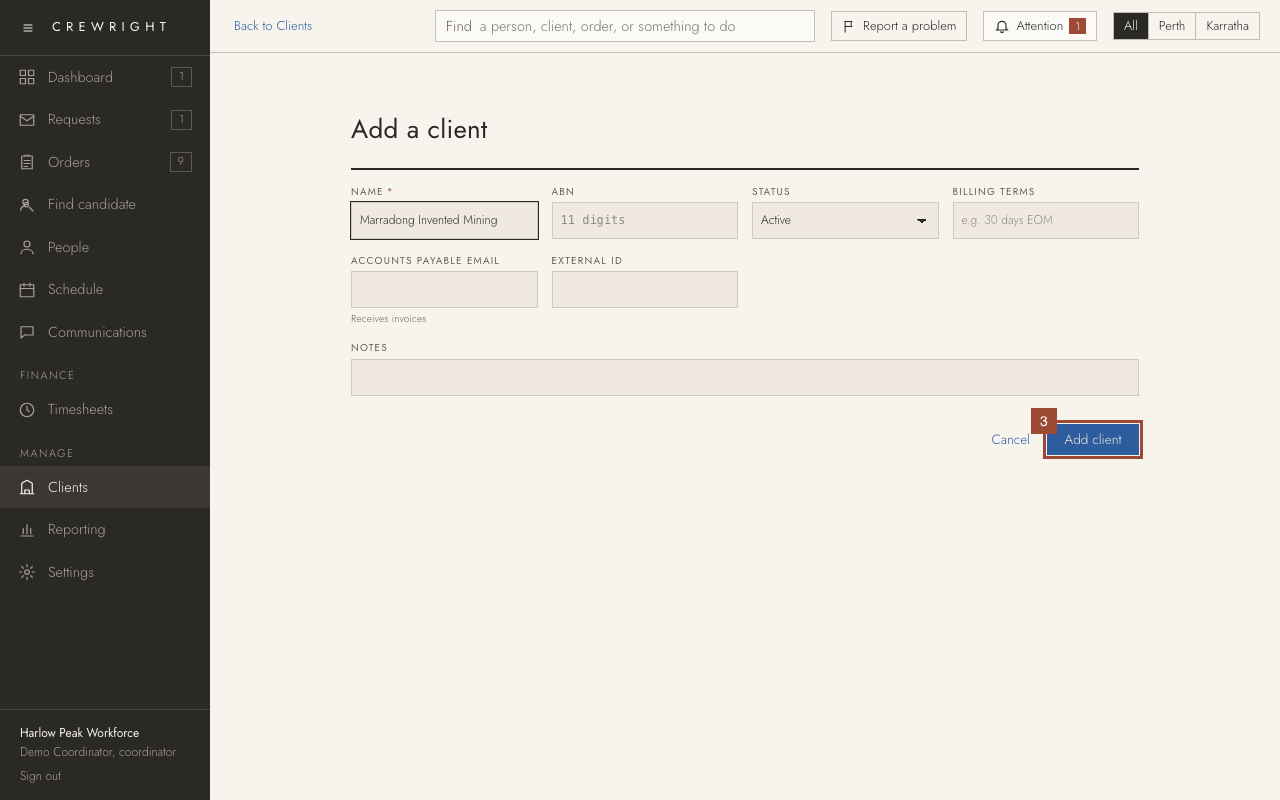
3. Press Add client.
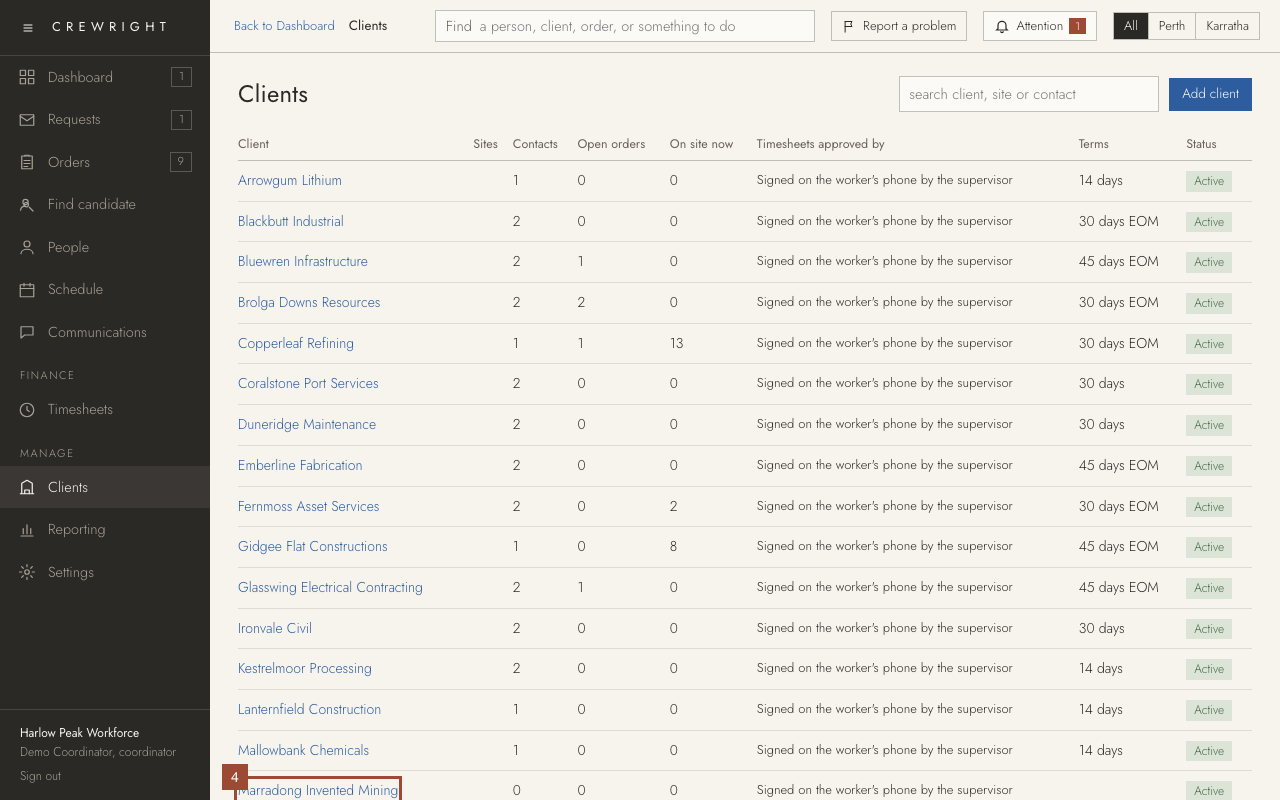
4. Open the new client.
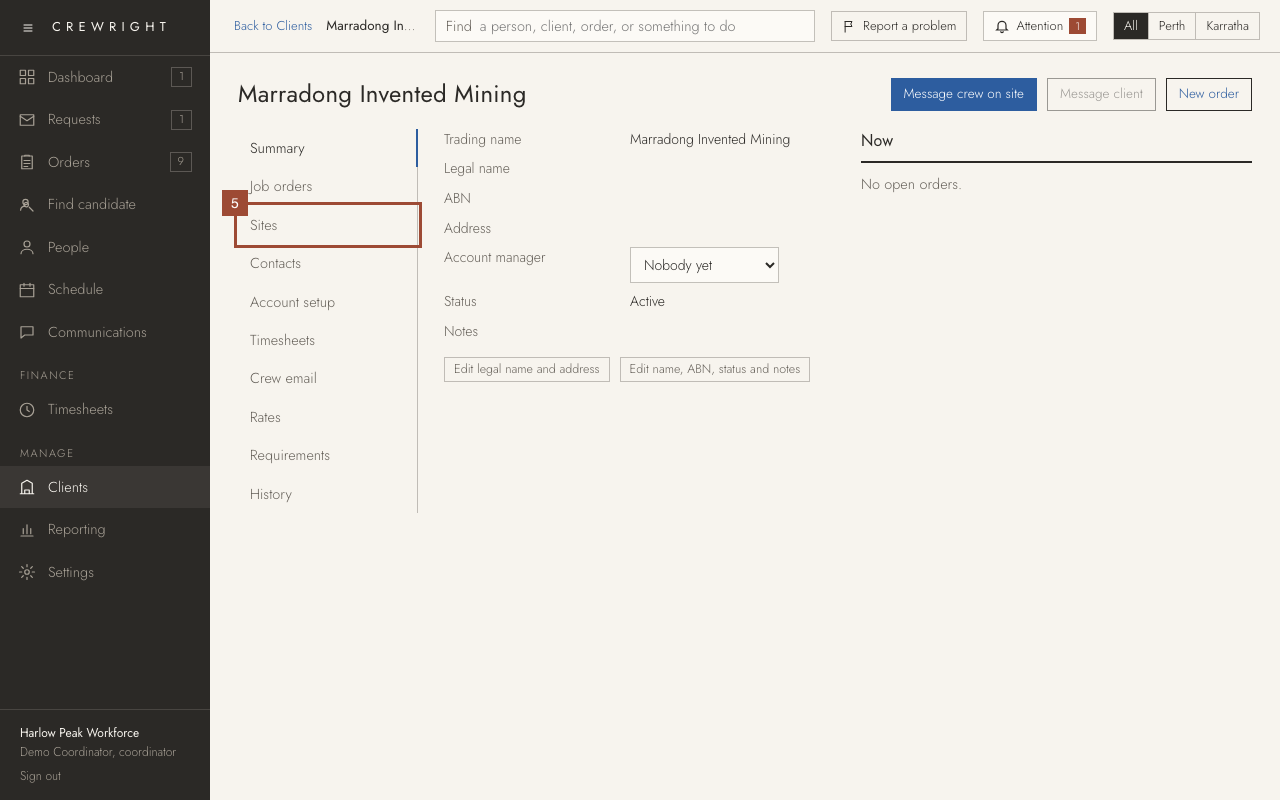
5. Open Sites.
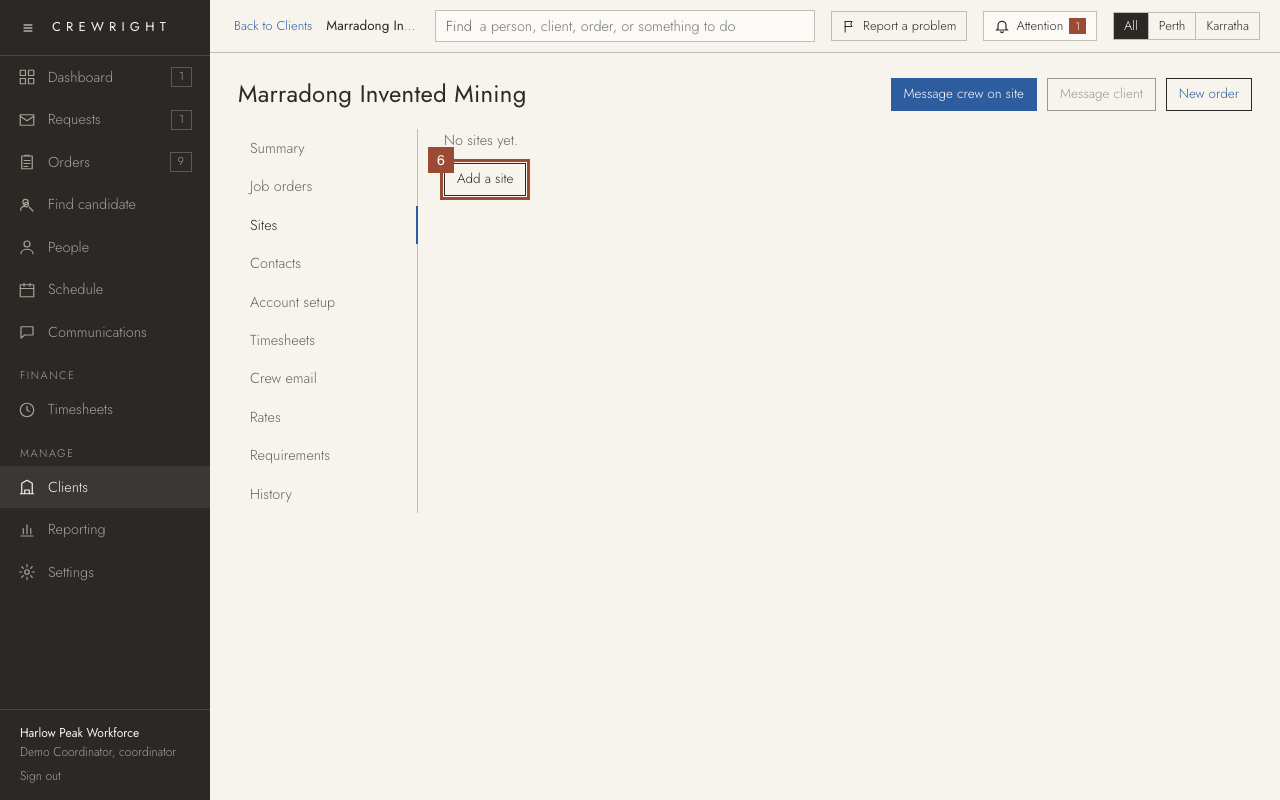
6. Press Add a site.
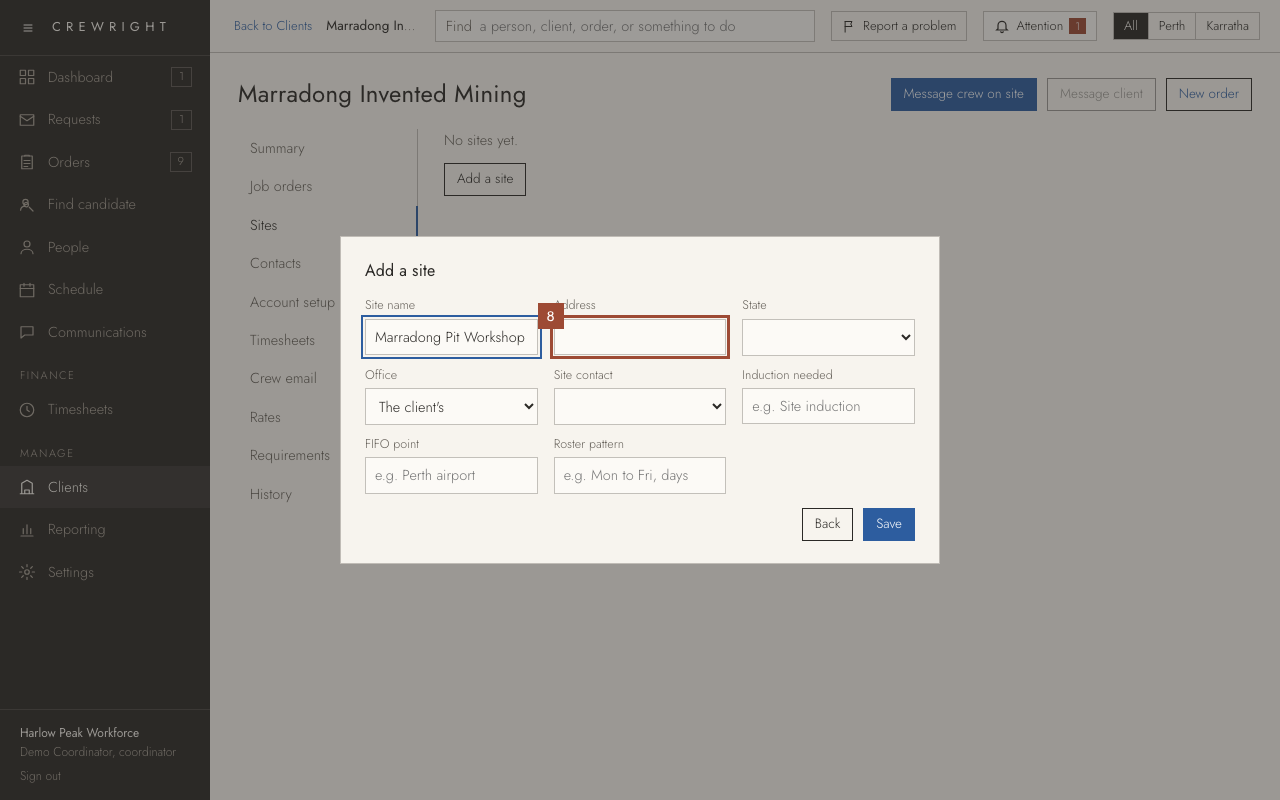
7. Type the Site name as the crew know it…
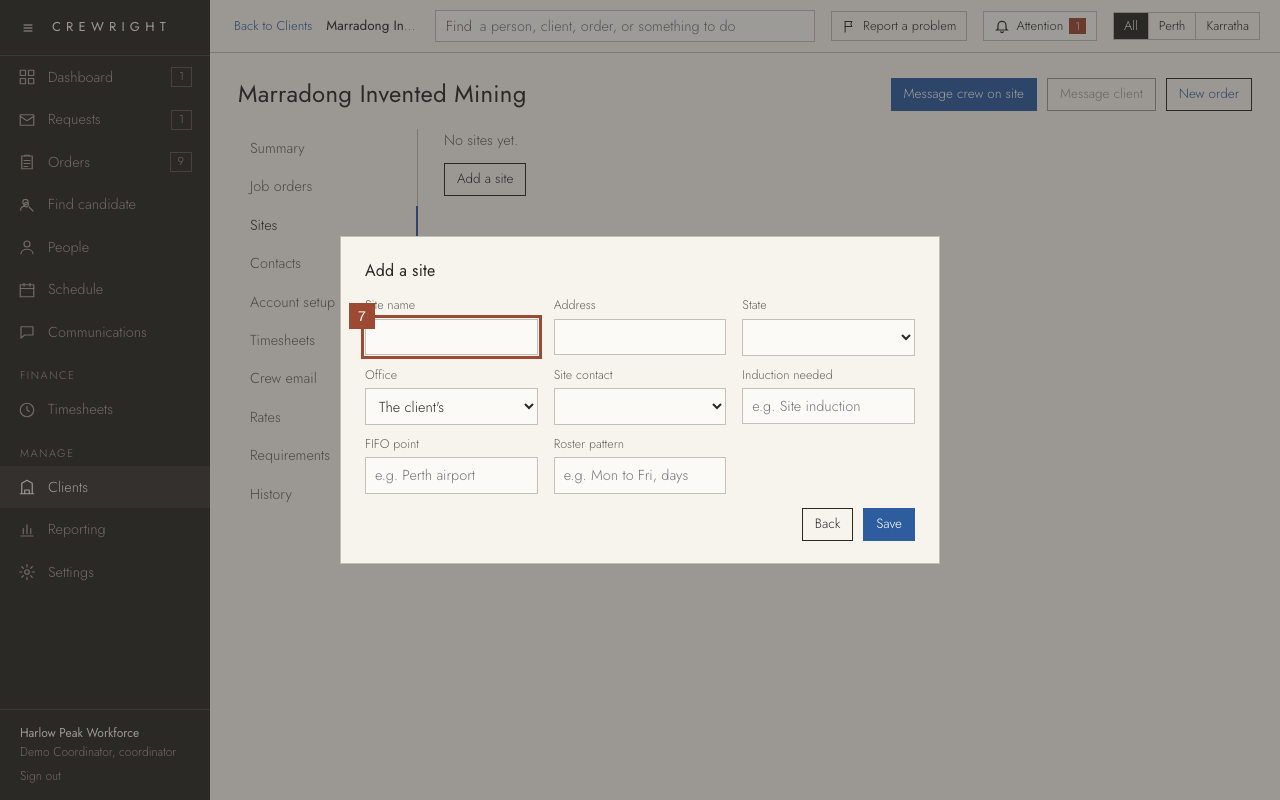
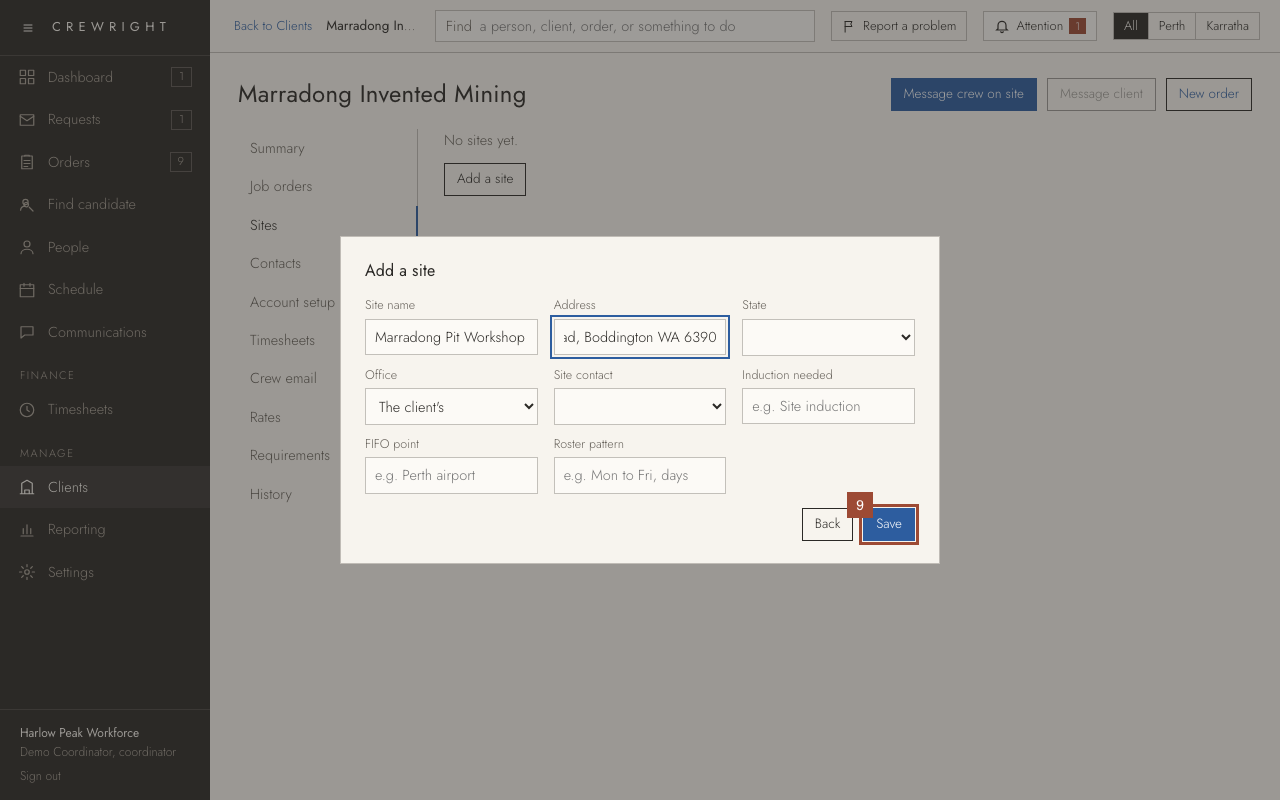
8. …and its Address. Workers get directions to it on their phone, and travel distance is worked out from it.
9. Press Save.
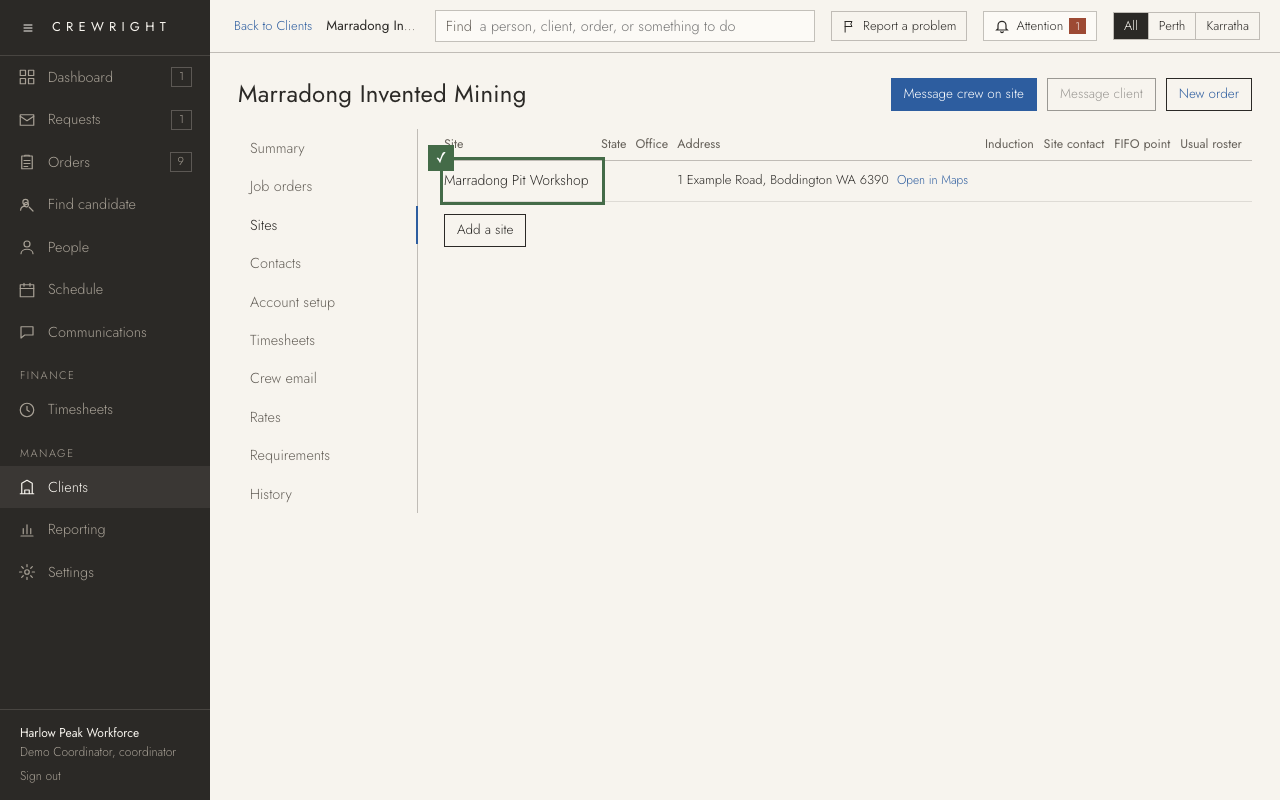
Done Done. The site is on the client, ready to pick on a request or an order. Add the client's contacts under Contacts the same way.