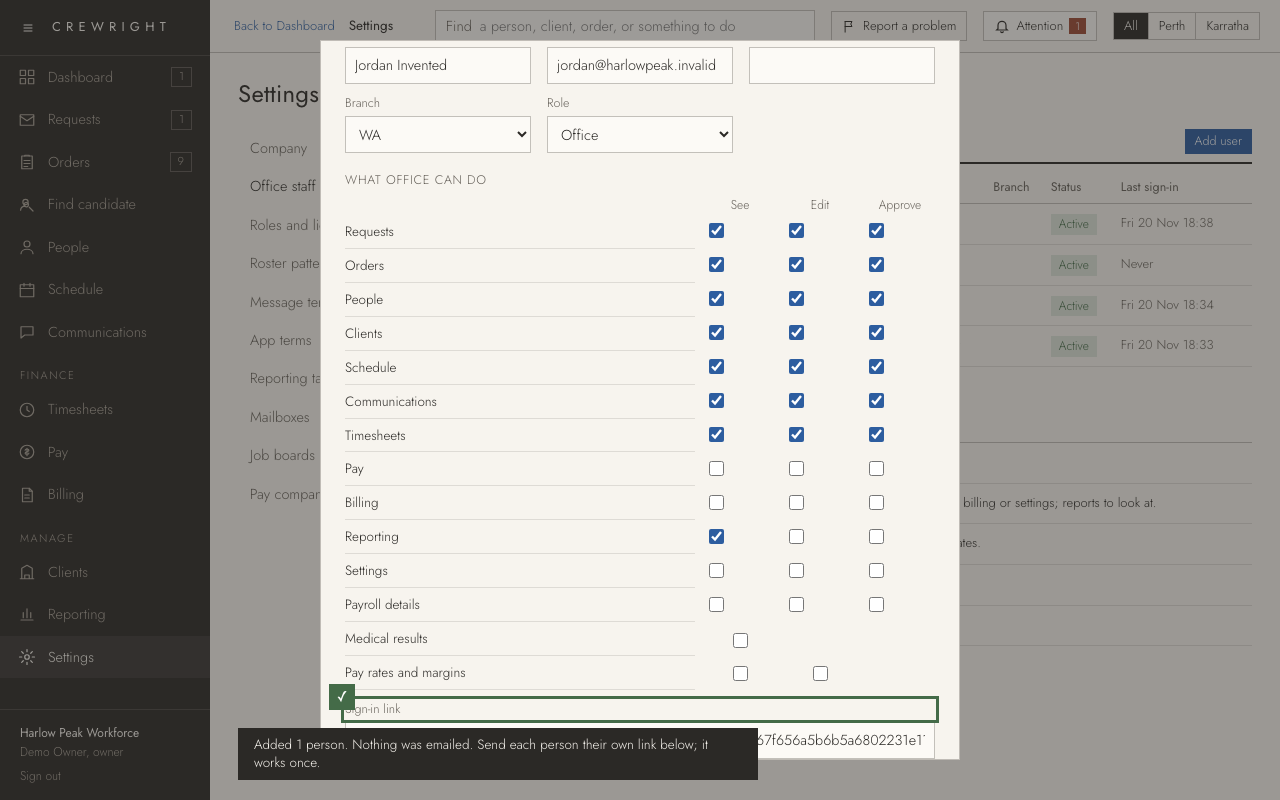
Add an office user
Someone new in the office needs their own sign-in. Only an owner can add them. They are emailed an invitation and choose their own password.
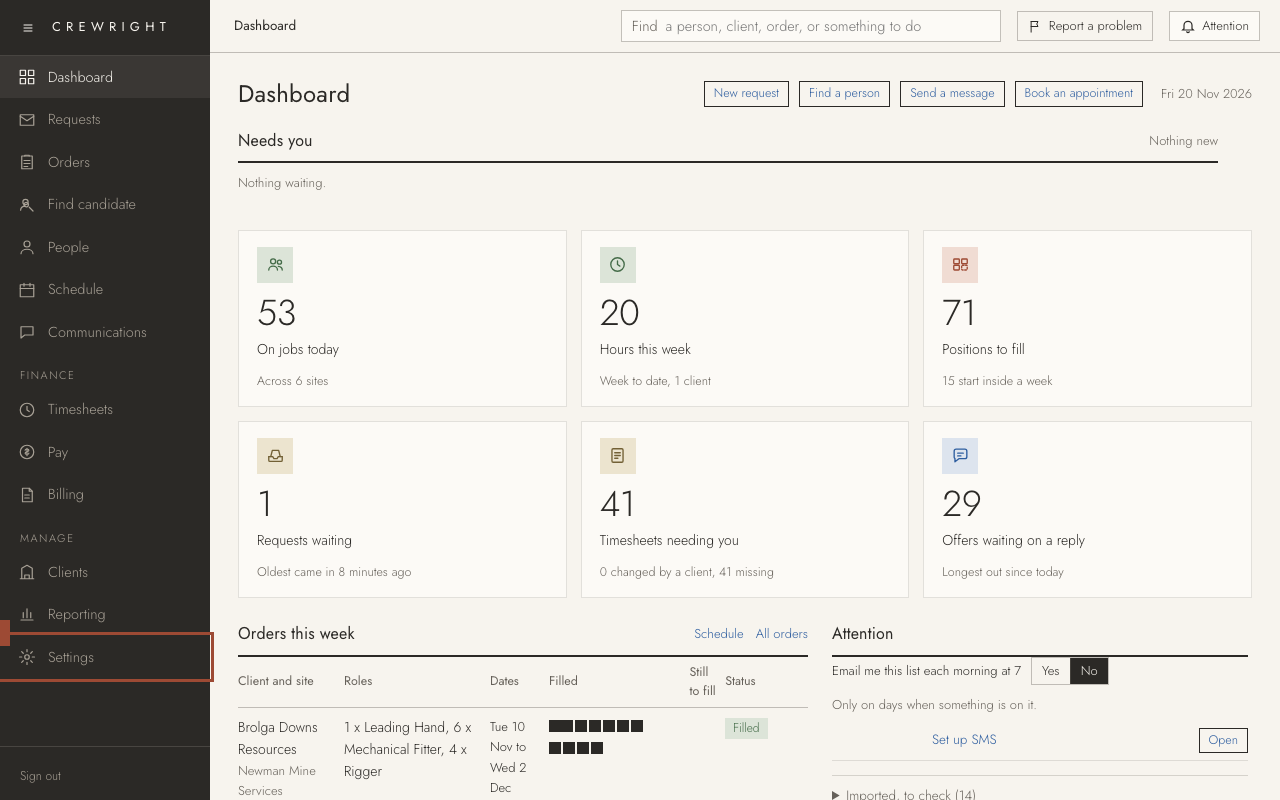
1. Open Settings in the menu on the left.
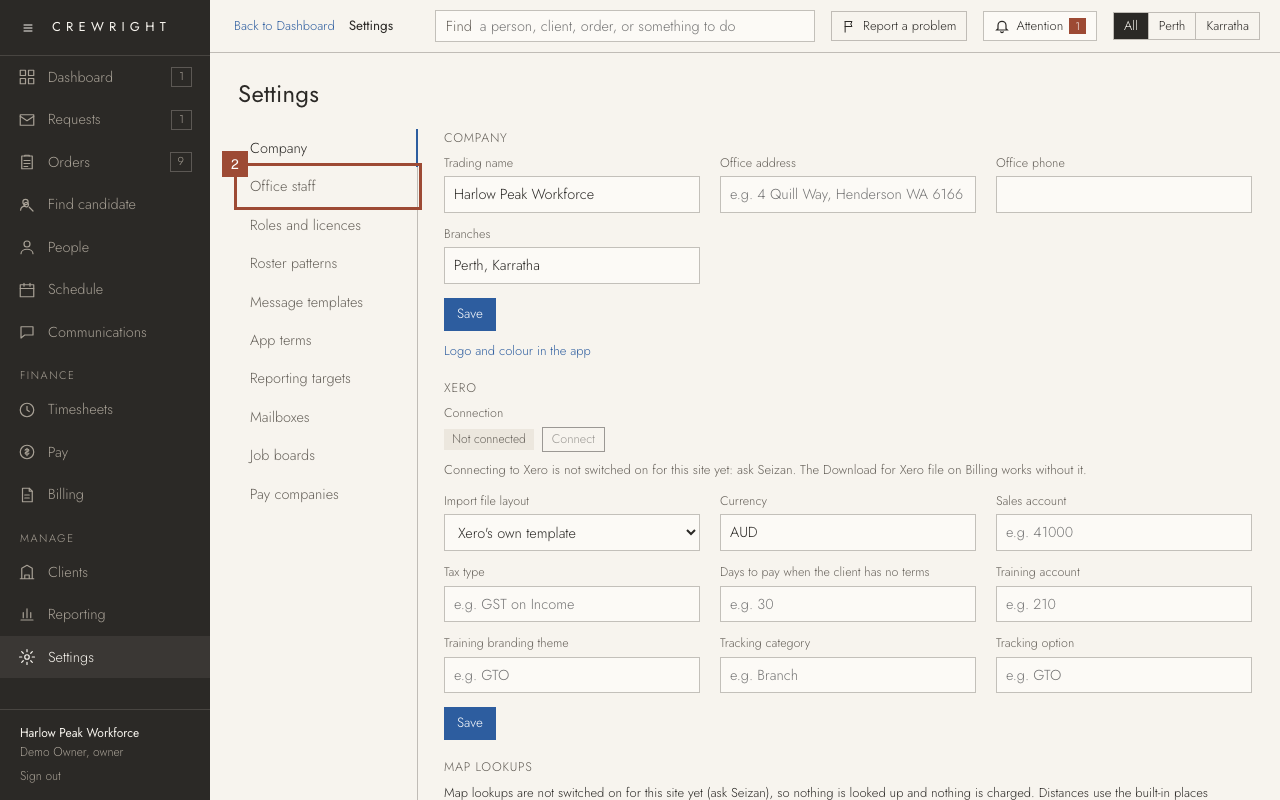
2. Open Office staff. Everyone with a sign-in is listed, with their role and when they last signed in.
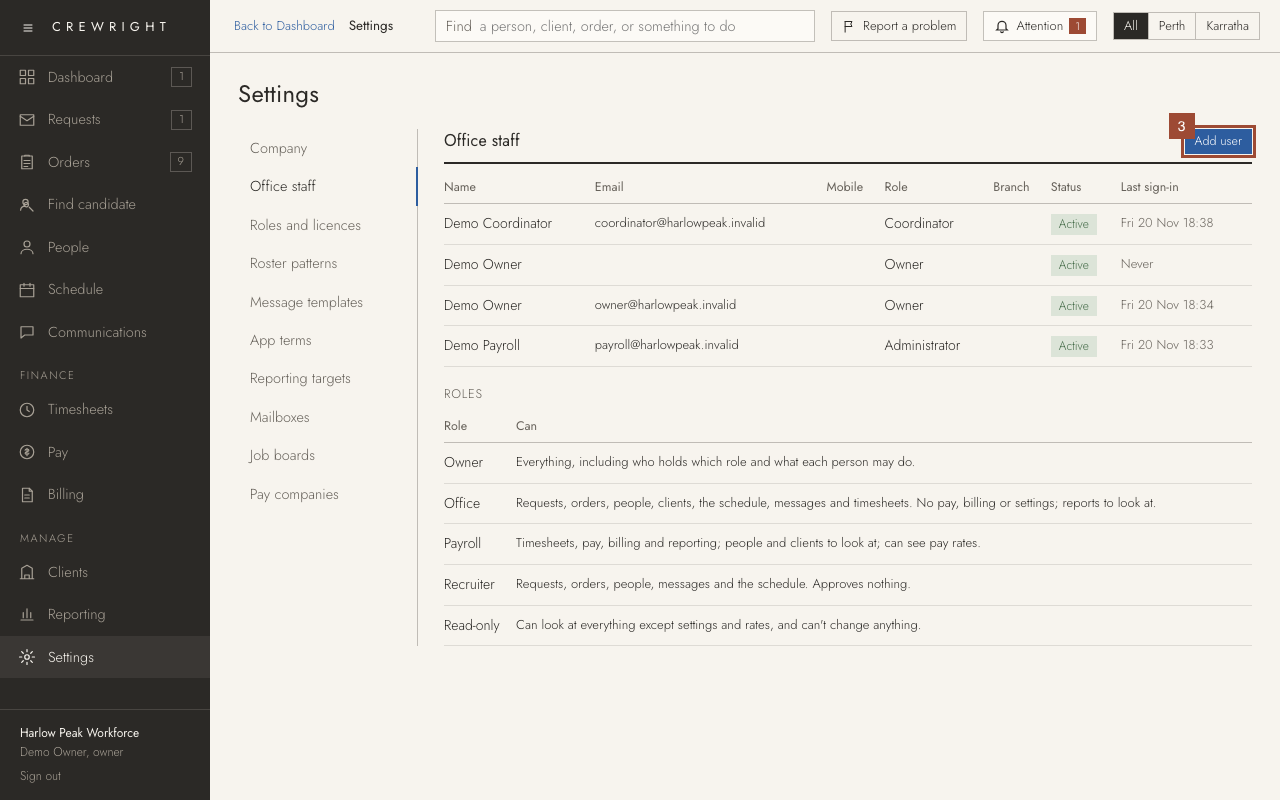
3. Press Add user.
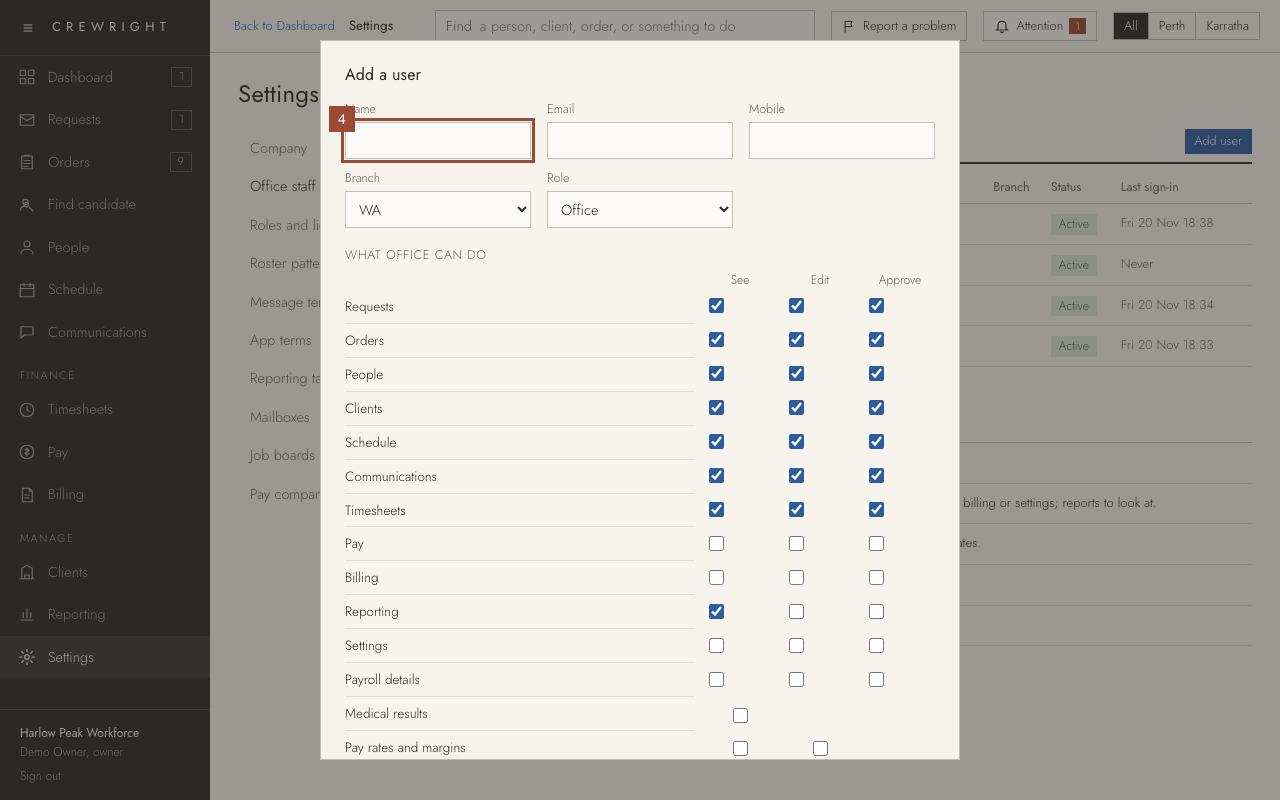
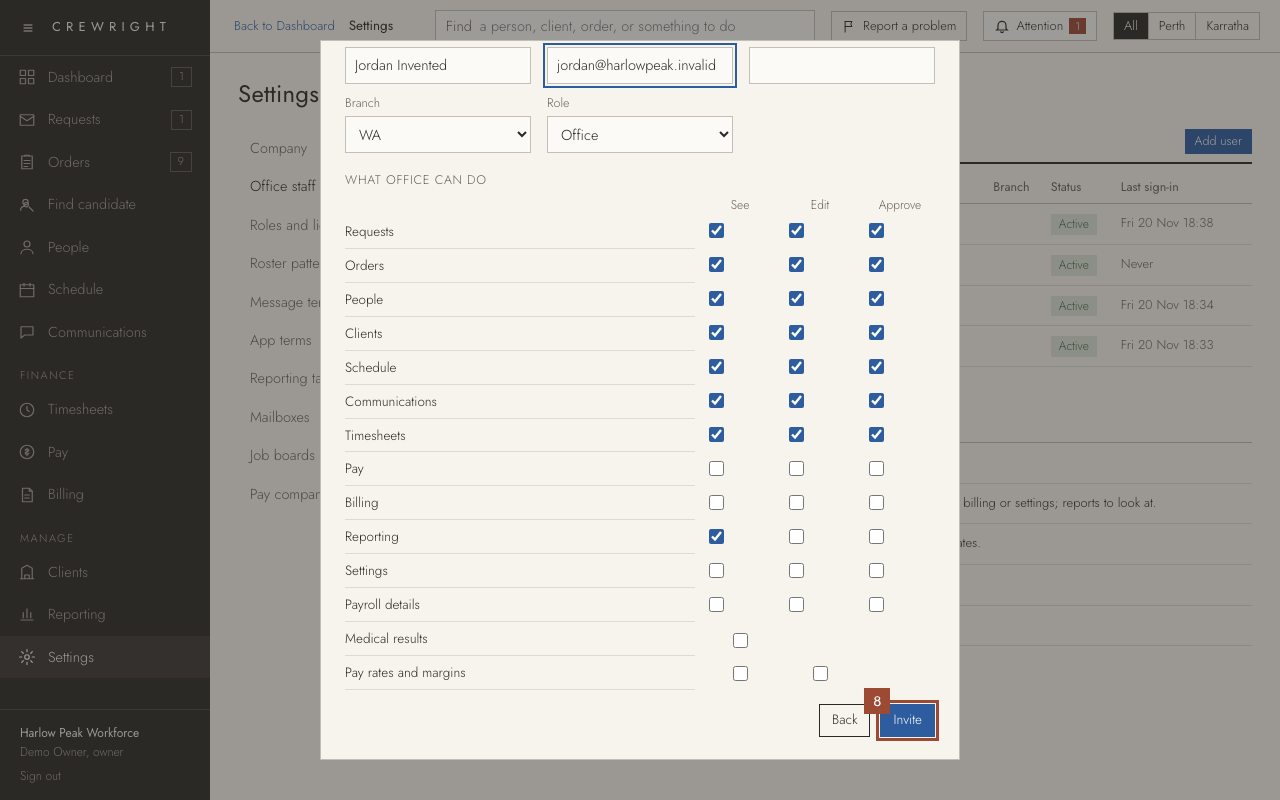
4. Type their Name…
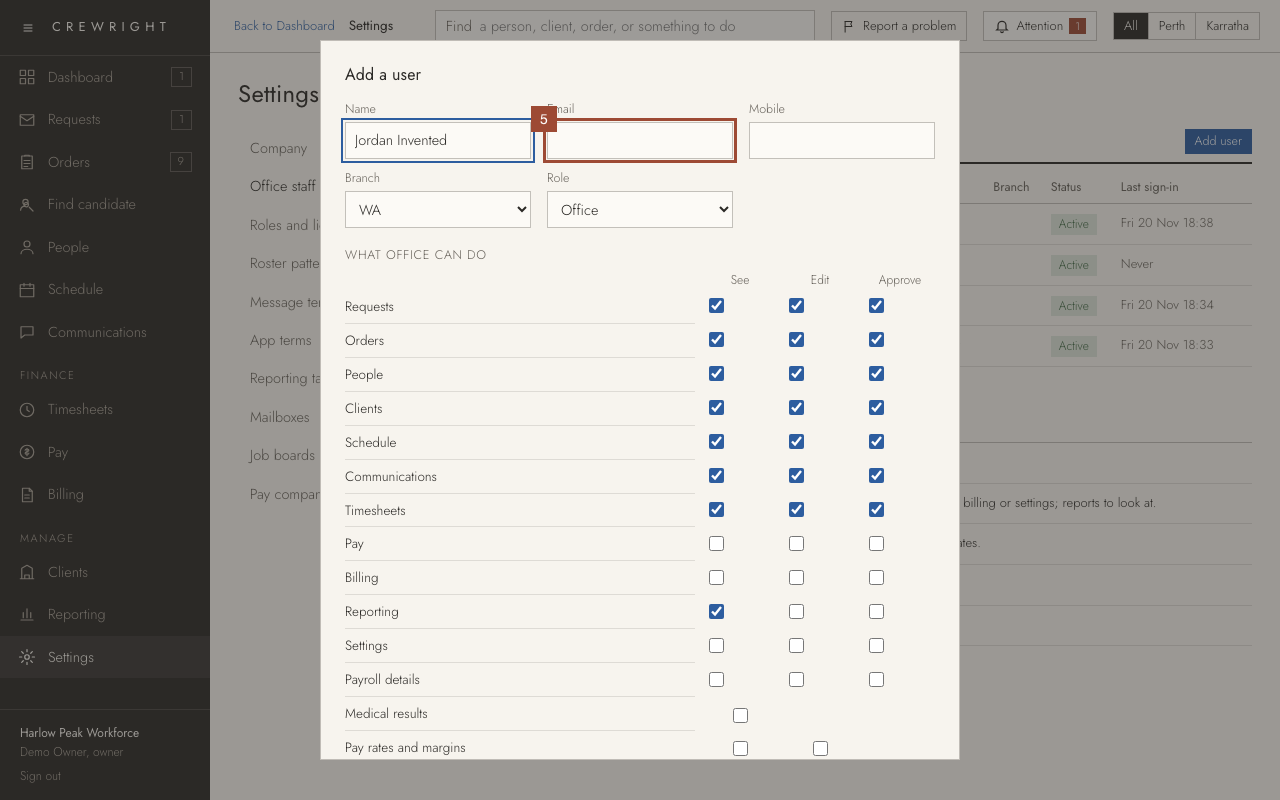
5. …and their own work Email. The invitation goes there, and it is what they sign in with.
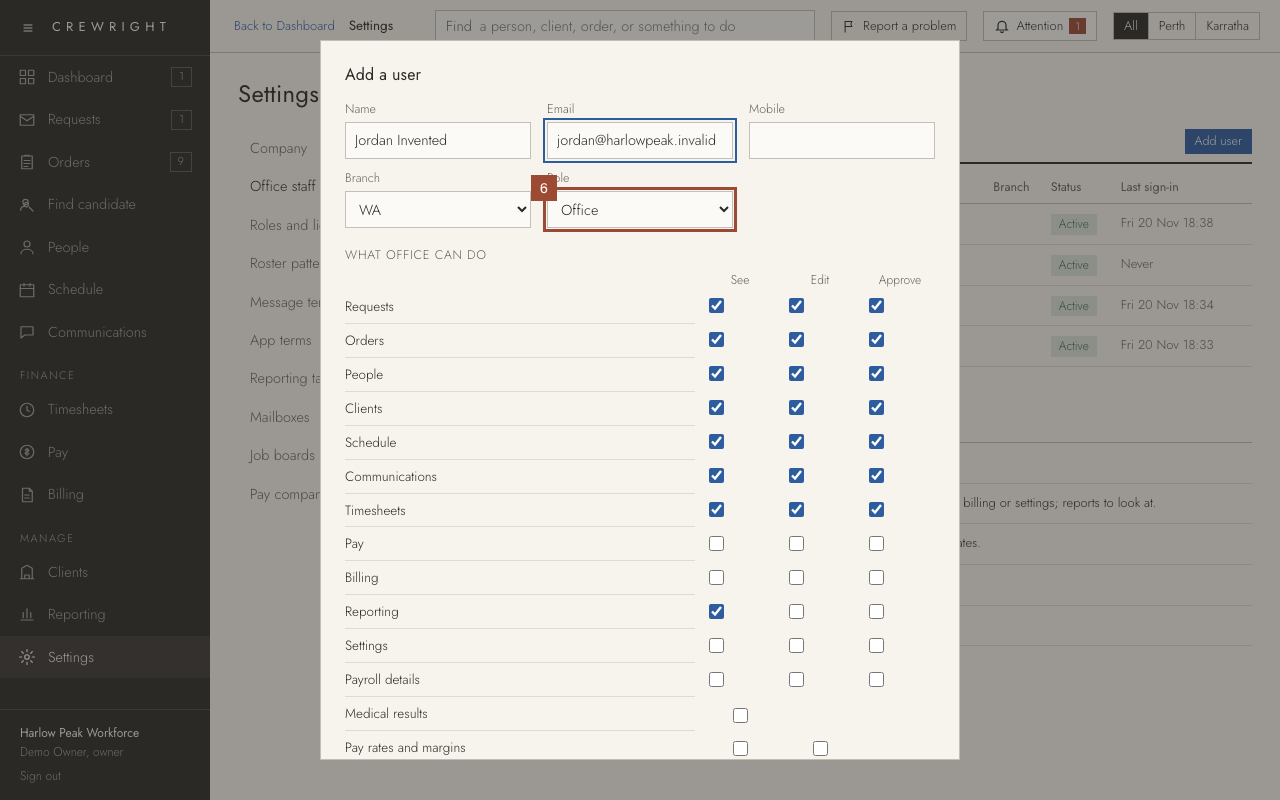
6. Choose their Role. Office suits most people: requests, orders, people, clients, the schedule, messages and timesheets. Owner can do everything, including adding staff.
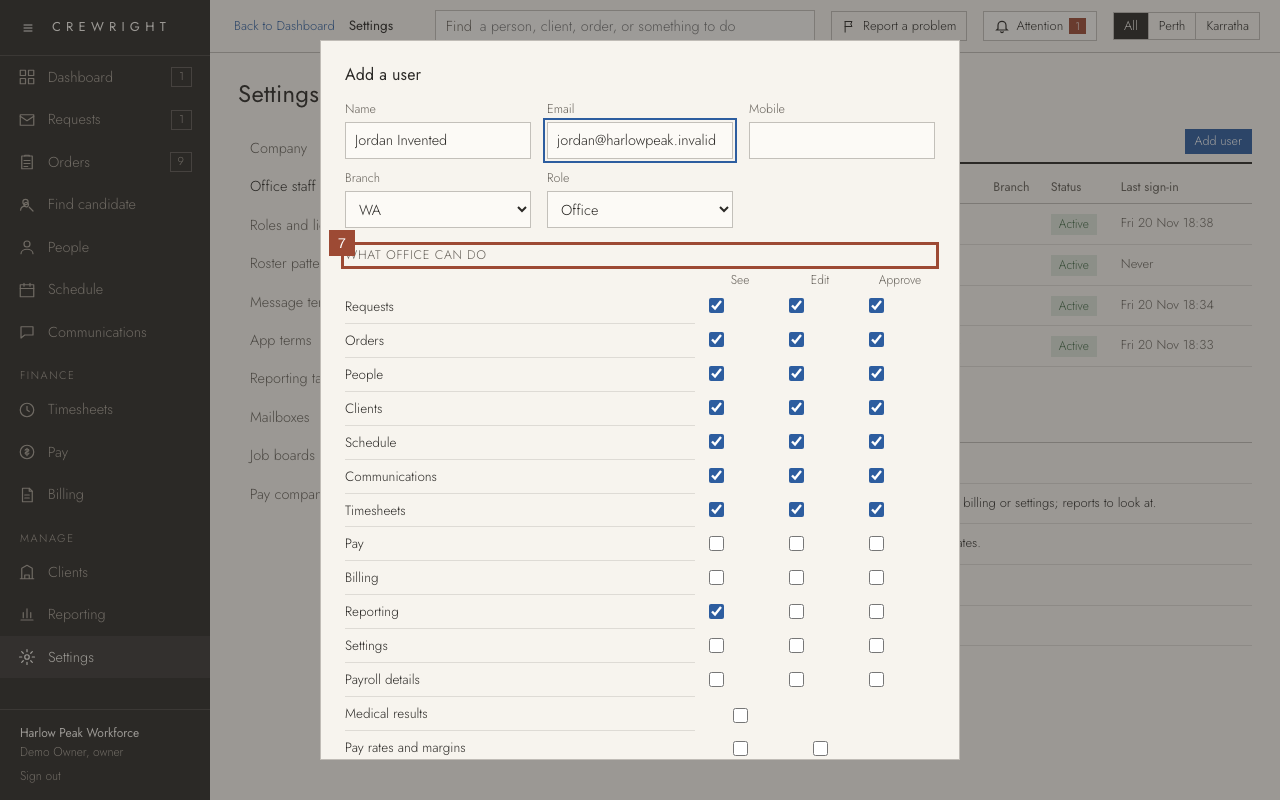
7. The grid shows what that role can see, edit and approve. Tick or untick a box to change it for this person only.
8. Press Invite.
Done Done. They are emailed a link to choose a password. It works once; Forgot your password? on the sign-in page gives a fresh one. Where the email cannot go, as with this invented address, the link shows here for you to pass on.