Help · Coordinator
Change or cancel an order line
When the client changes their order. Everyone offered the work or placed on it is told on their phone, and every change is recorded.
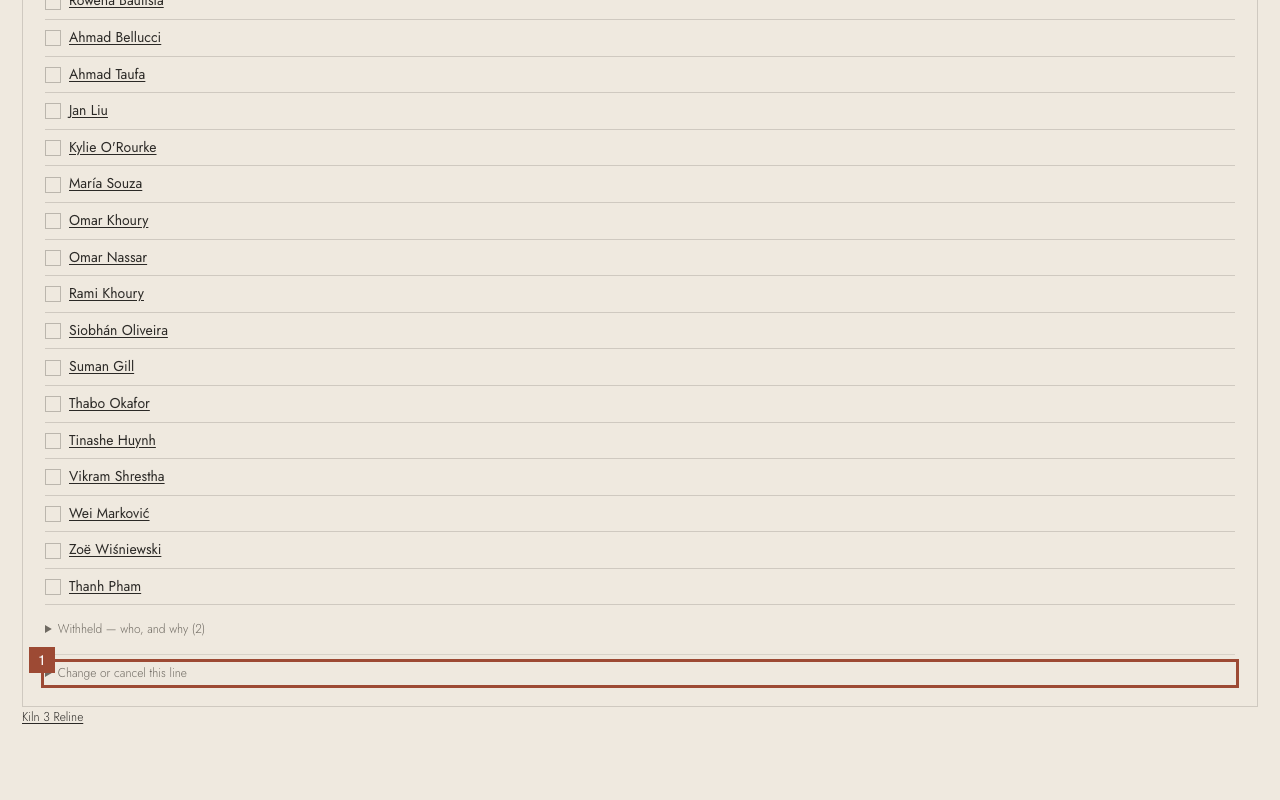
1. On the line to change, open Change or cancel this line.
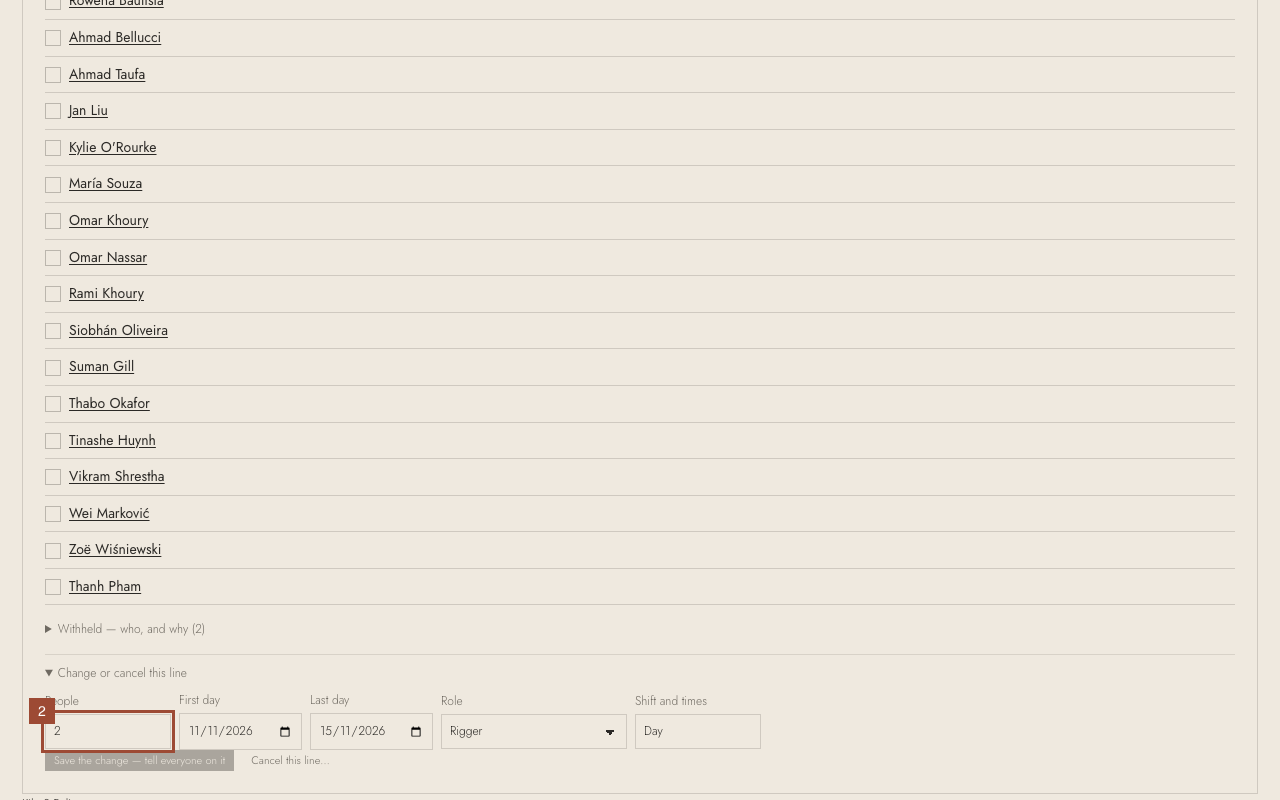
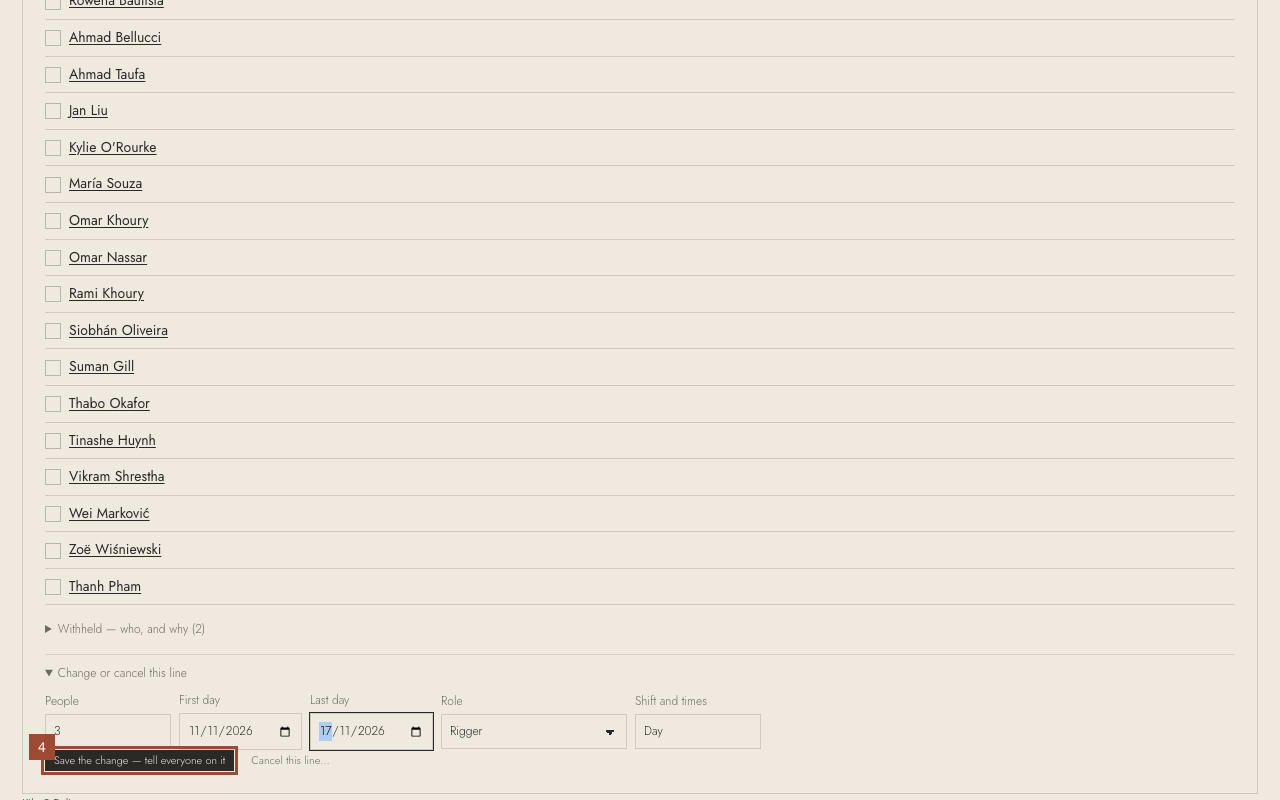
2. Change what the client asked for: here, People from 2 to 3…
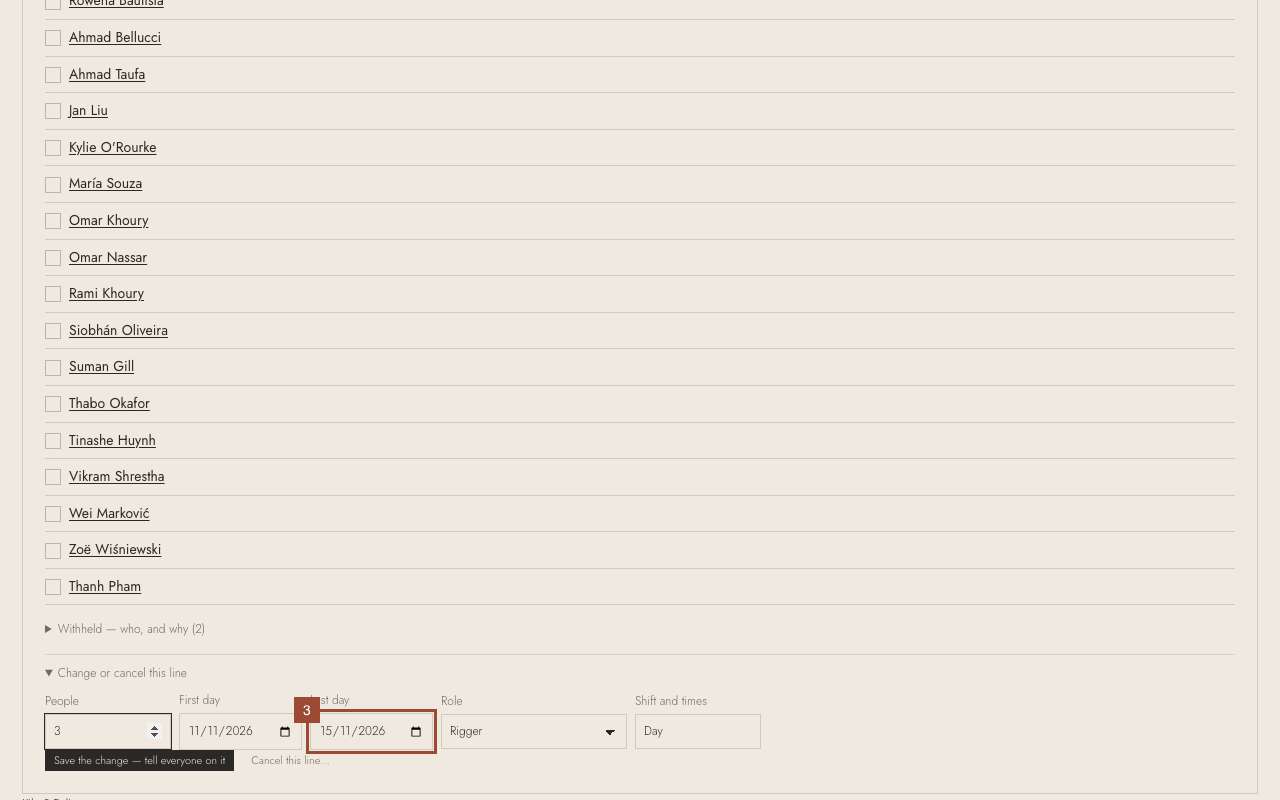
3. …and the Last day. The role and the shift and times change the same way.
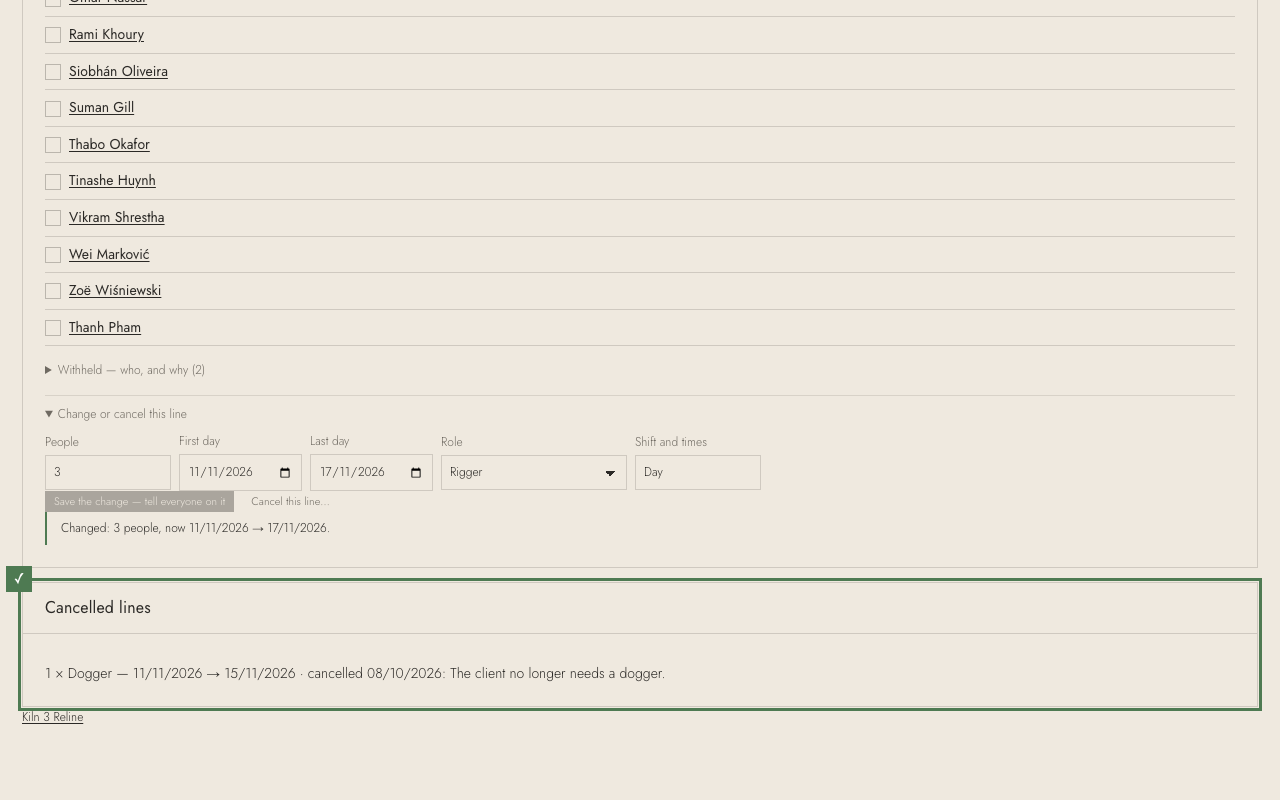
4. Press Save the change. If someone placed cannot do the new dates, it says who, and nothing changes.
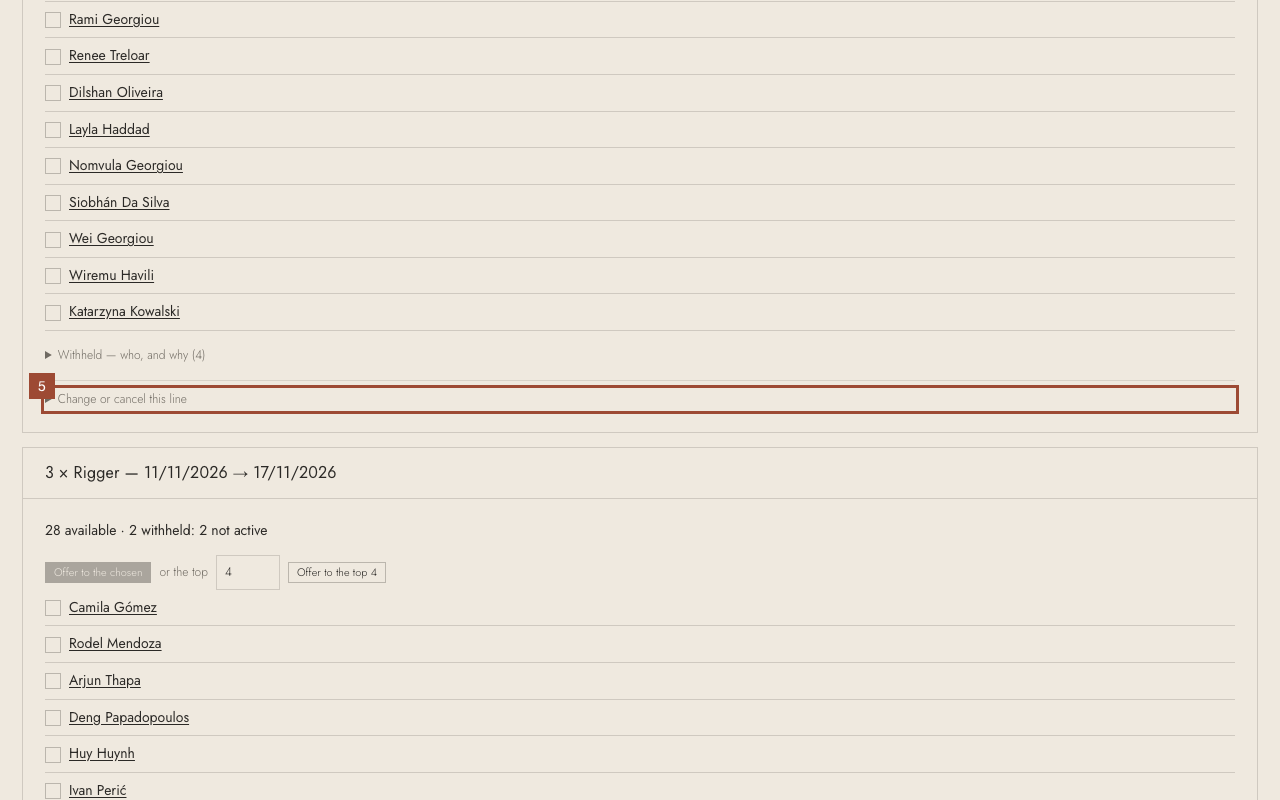
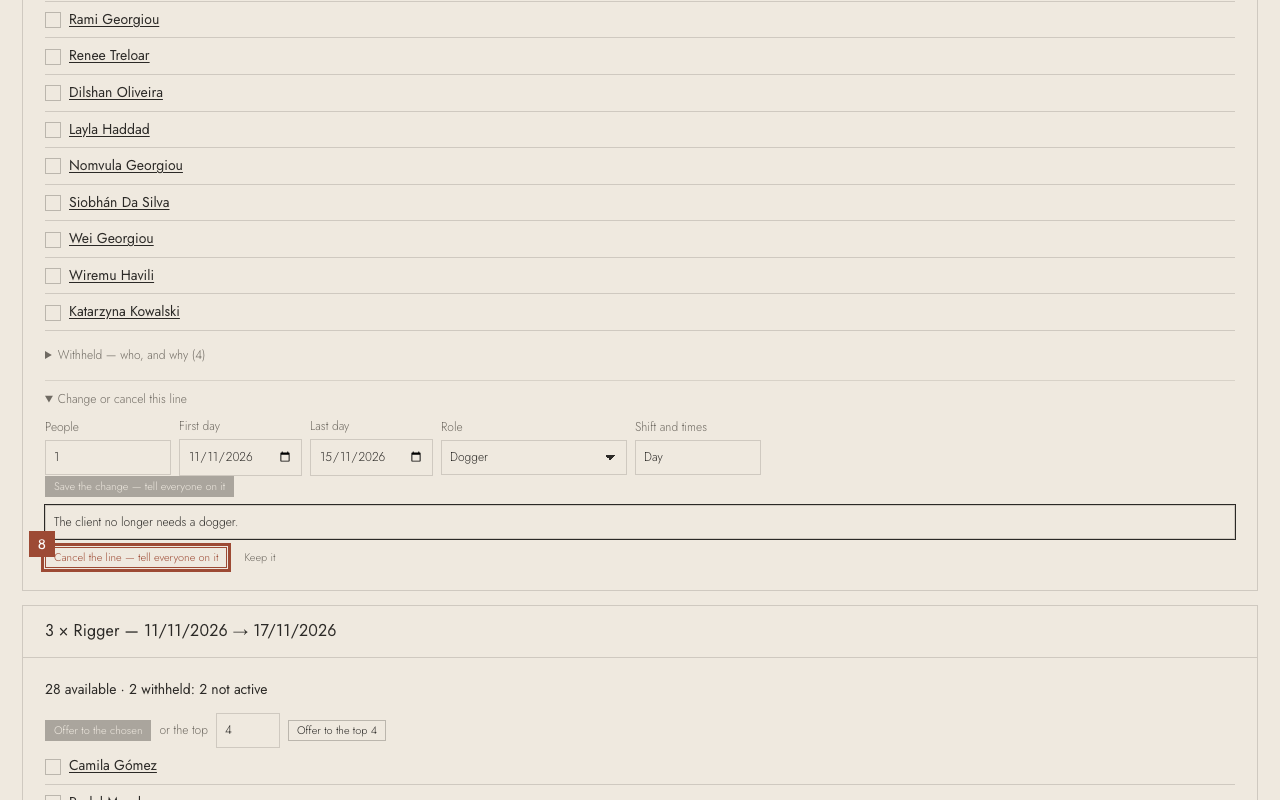
5. To cancel a line: open Change or cancel this line on it…
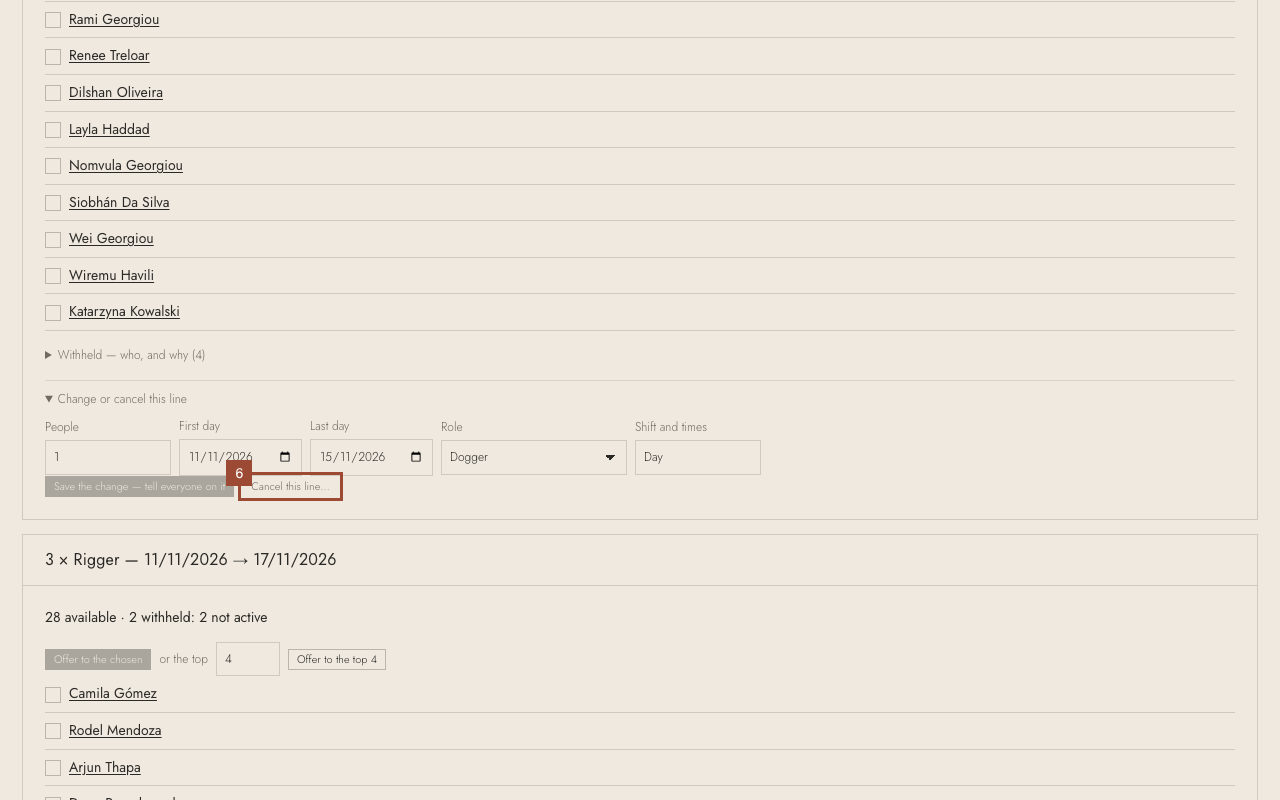
6. …press Cancel this line……
7. …say why (the people on it see this)…
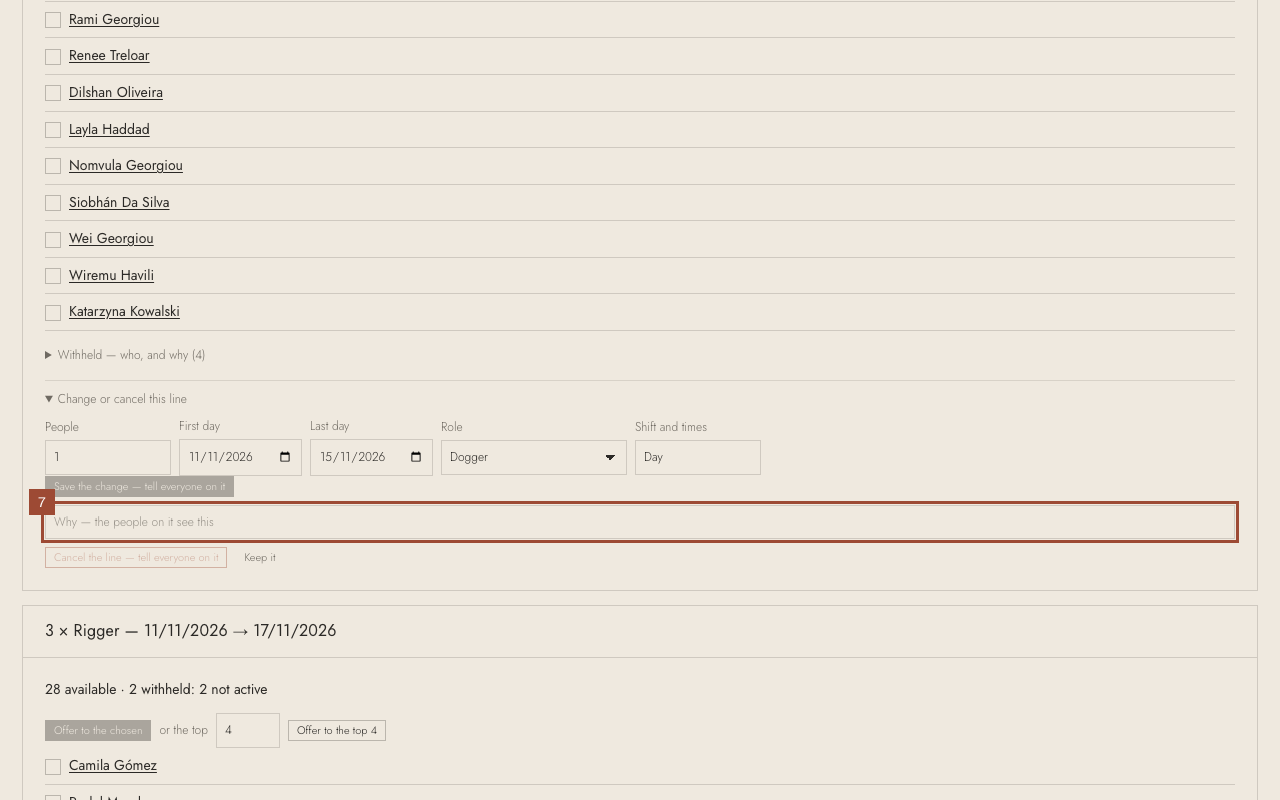
8. …and press Cancel the line.
✓ Done. A cancelled line stays on the order, with why; the people on it were told.