Help · Worker (the phone app)
Hours with no signal
No signal at the end of a shift? Put your hours in anyway. They are kept on your phone, nothing is lost, and you send them with one tap when you have signal.
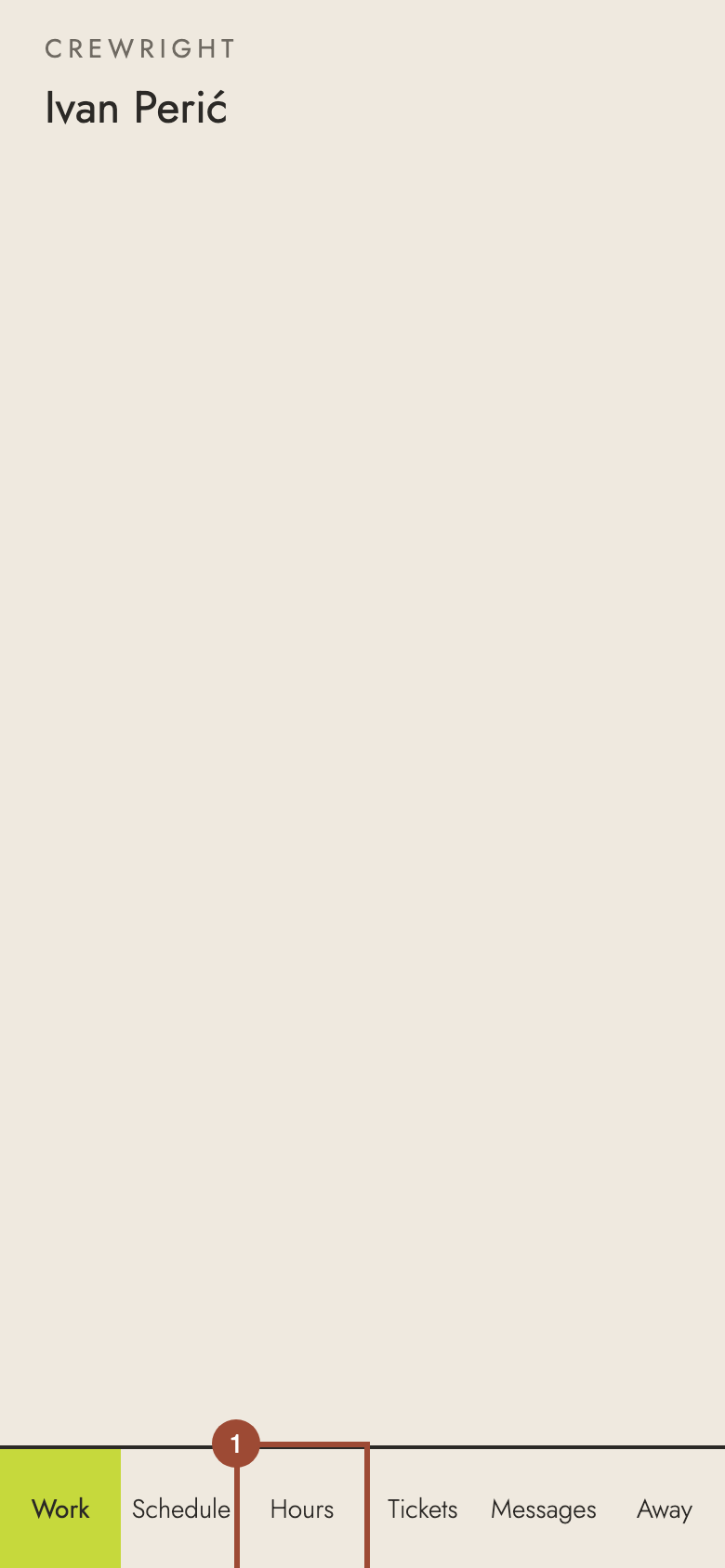
1. Open Hours.
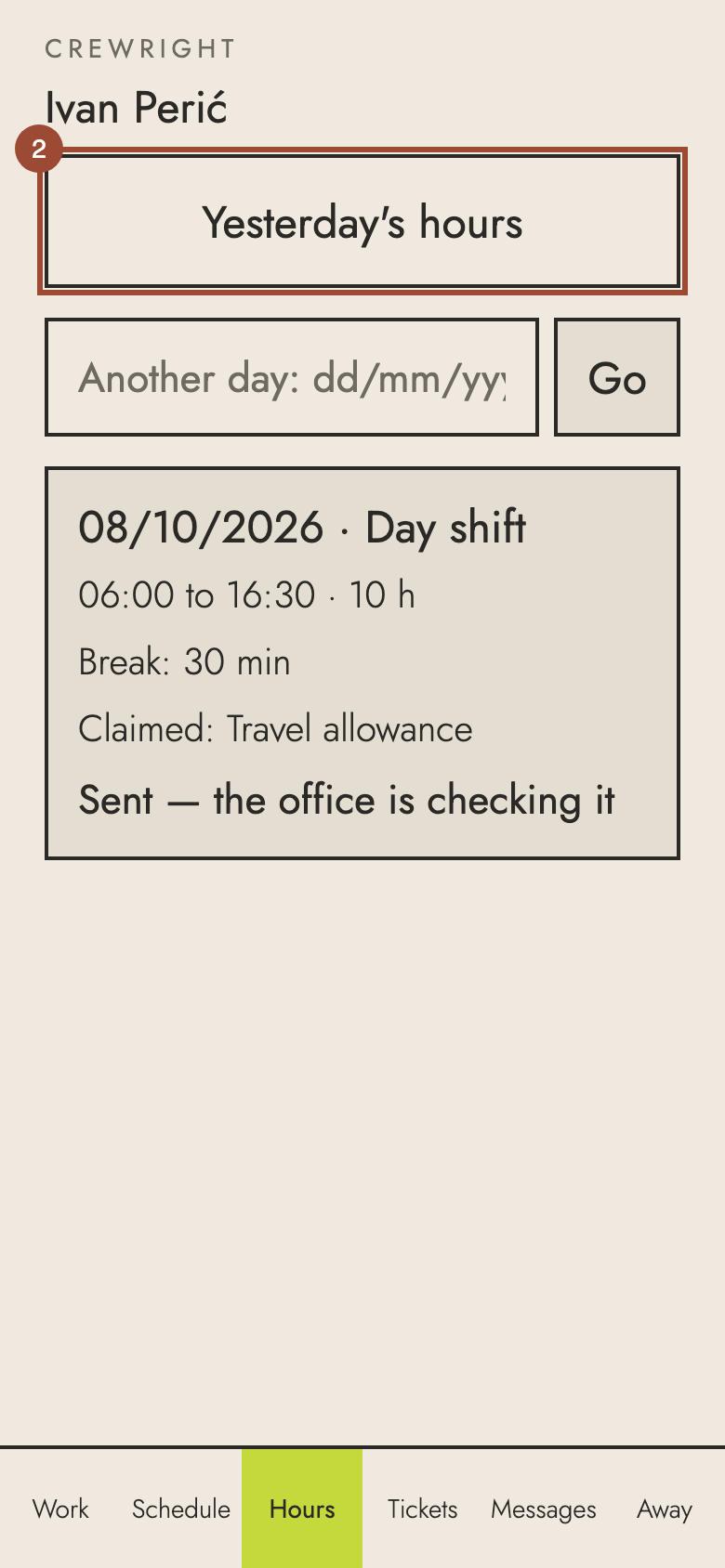
2. Put the day in as usual — here, Yesterday's hours.
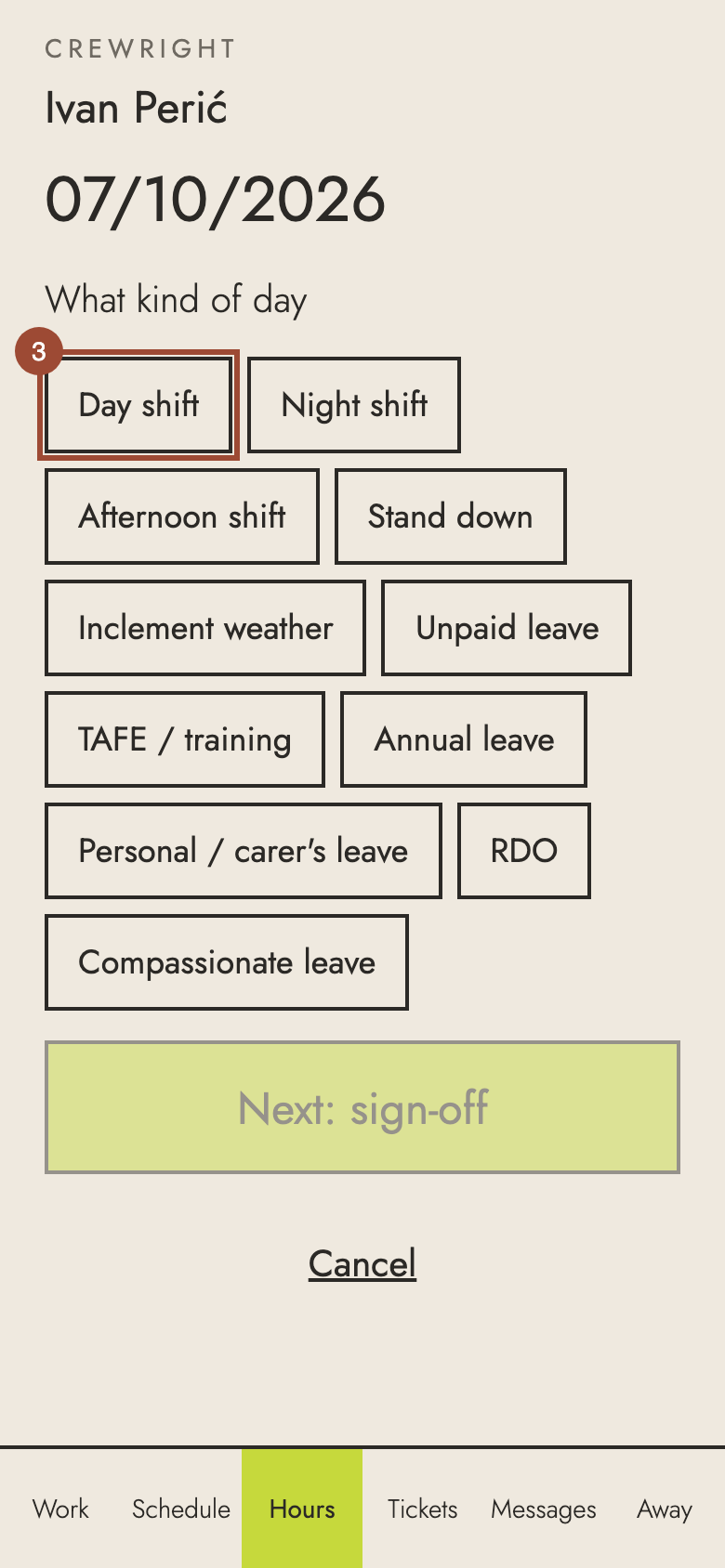
3. Choose the kind of day…
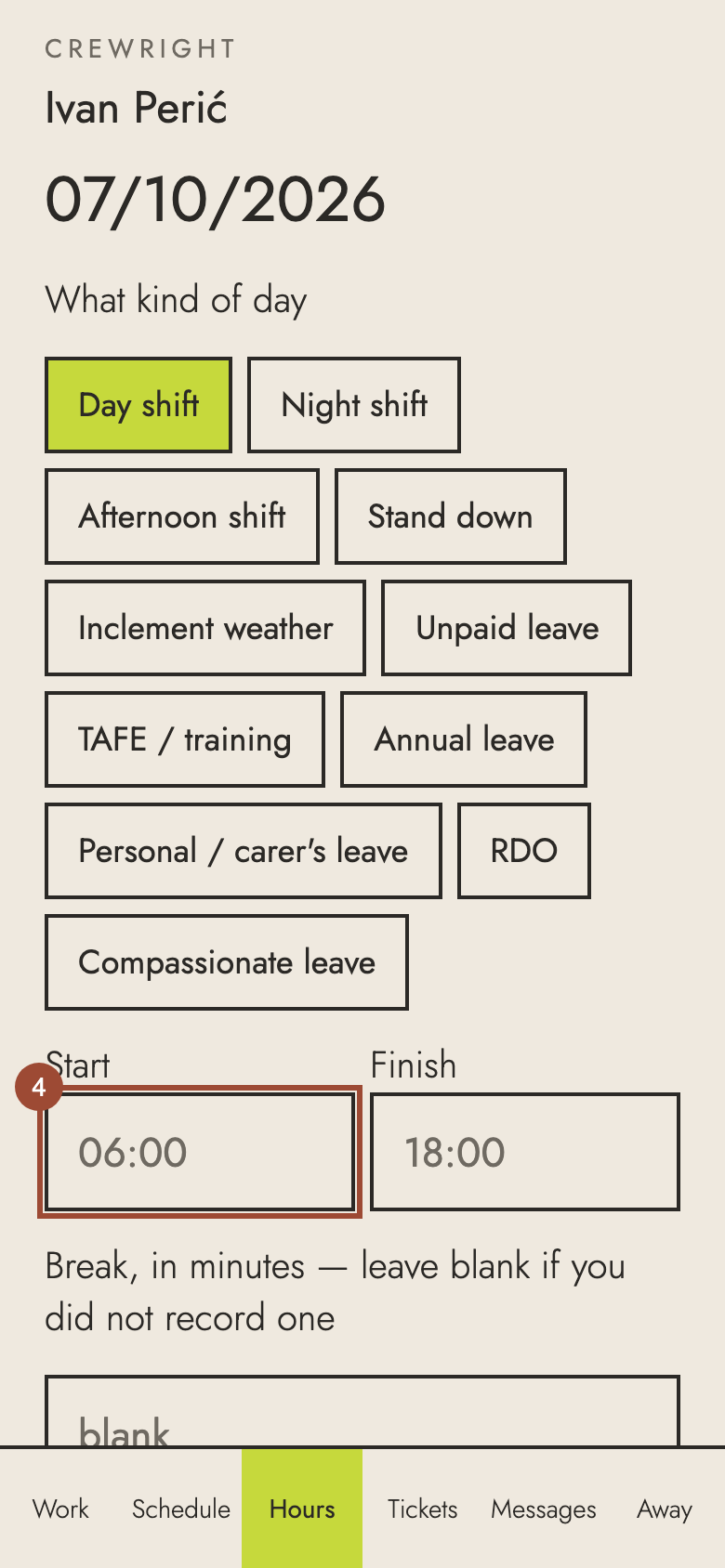
4. …when you started…
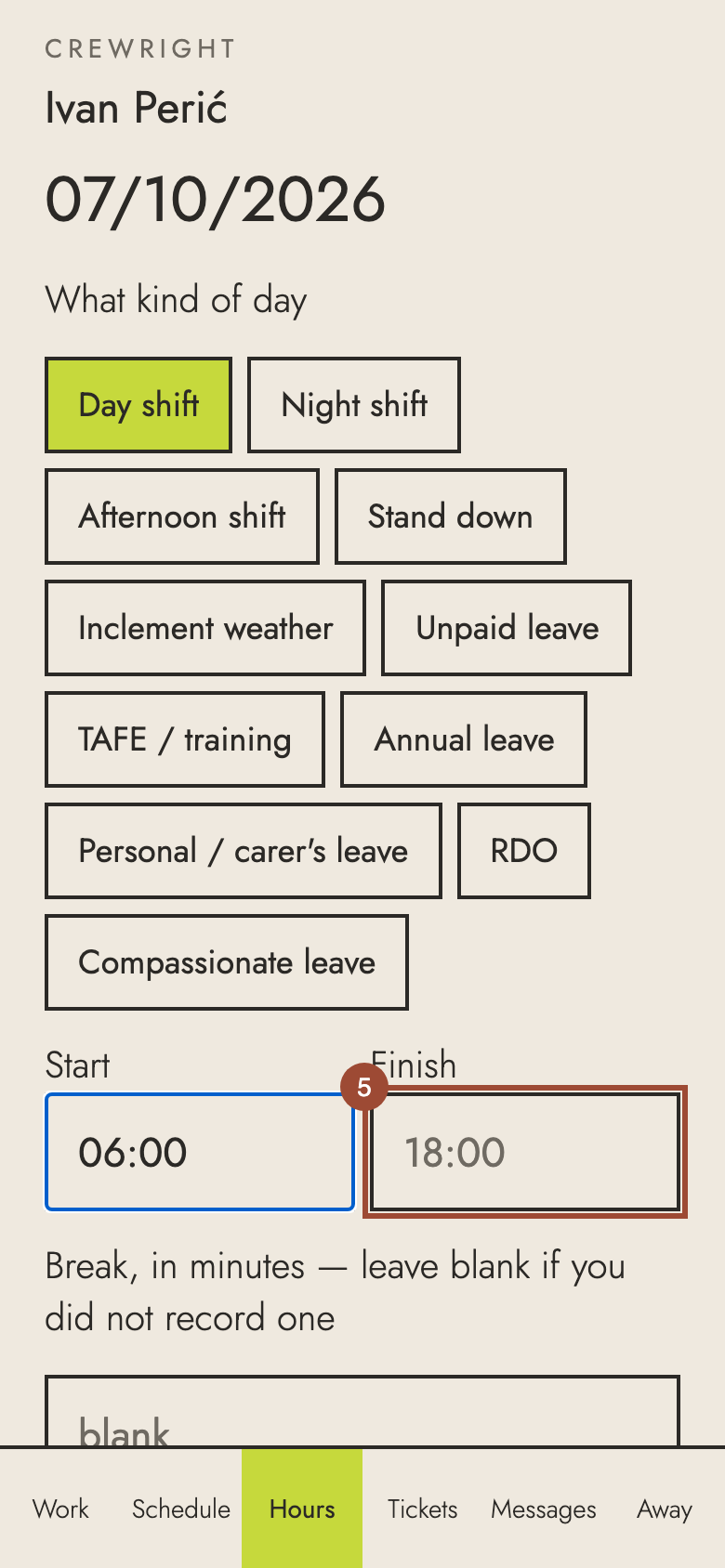
5. …when you finished…
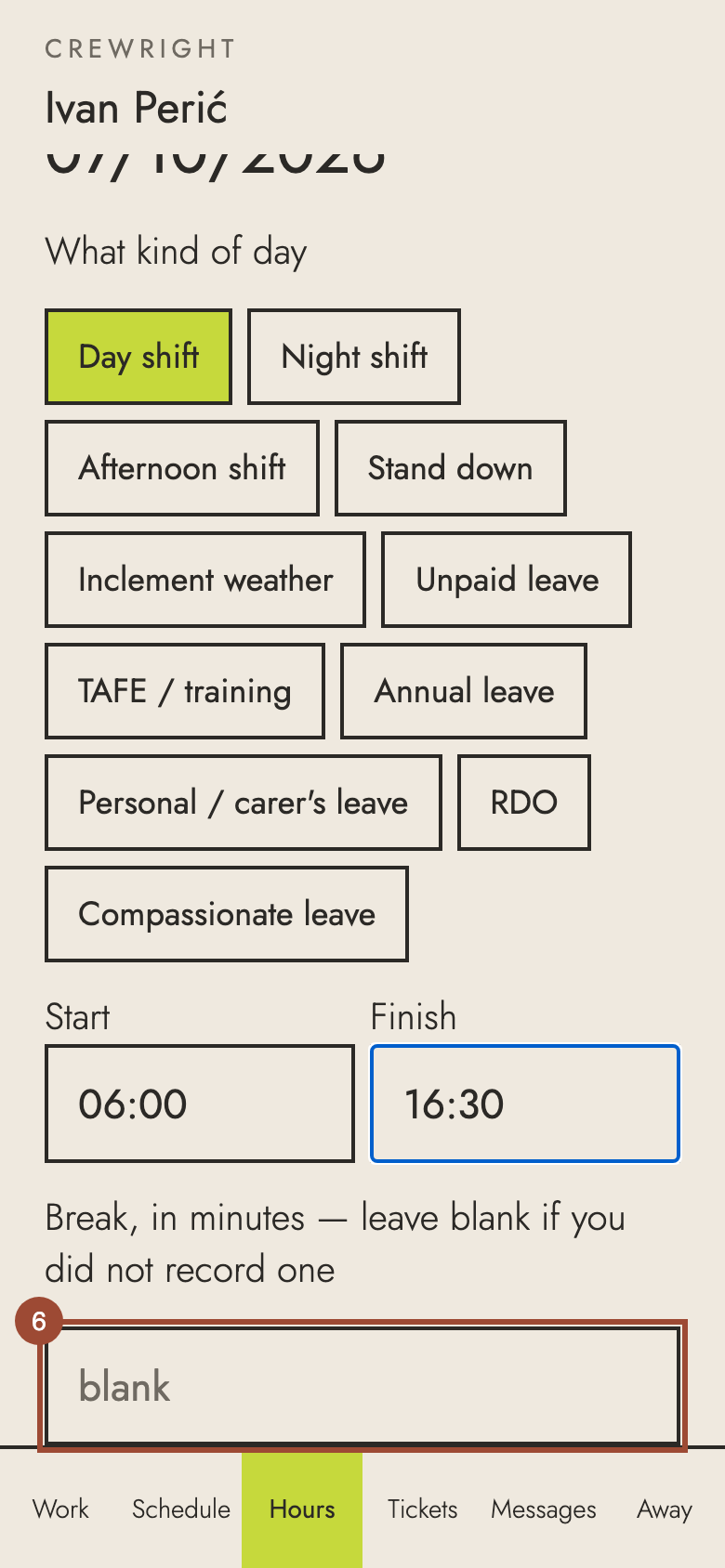
6. …and your break.
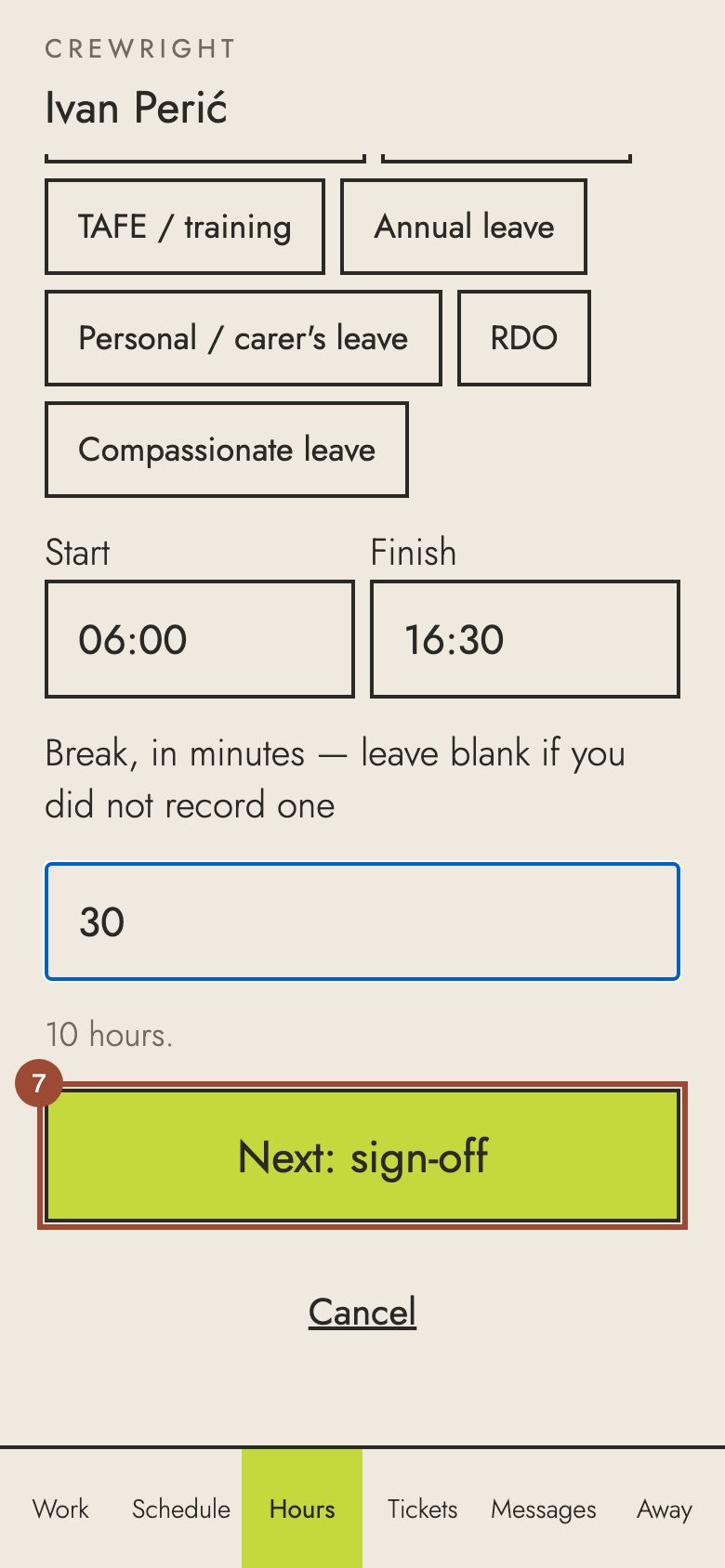
7. Press Next: sign-off.
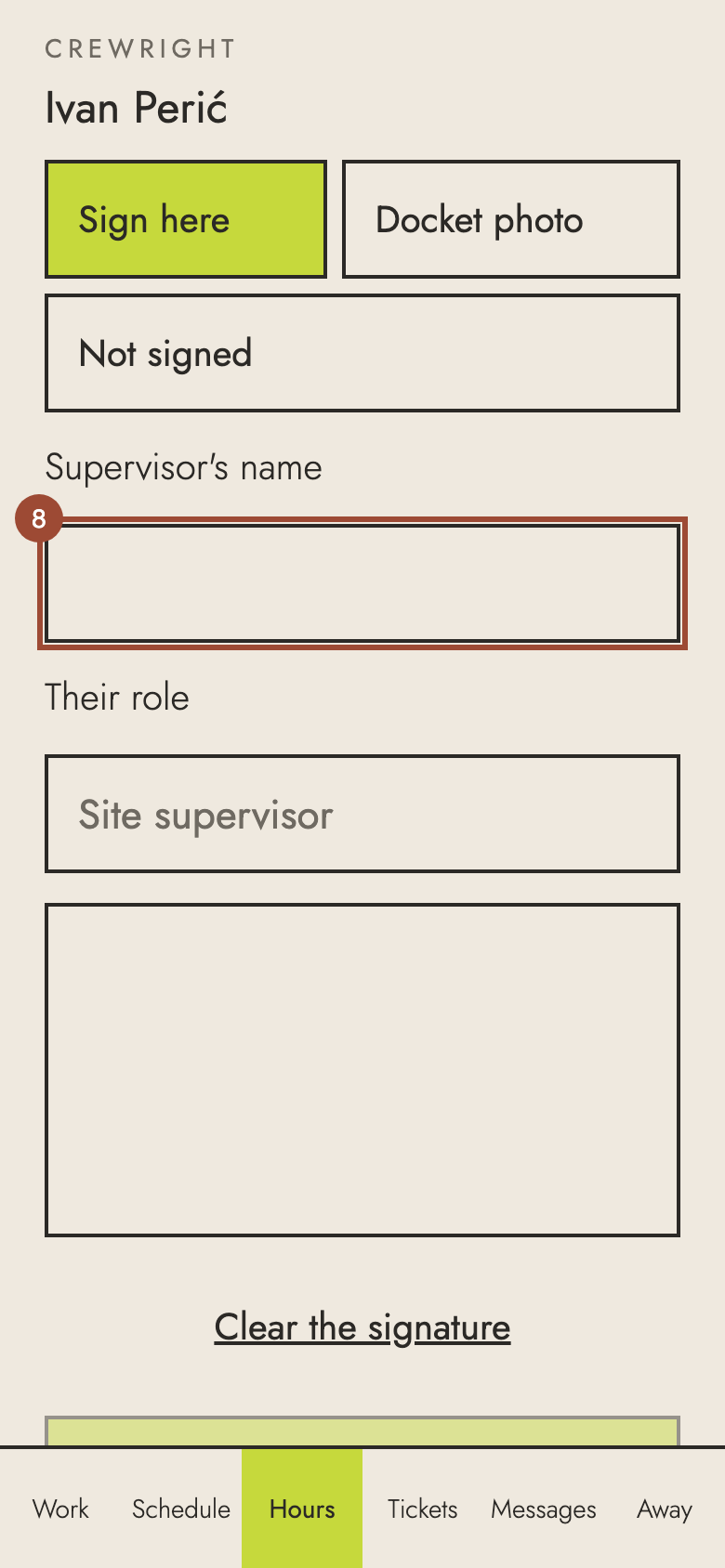
8. Your supervisor types their name…
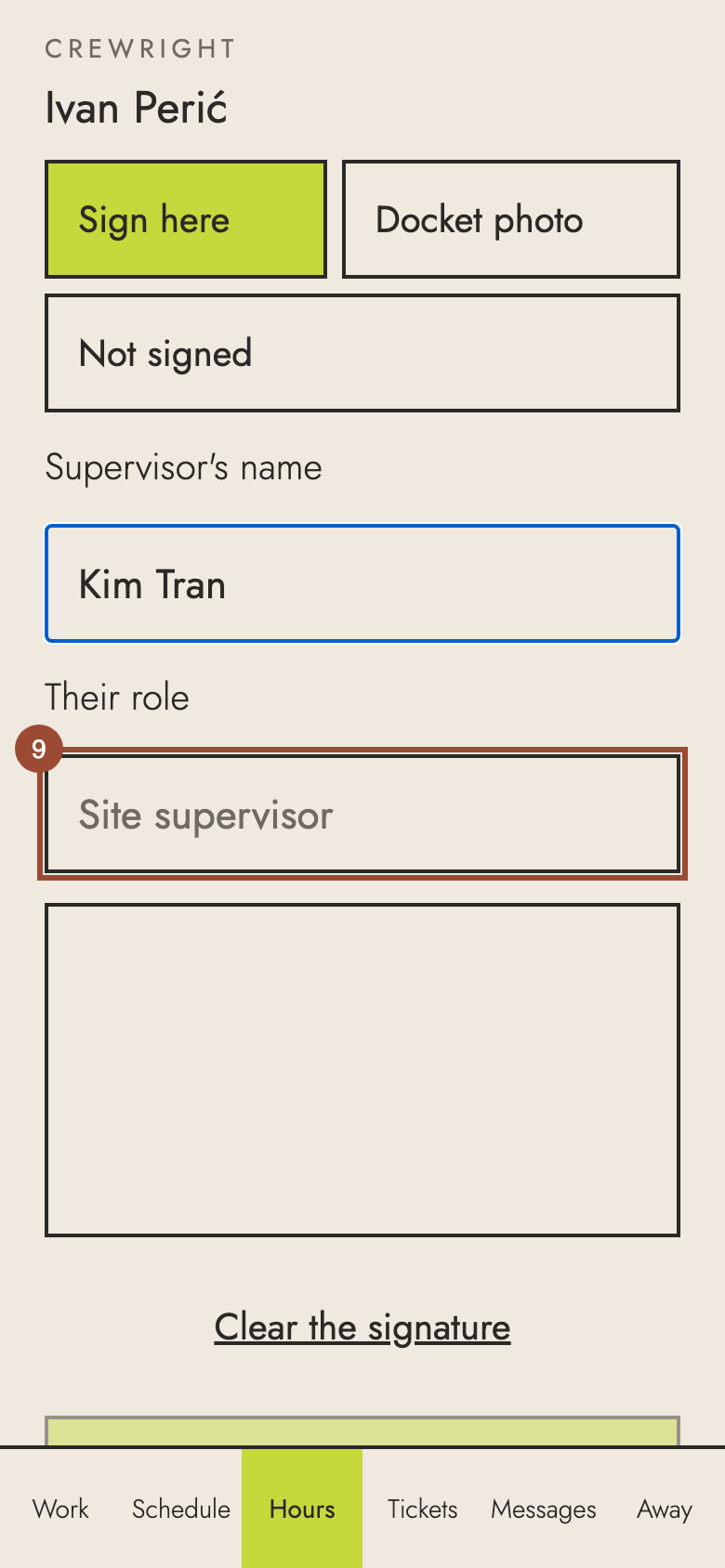
9. …and their role…
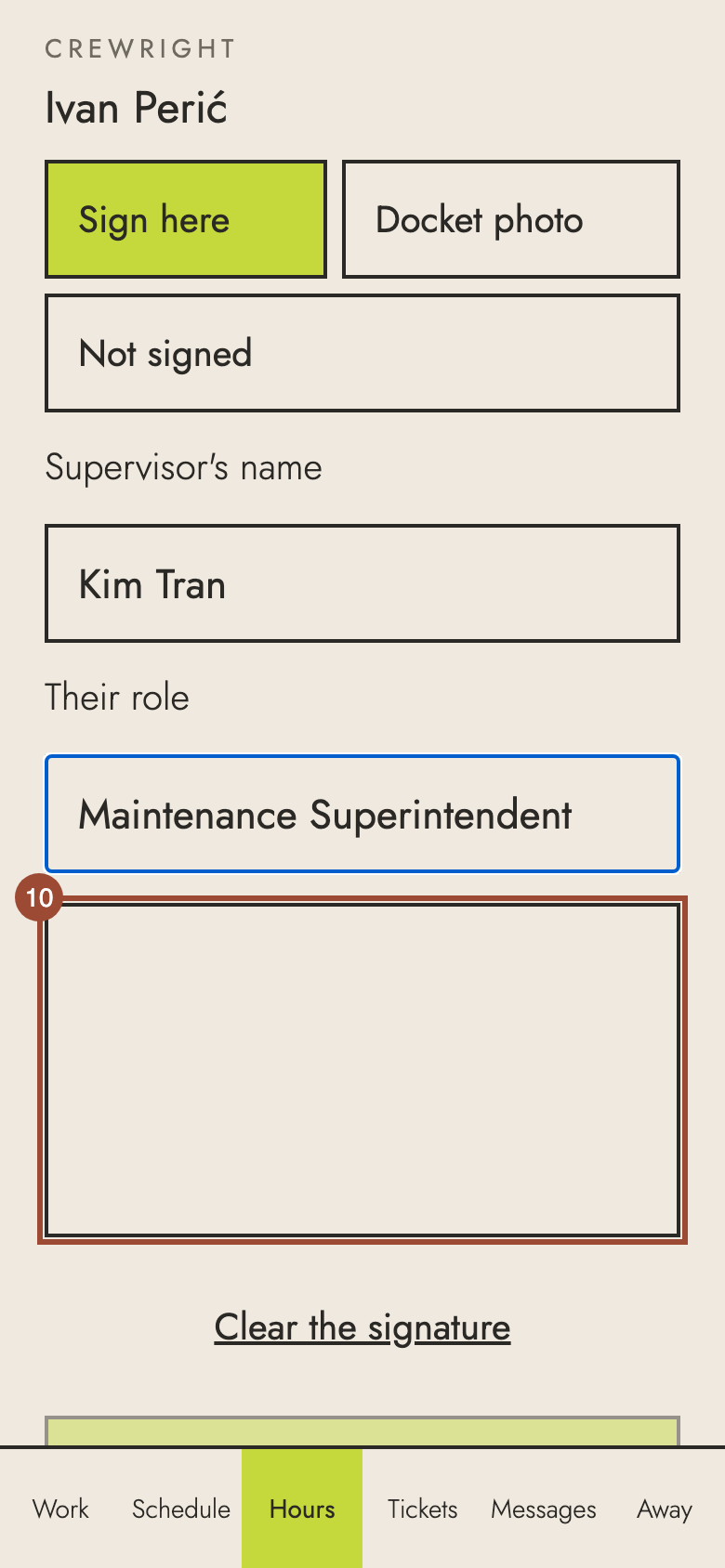
10. …and signs.
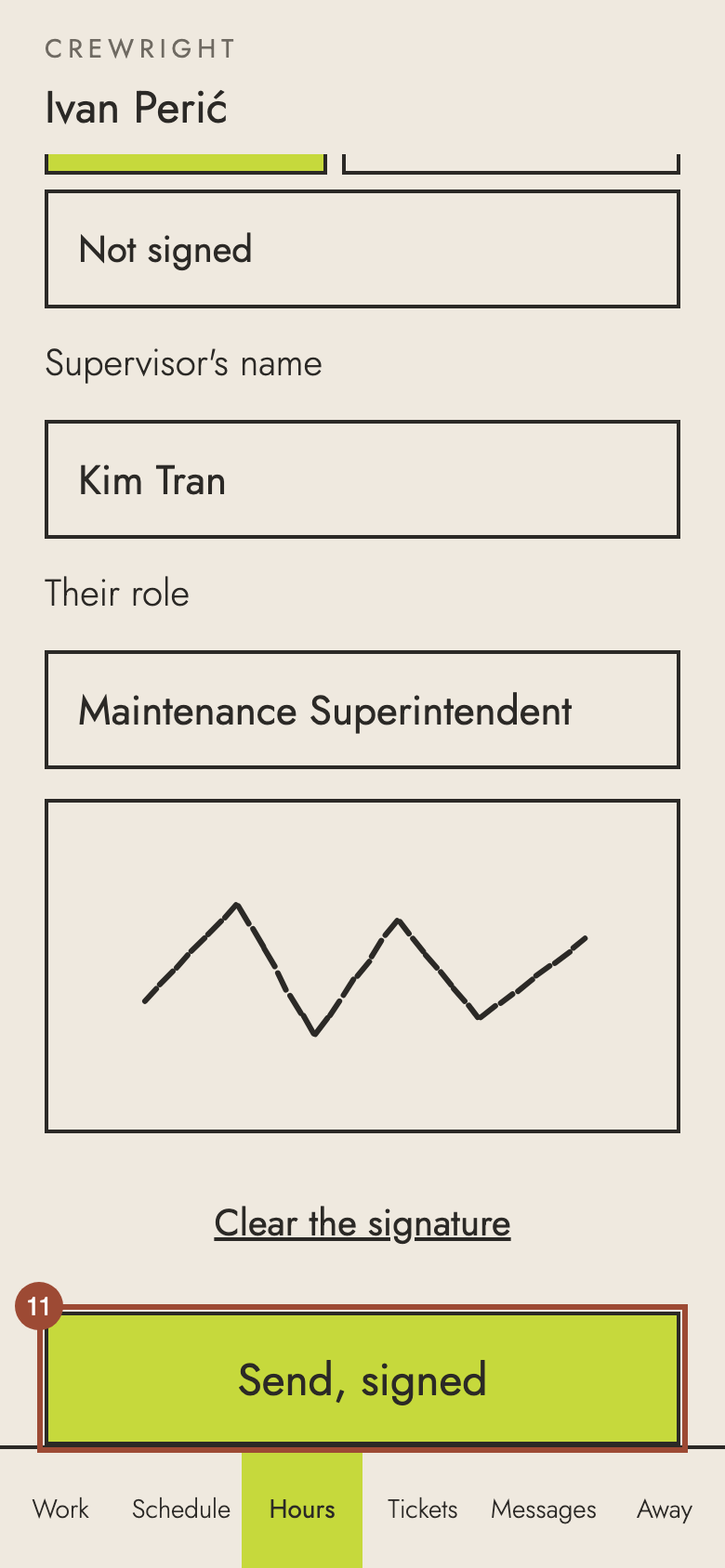
11. Press Send, signed — even with no signal.
12. No signal: the phone keeps your hours. Nothing is lost, even if you close the app.
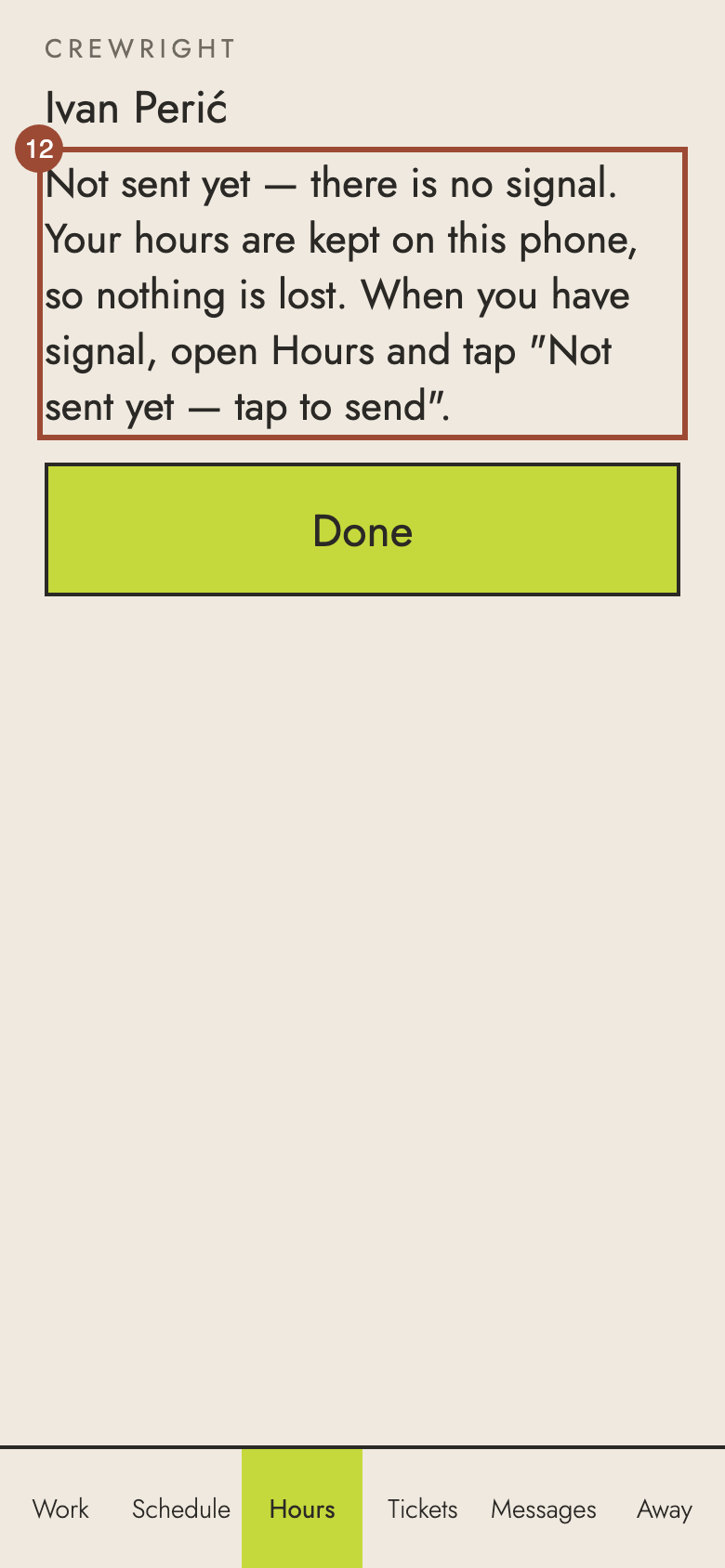
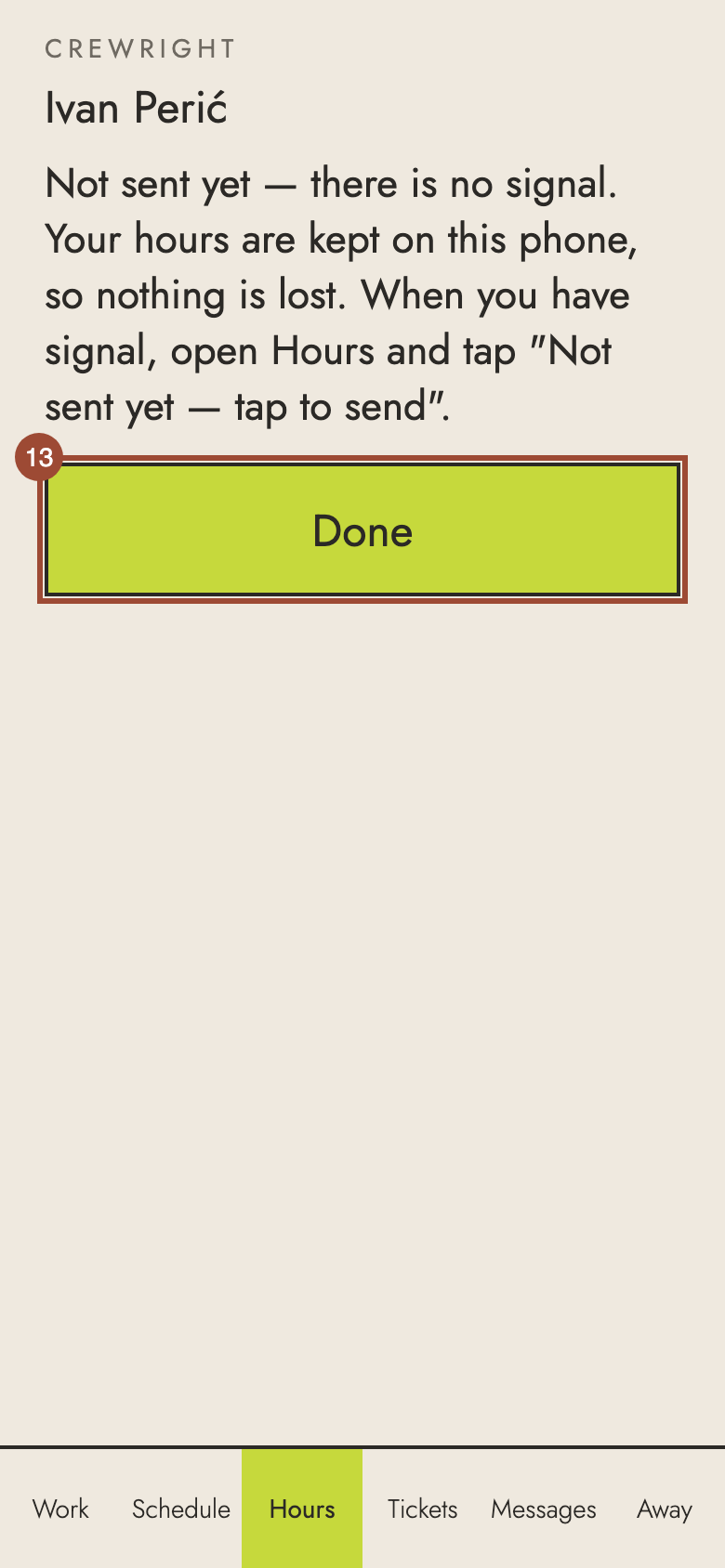
13. Press Done.
14. Back in range, open Hours: the day is at the top. Tap Not sent yet — tap to send.
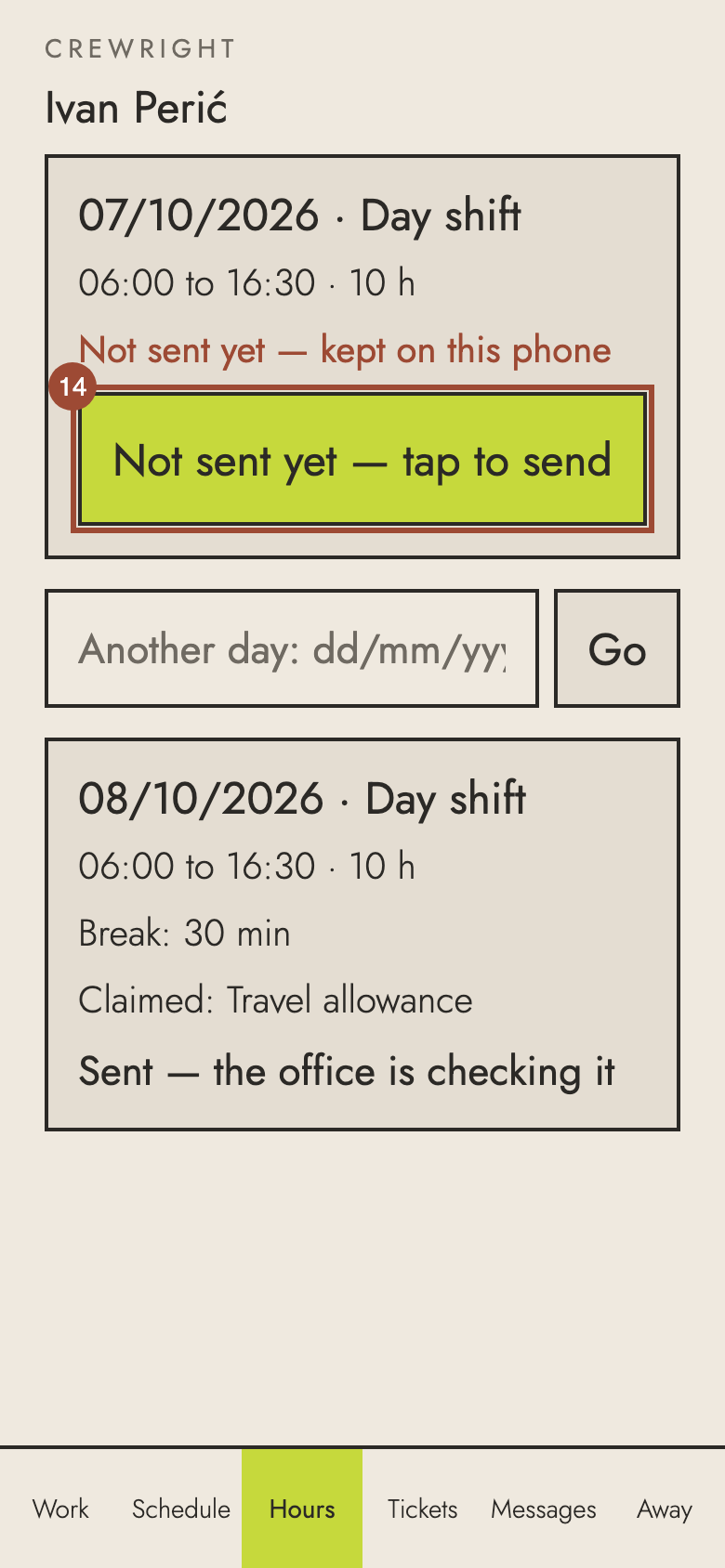
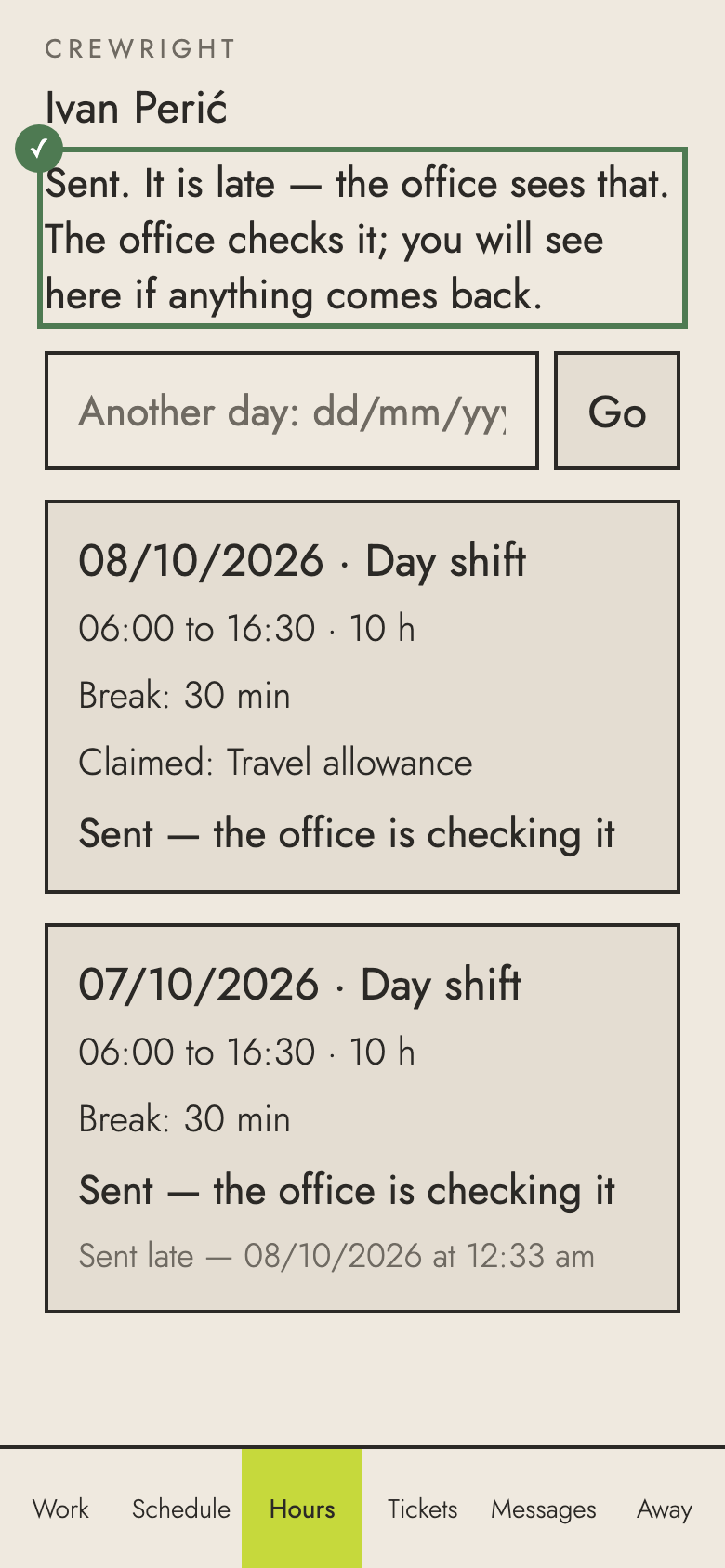
✓ Sent. It is with the office now, and leaves the top of the list.