Help · Coordinator
Make a new job order
For an order that came by phone or text. (An emailed order goes through Emails in instead.) The same checks as an email: the client, where it goes, and each line.
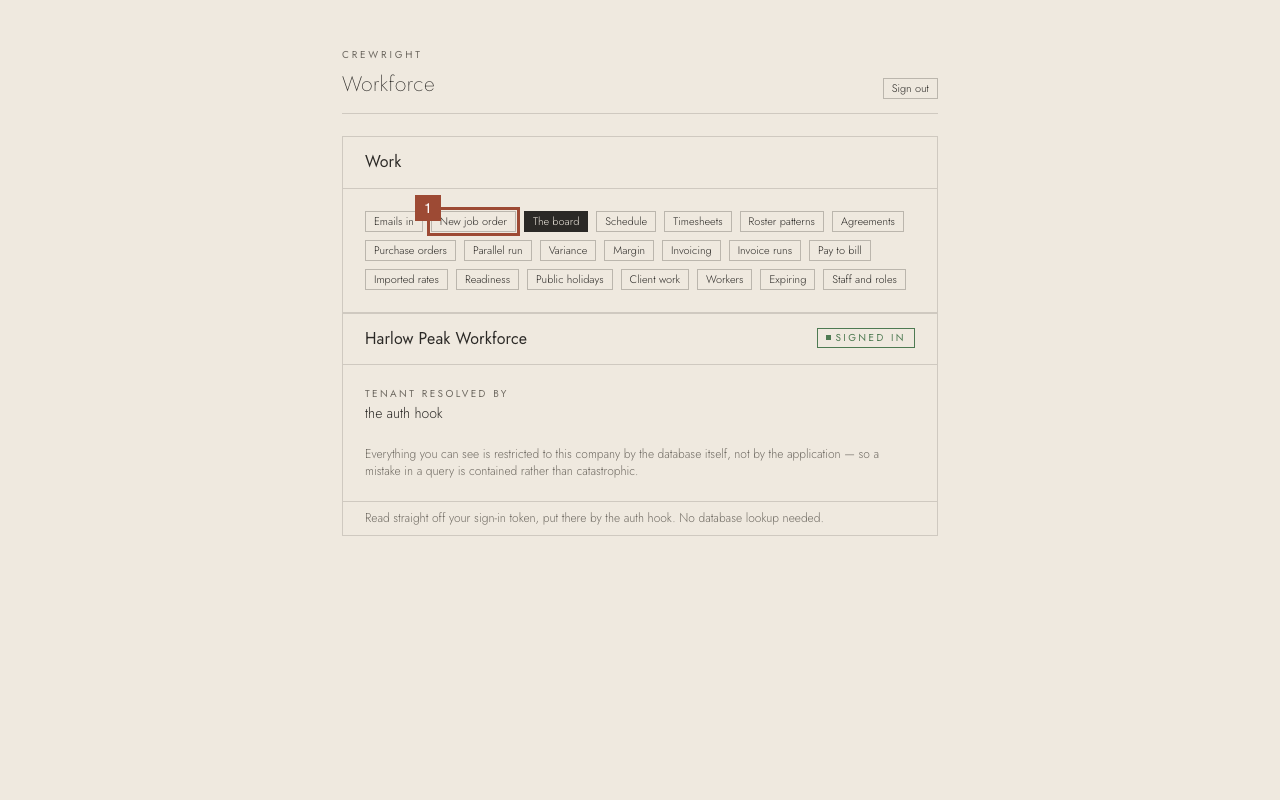
1. On the home page, open New job order.
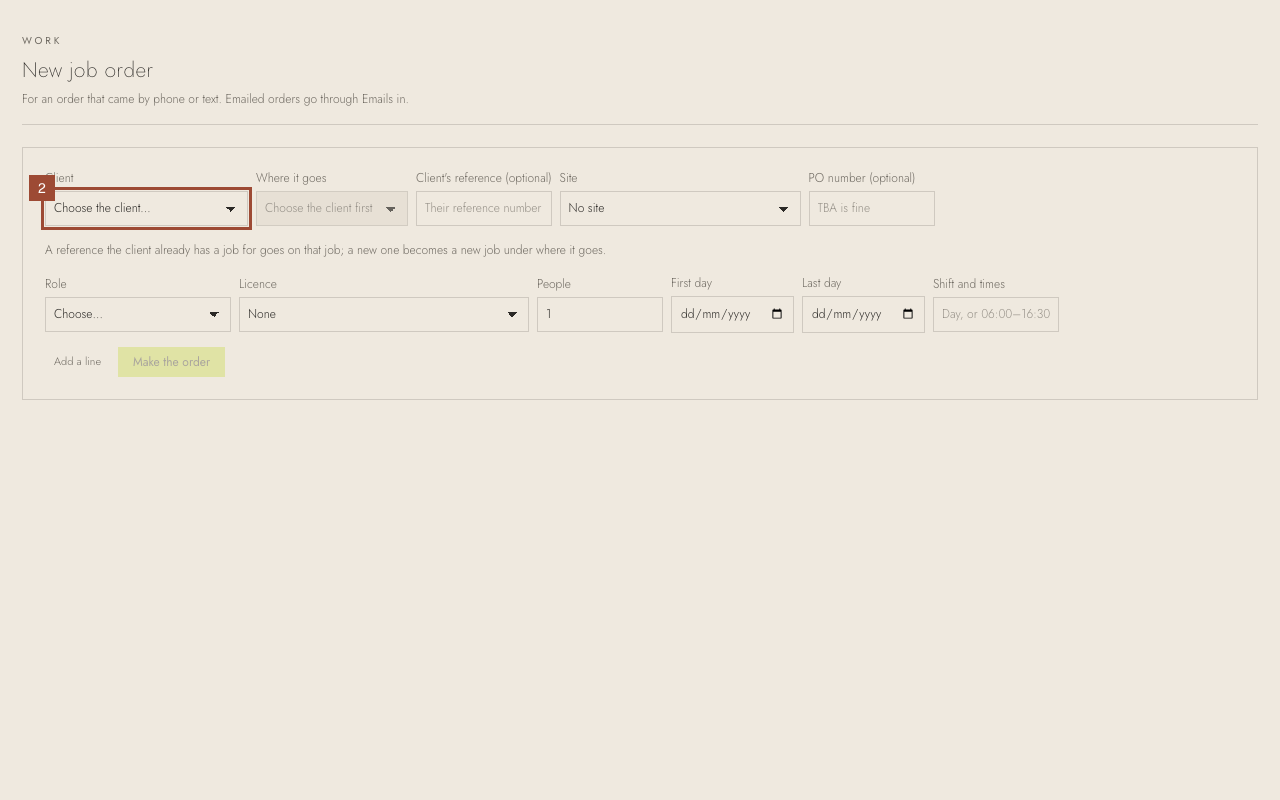
2. Choose the Client.
3. Choose Where it goes: the client's contract or project it is under.
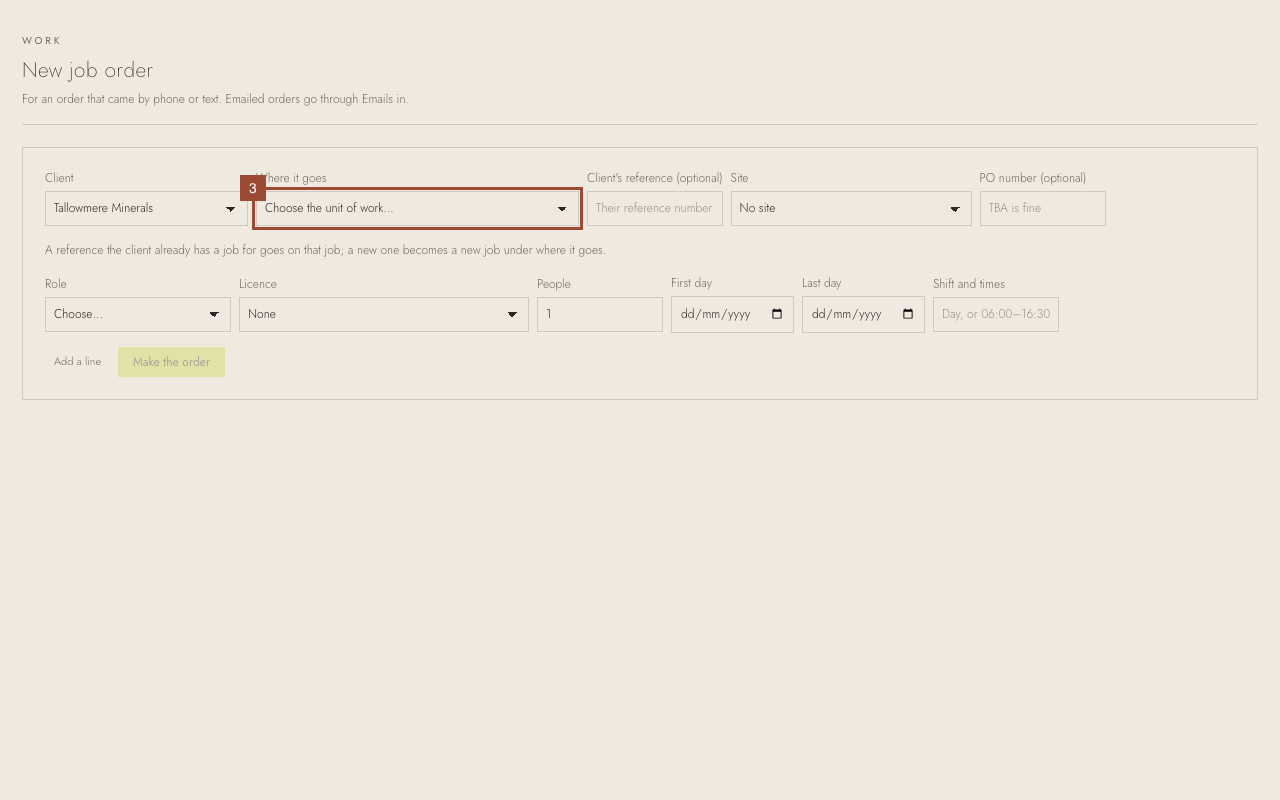
4. Type the client's reference, if they gave one. A new one becomes a new job under where it goes.
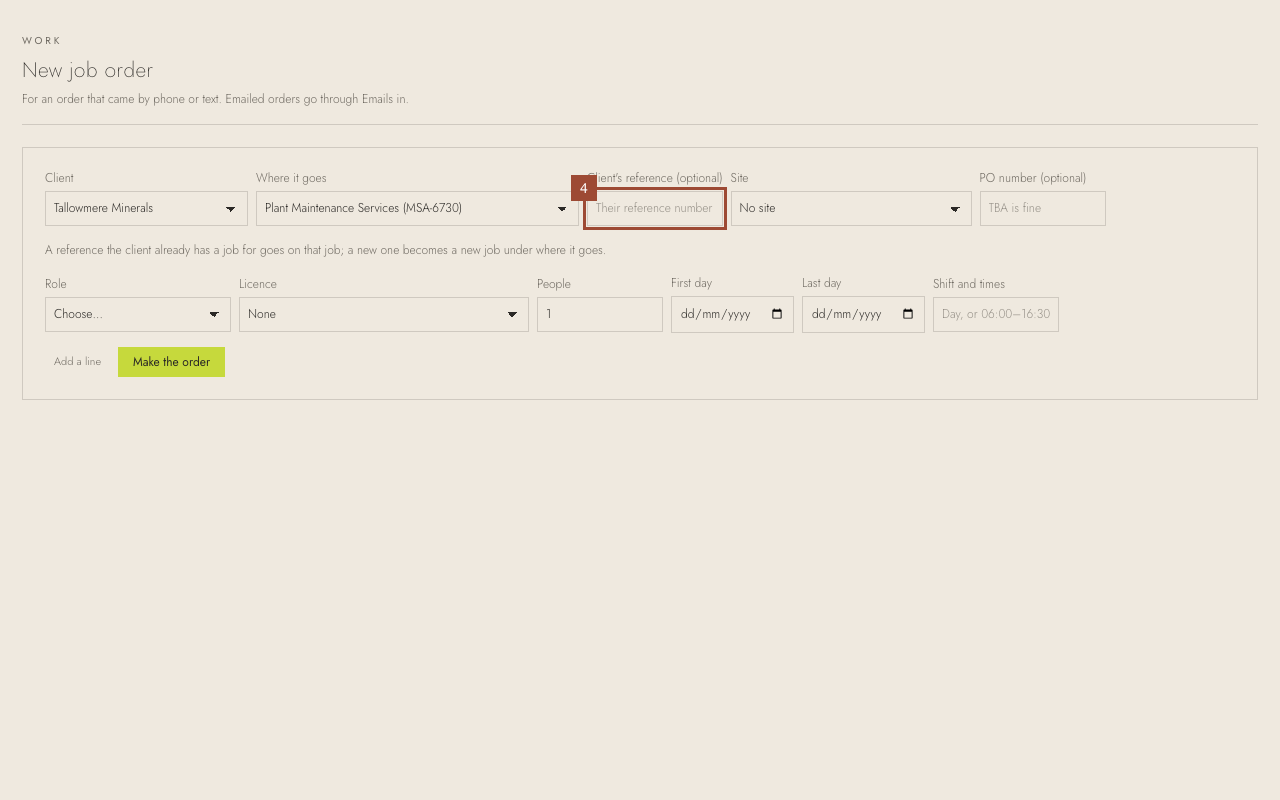
5. Choose the Site.
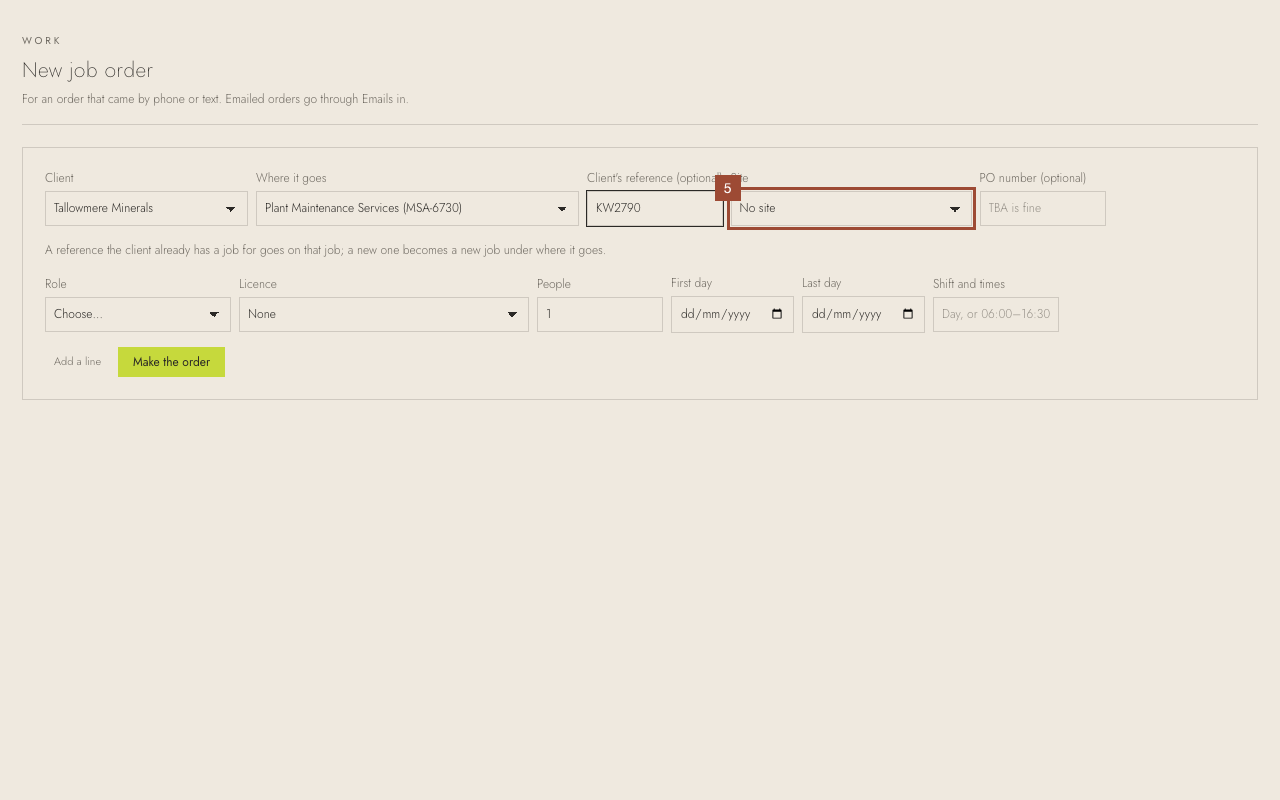
6. For each line: the Role…
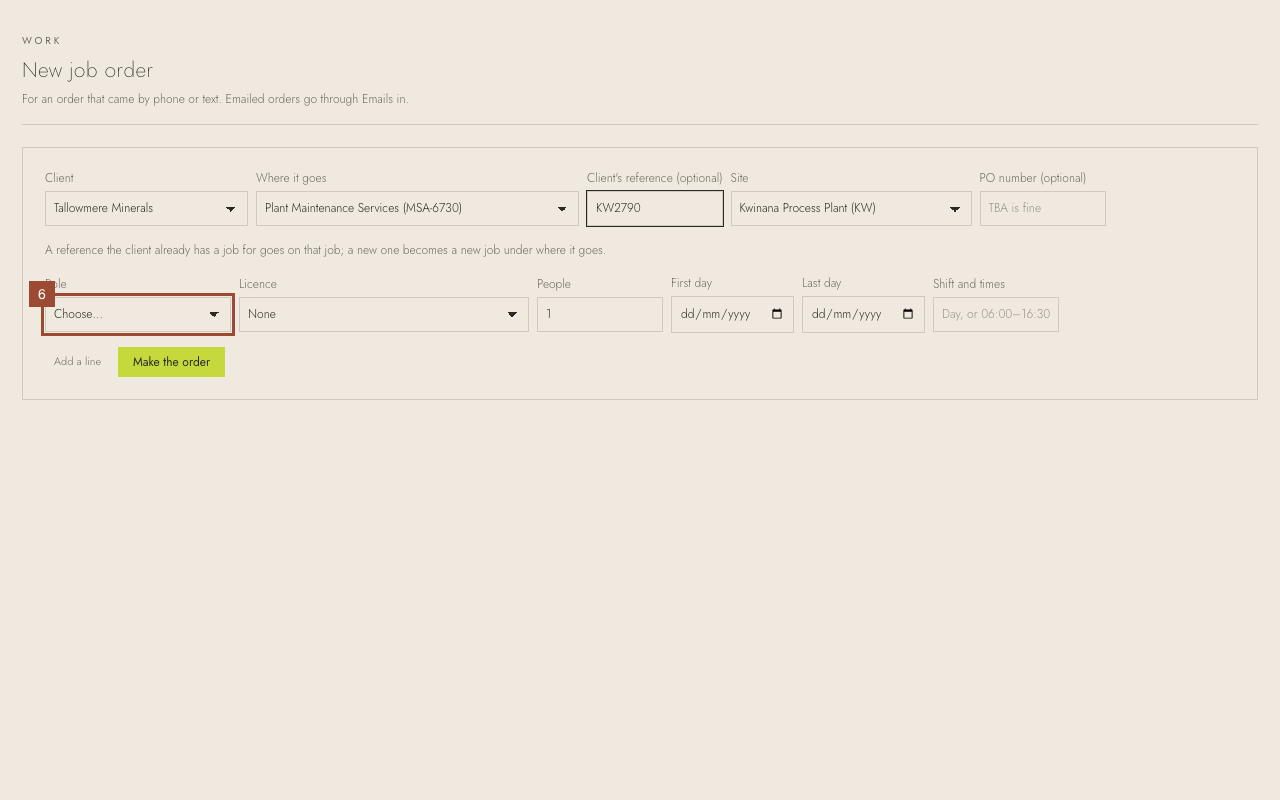
7. …the Licence they must hold, if any…
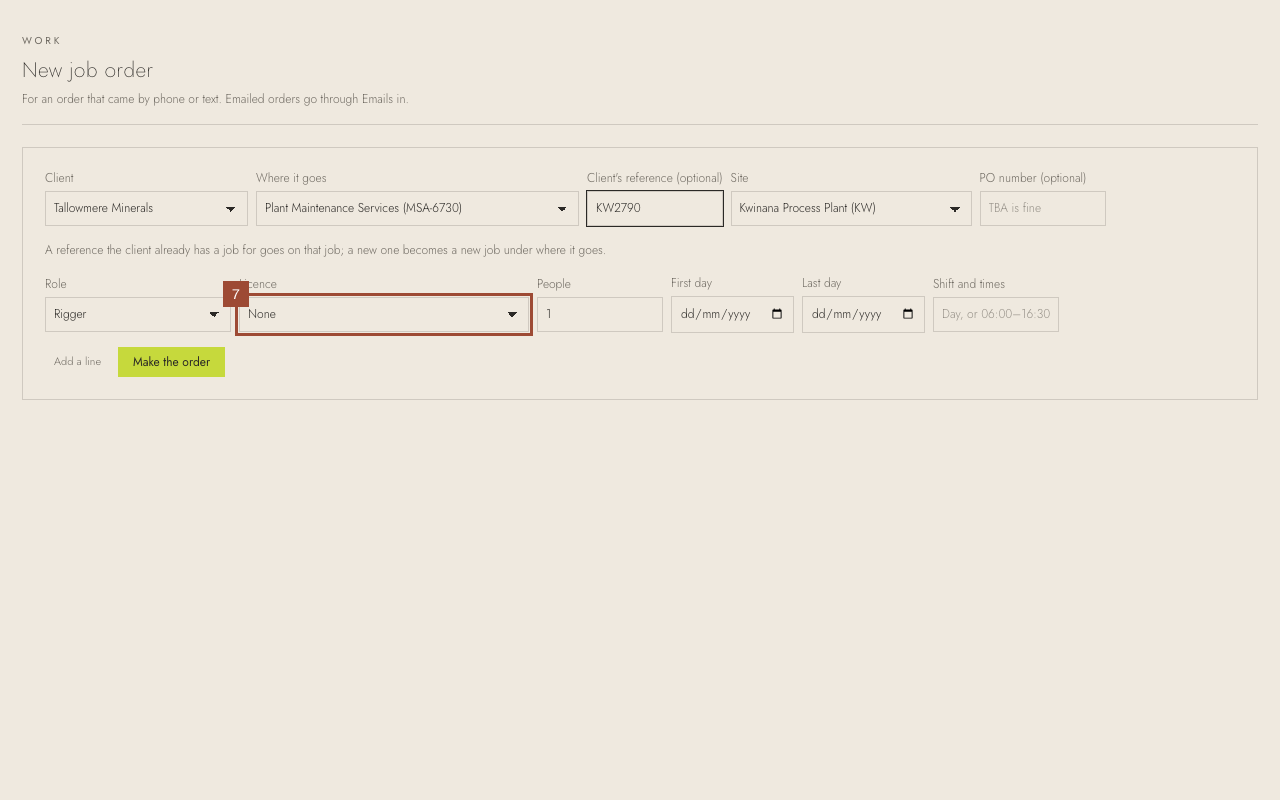
8. …how many People…
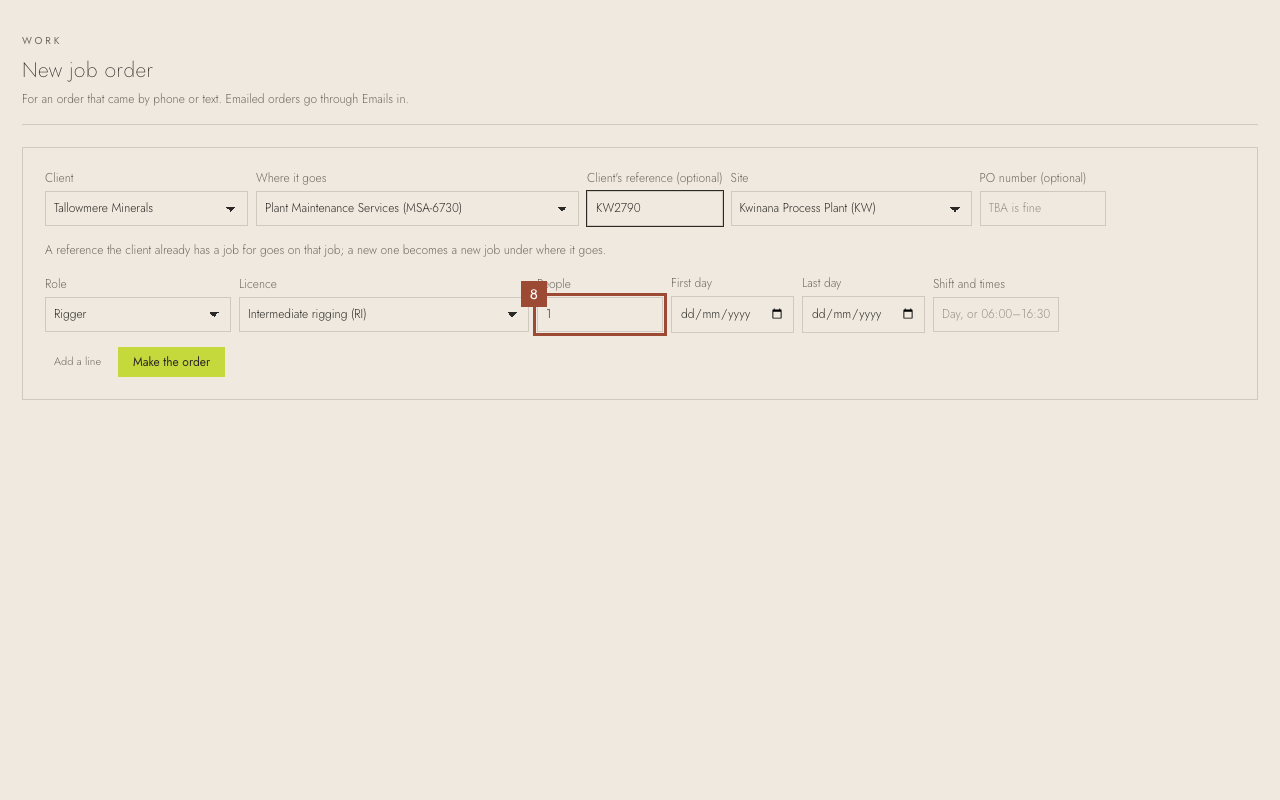
9. …the First day…
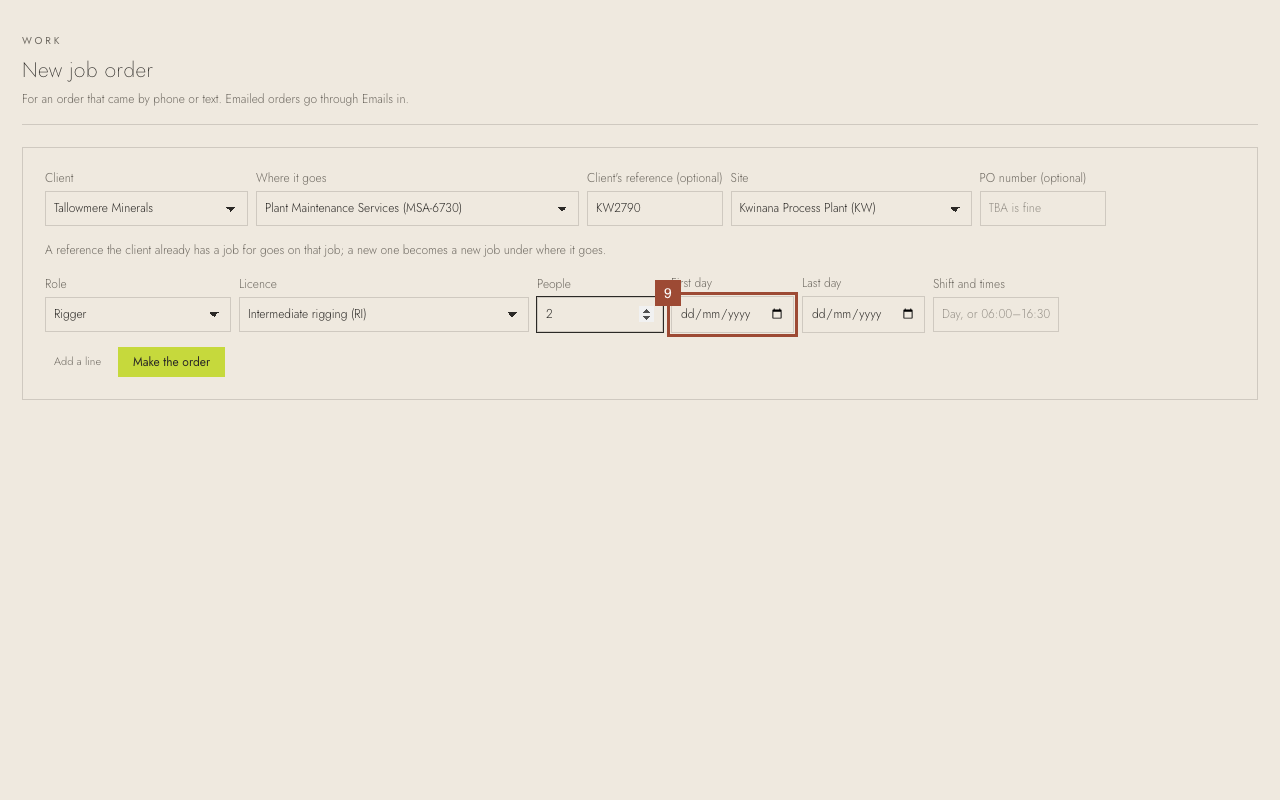
10. …the Last day…
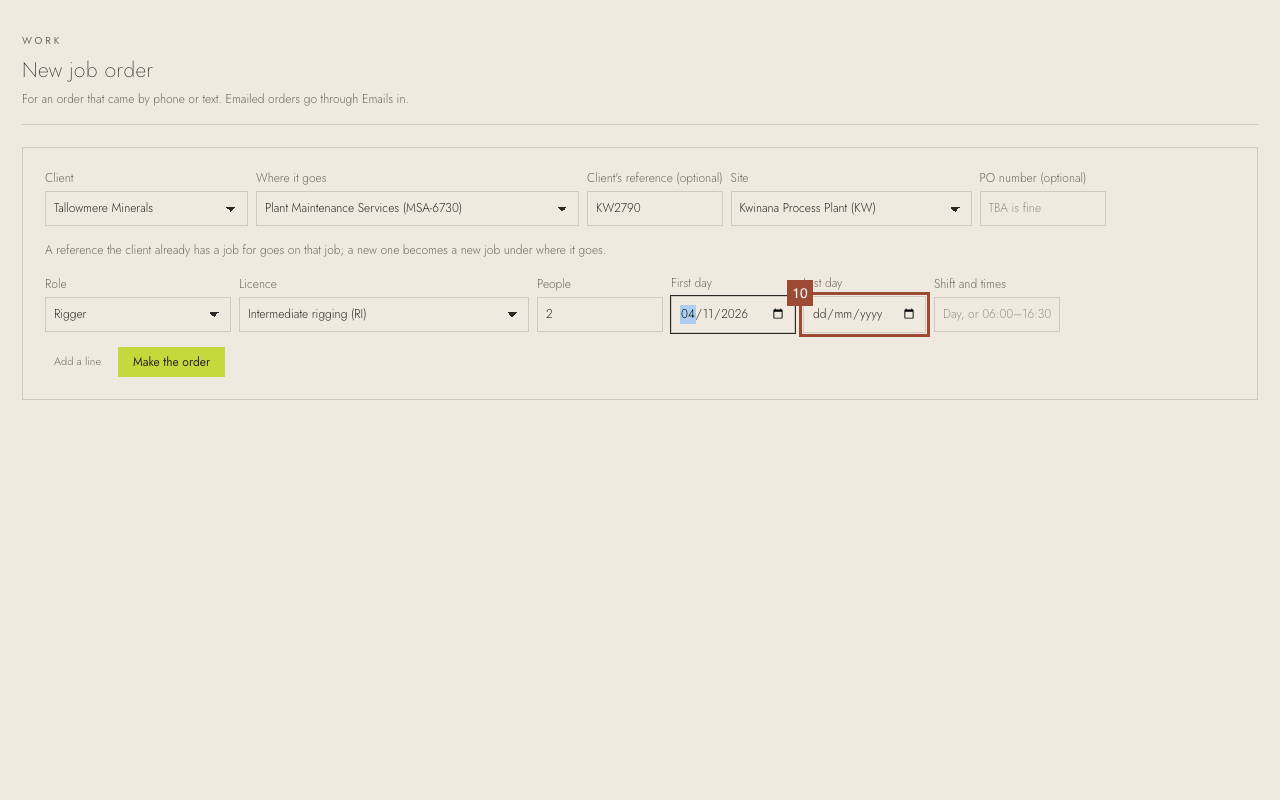
11. …and the Shift and times. Add a line for another role.
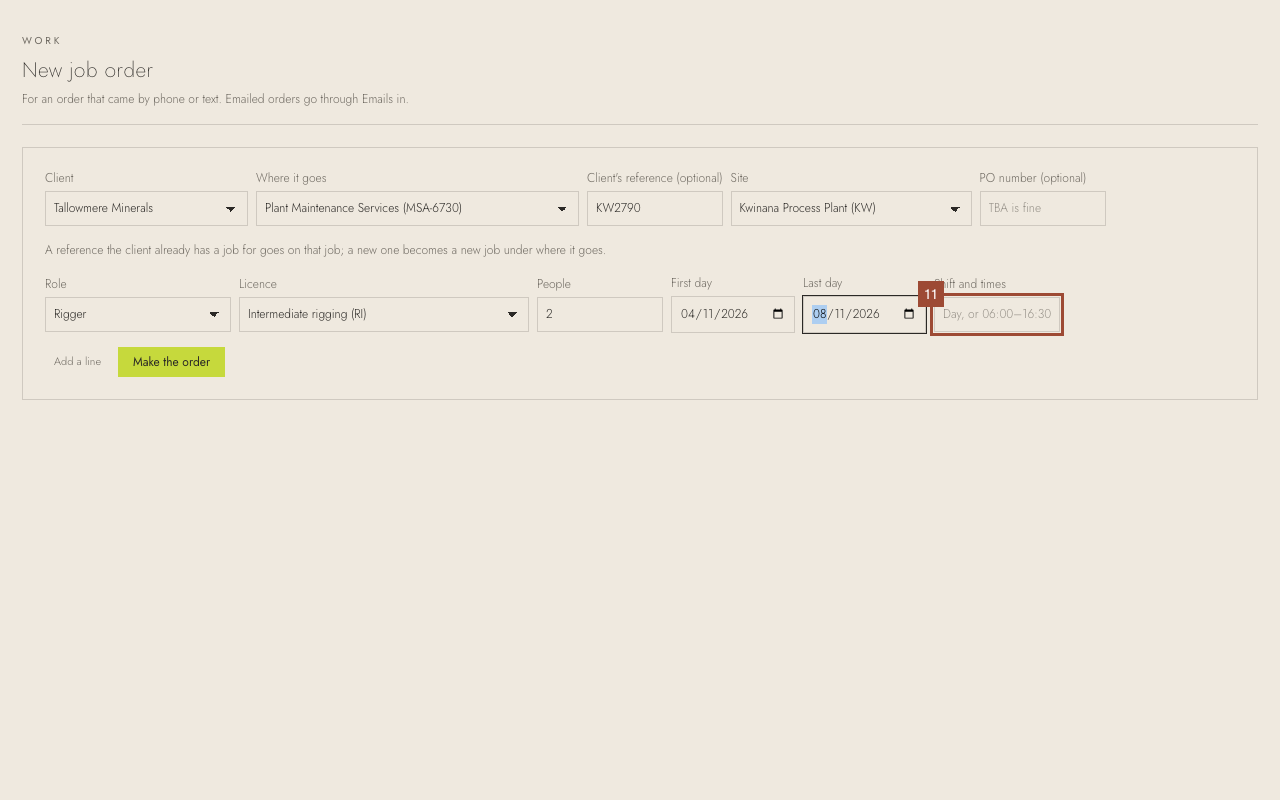
12. Press Make the order.
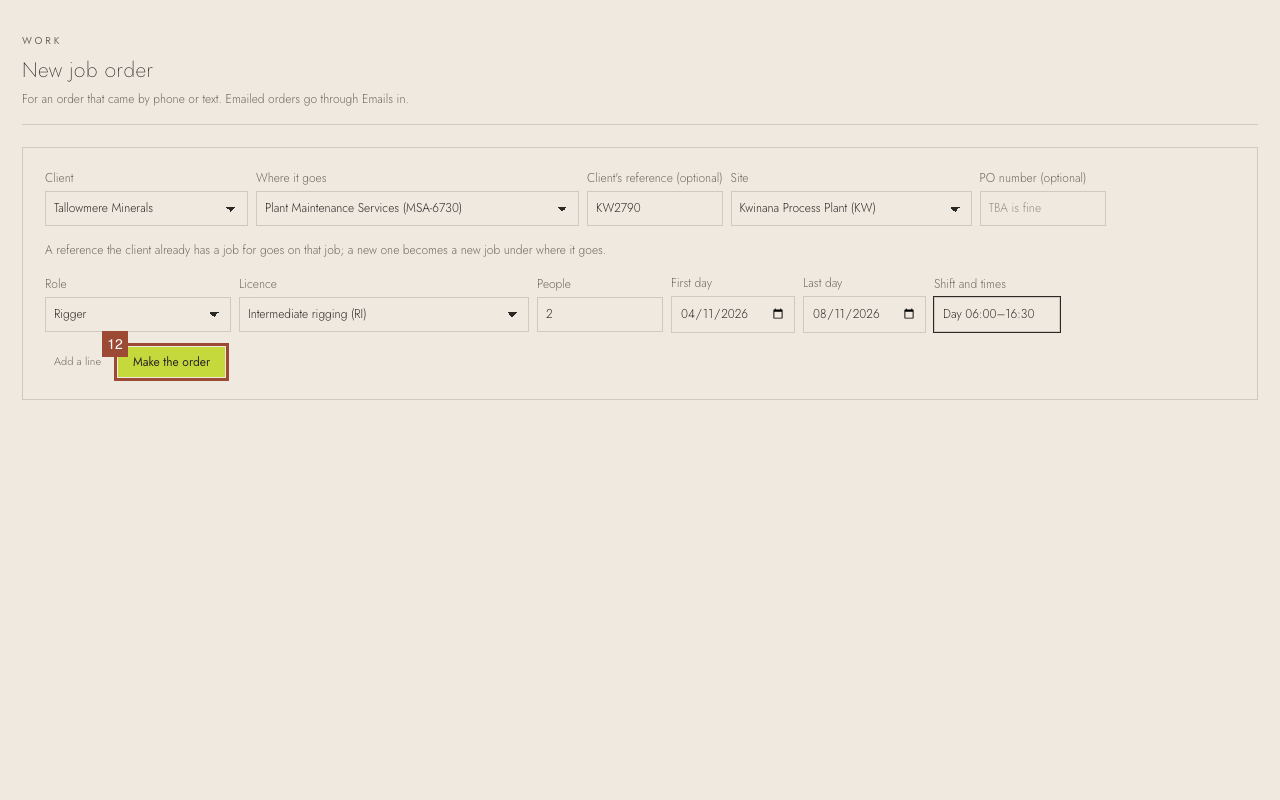
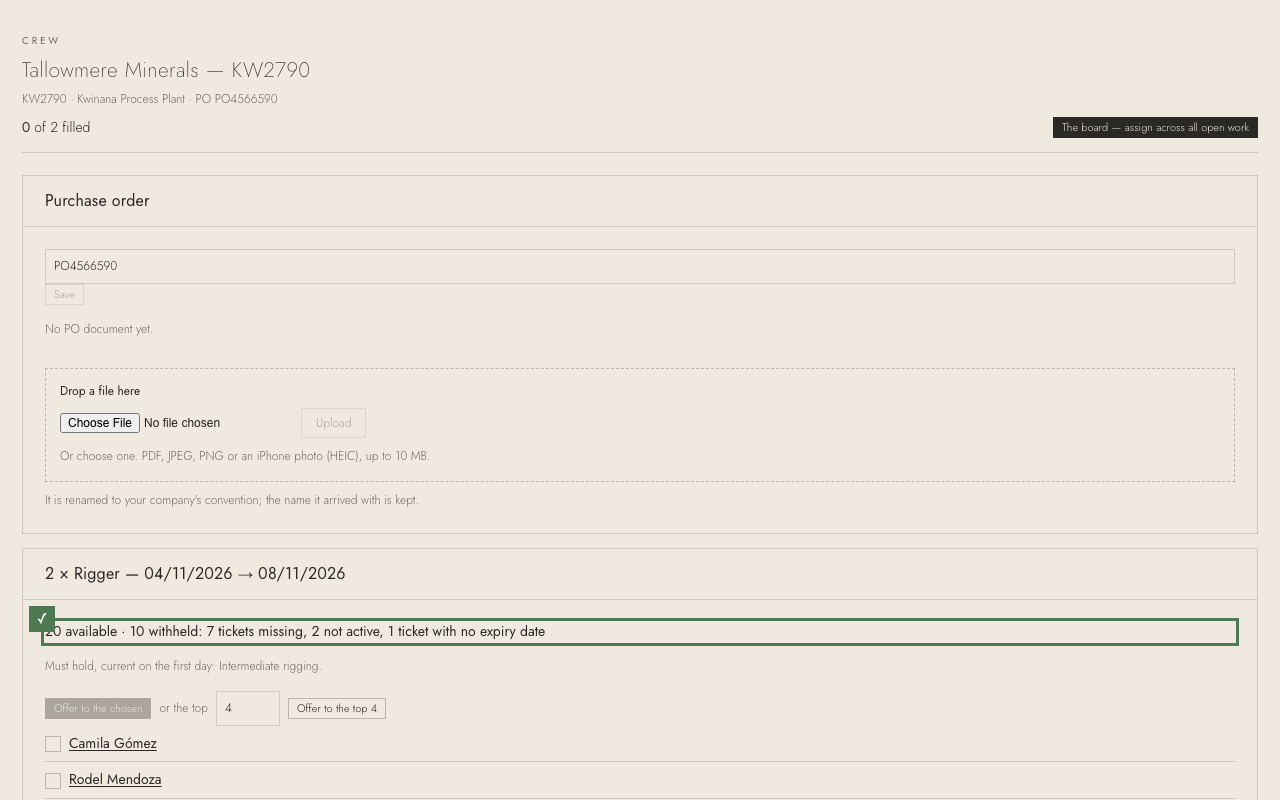
✓ Done. The order opens on its crew page, its shortlist ready to offer.