See all of a client's job orders
Every job order a client has had is kept on the client, as a person's are kept on their Work history: the ones made here, and the ones brought across from the system you used before.
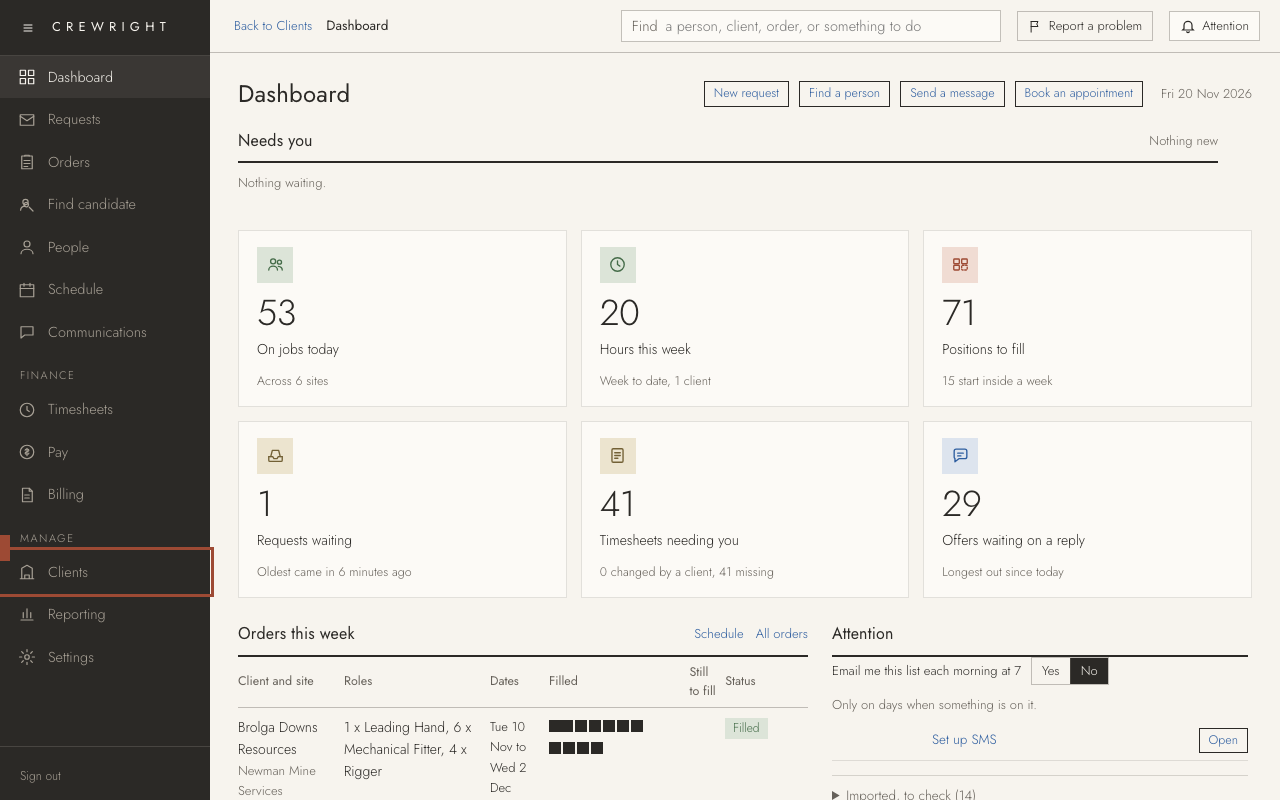
1. Open Clients in the menu on the left.
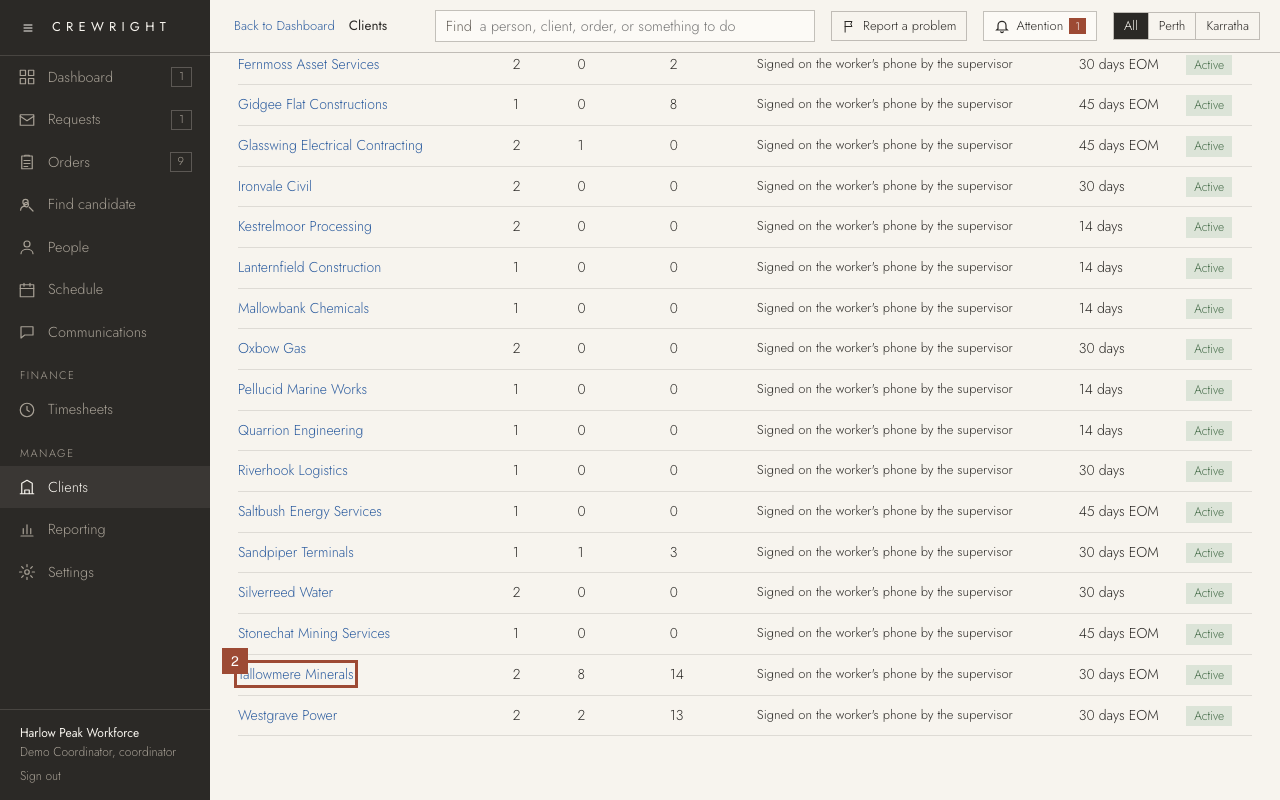
2. Open the client.
3. Open Job orders. The newest is at the top. Each line shows the site, the dates, the role, who was on it, the approved hours and where it is up to.
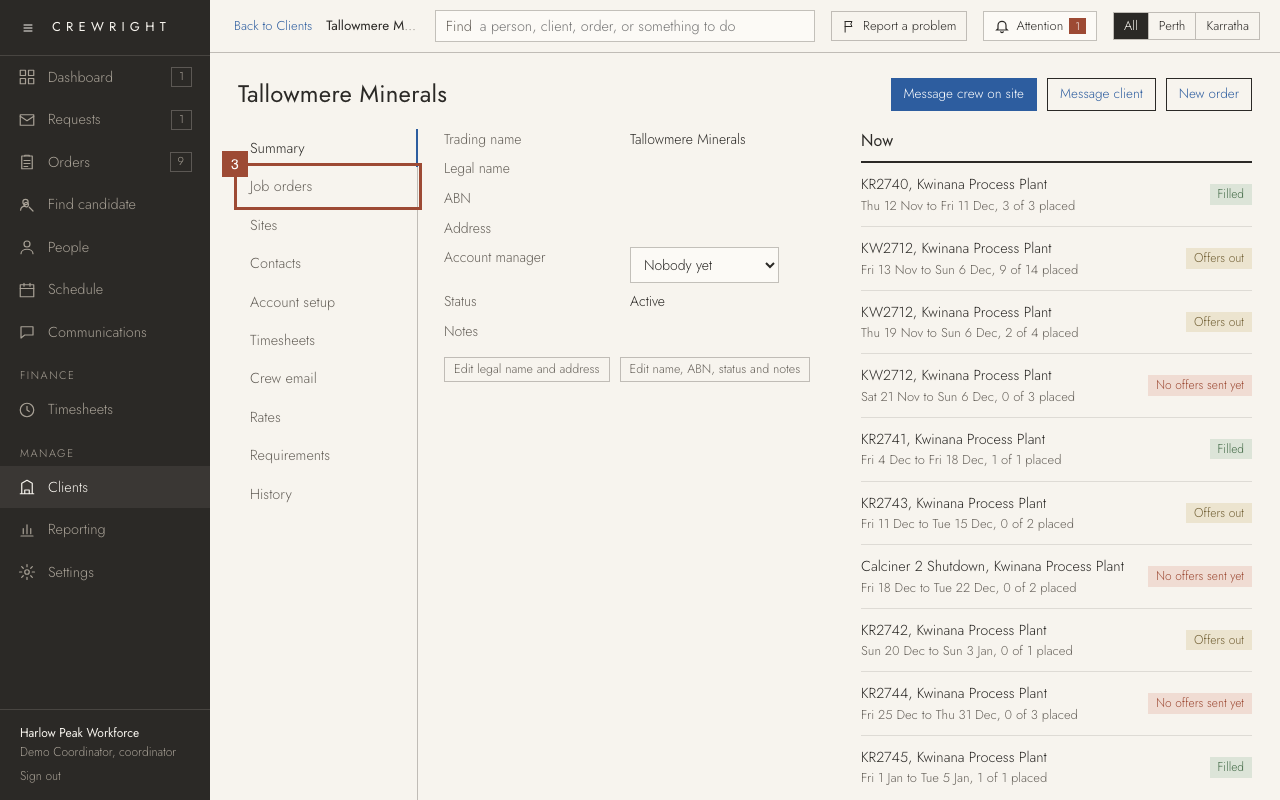
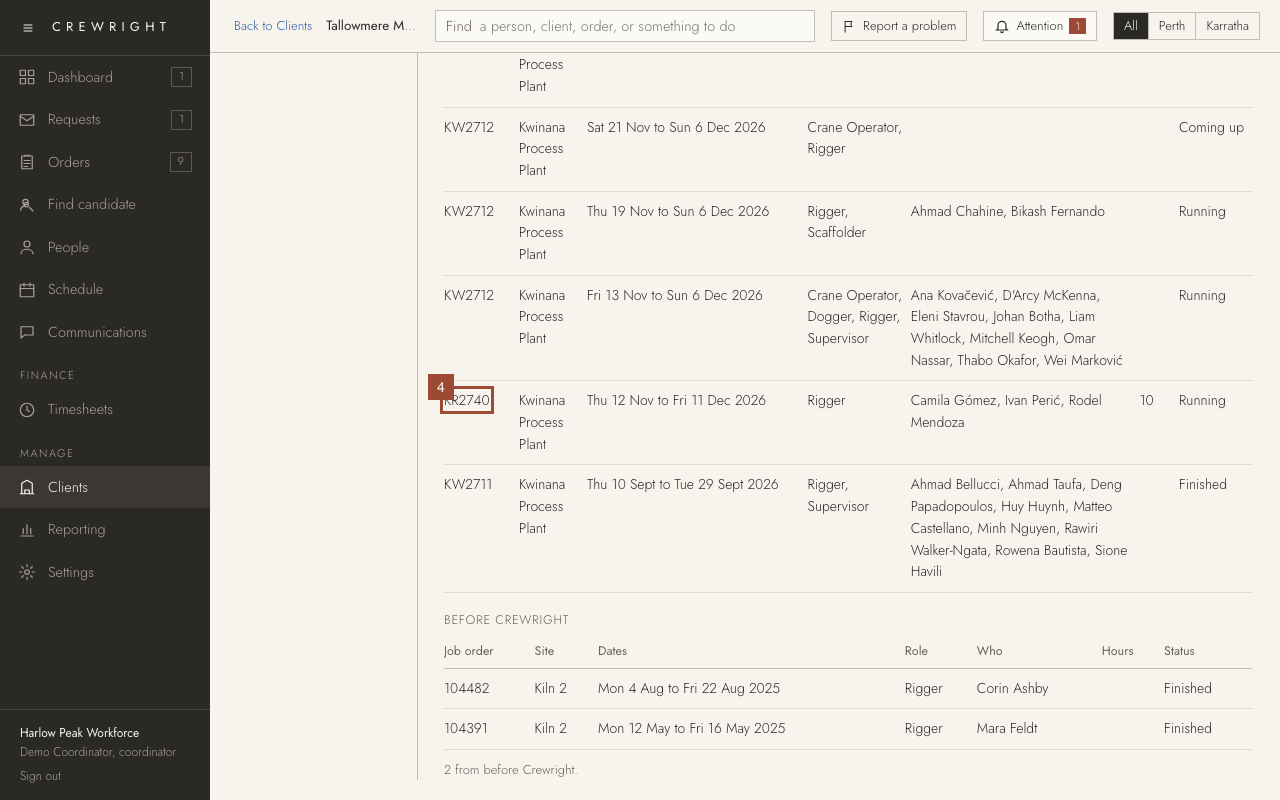
4. An order made in Crewright opens when you press its number. A person opens from their name.
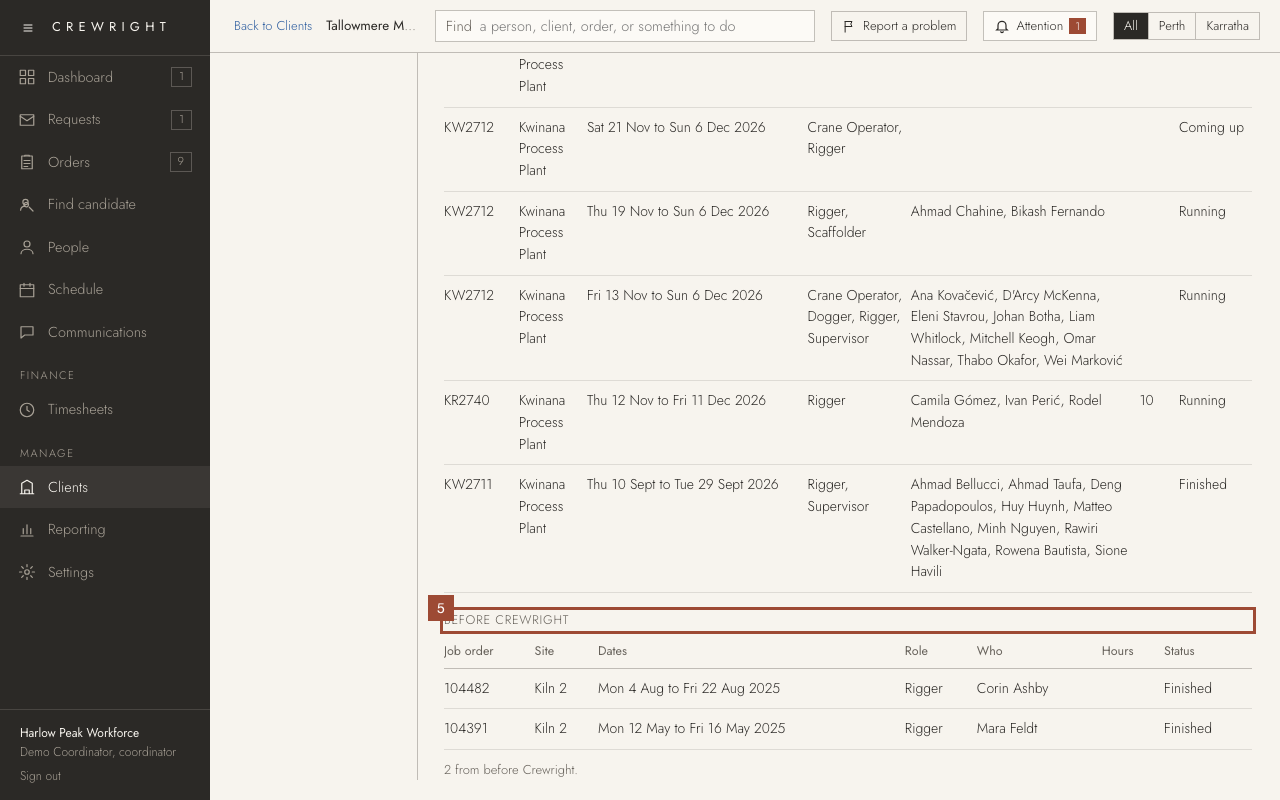
5. Under Before Crewright are the job orders from the system you used before. They are here to look back on: the newest 200 show first, and Show more brings the next.
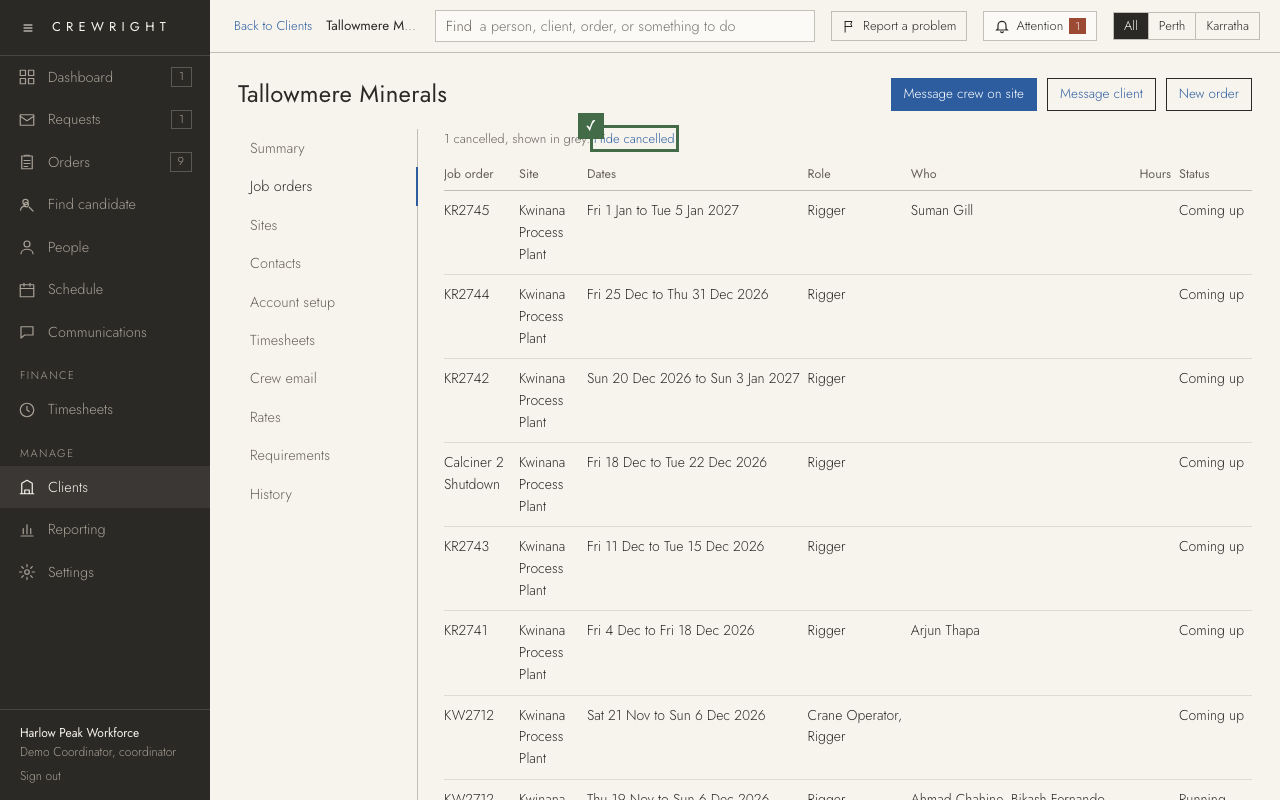
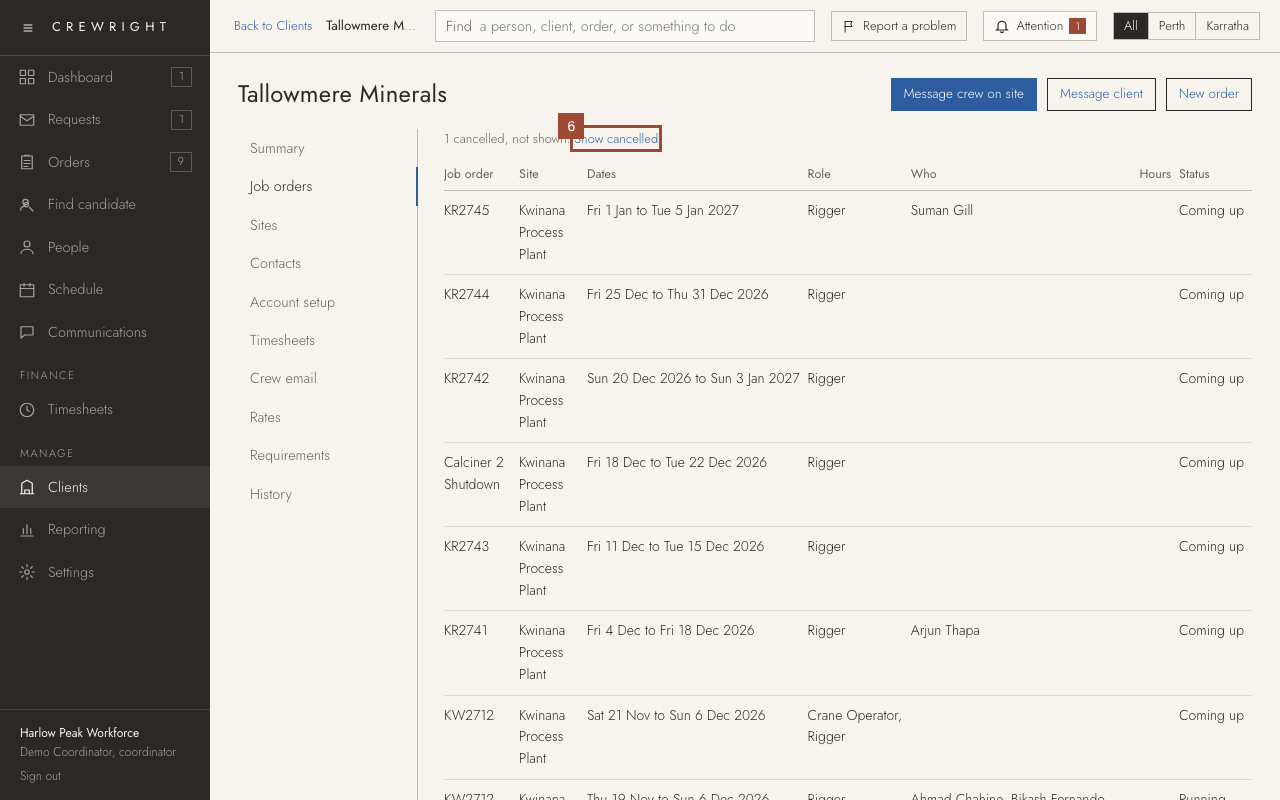
6. Cancelled job orders are left out until you ask, as on Orders. The line above the list says how many there are. Press Show cancelled to list them too.
7. A cancelled one is in grey, in its place by date, and says Cancelled. One cancelled in Crewright also says why.
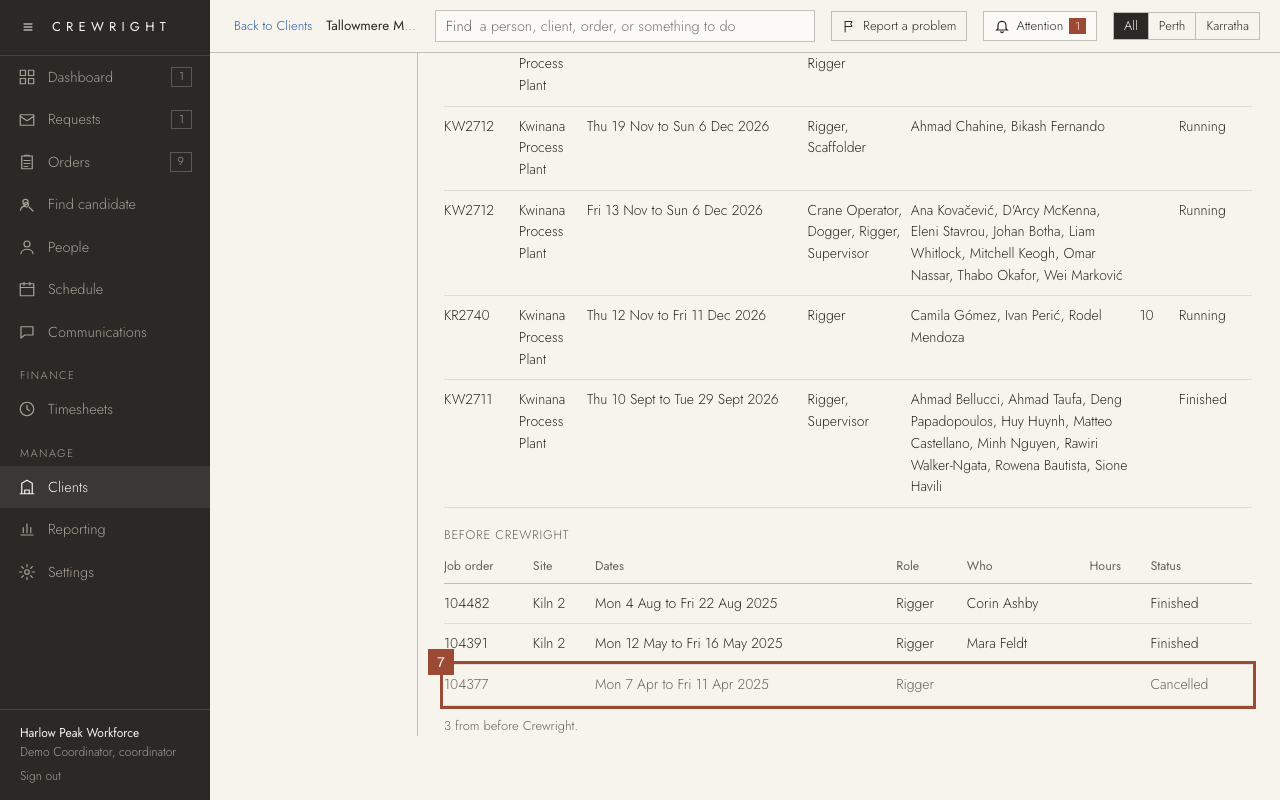
Done Done. Nothing is changed by looking. Hide cancelled puts the list back as it was.