See only your branch
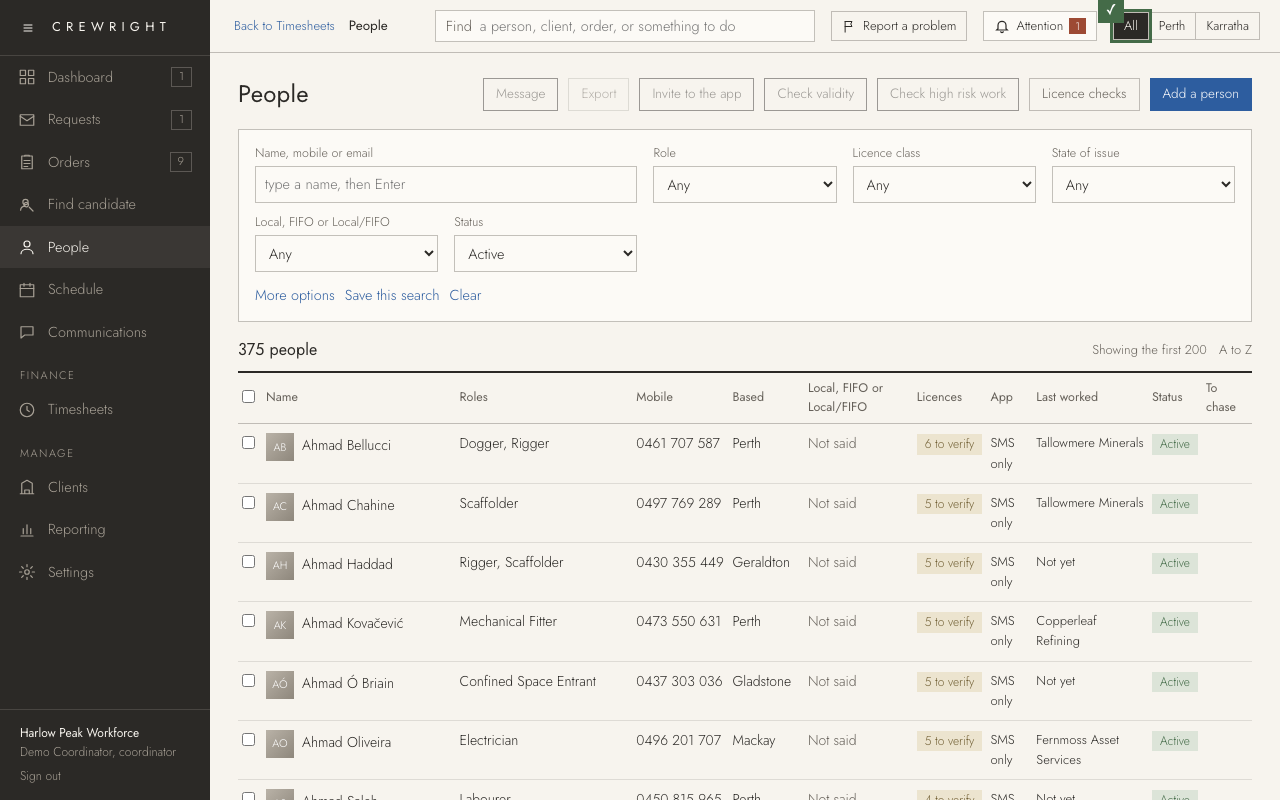
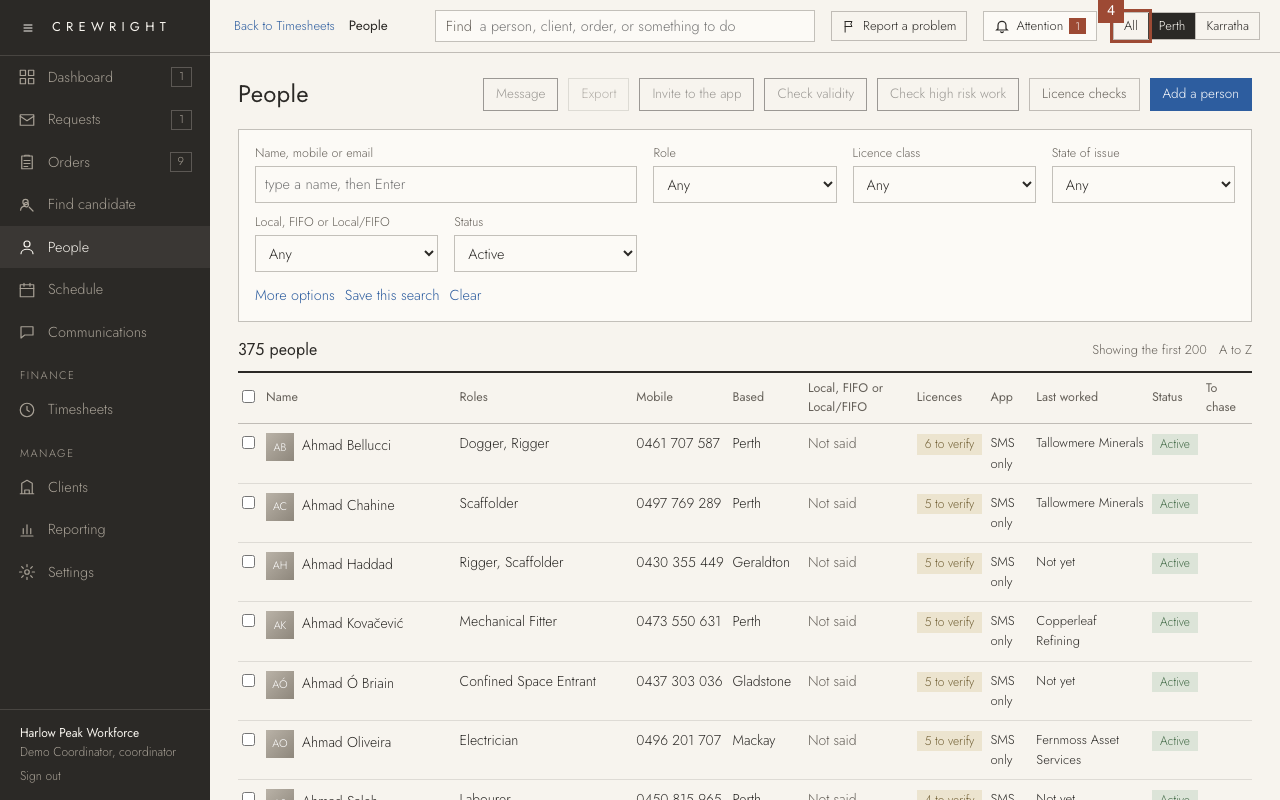
The buttons at the top right of every screen are your company's branches. Choose yours and Crewright shows your branch's people and your branch's work.
1. At the top right of every screen: All, then each of your company's branches. All shows everyone.
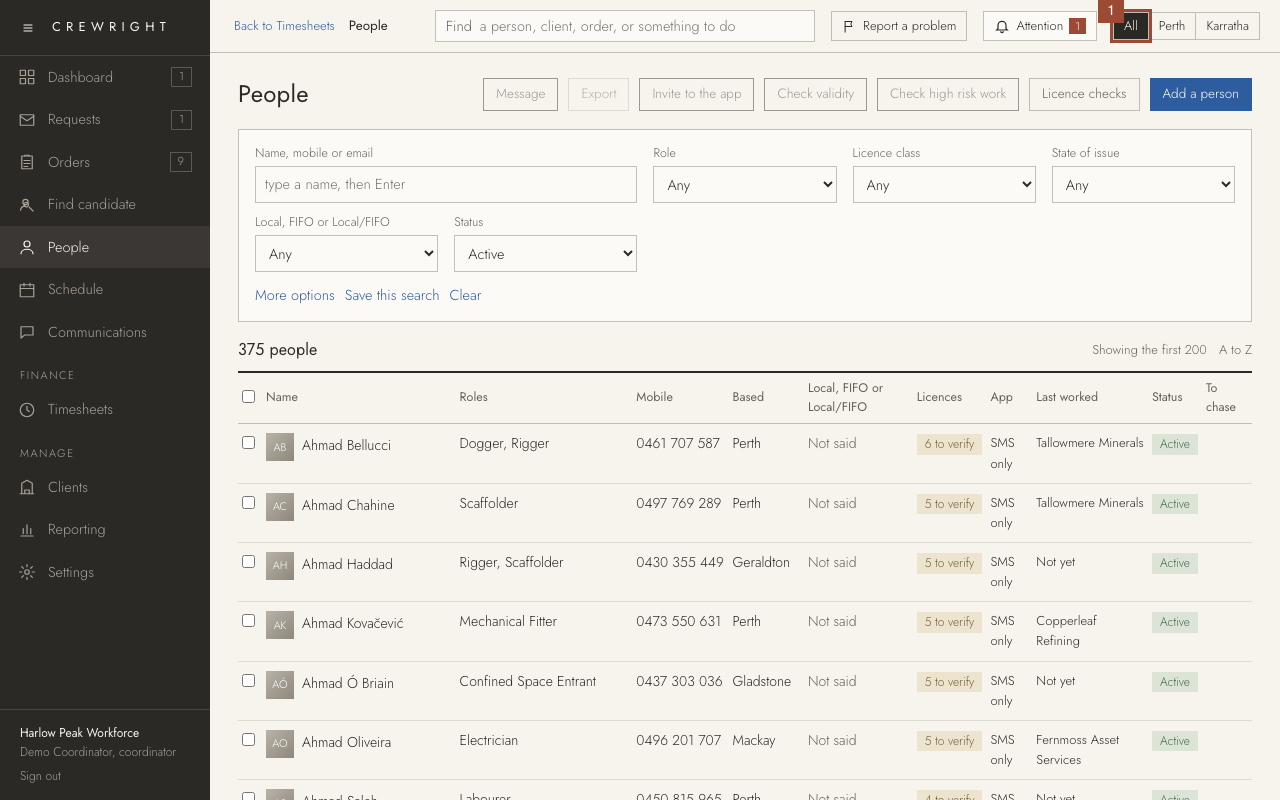
2. Press your branch, here Perth.
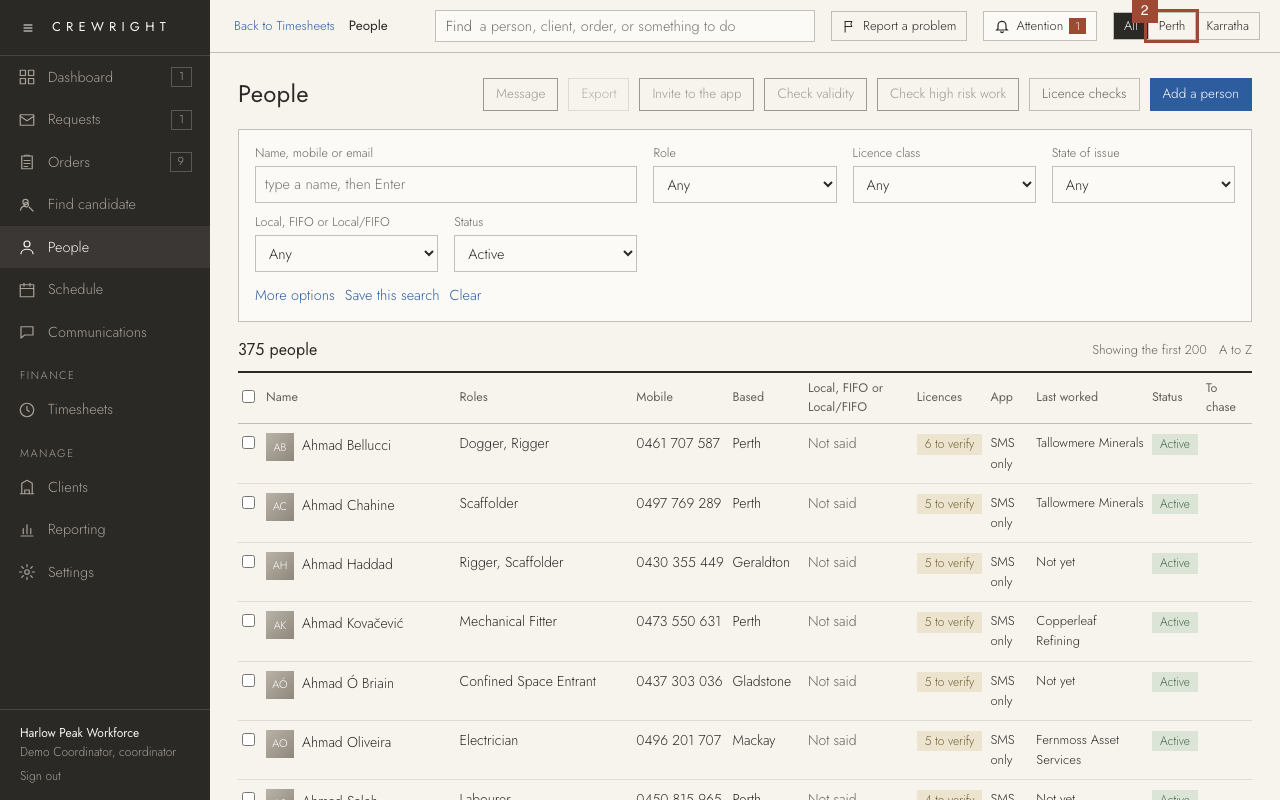
3. People now lists only the people based in that branch, and so do the Schedule, the people beside an order and Find candidate. Orders, Requests, Timesheets and the Dashboard show that branch's work: an order belongs to its own office, or to the state its site is in.
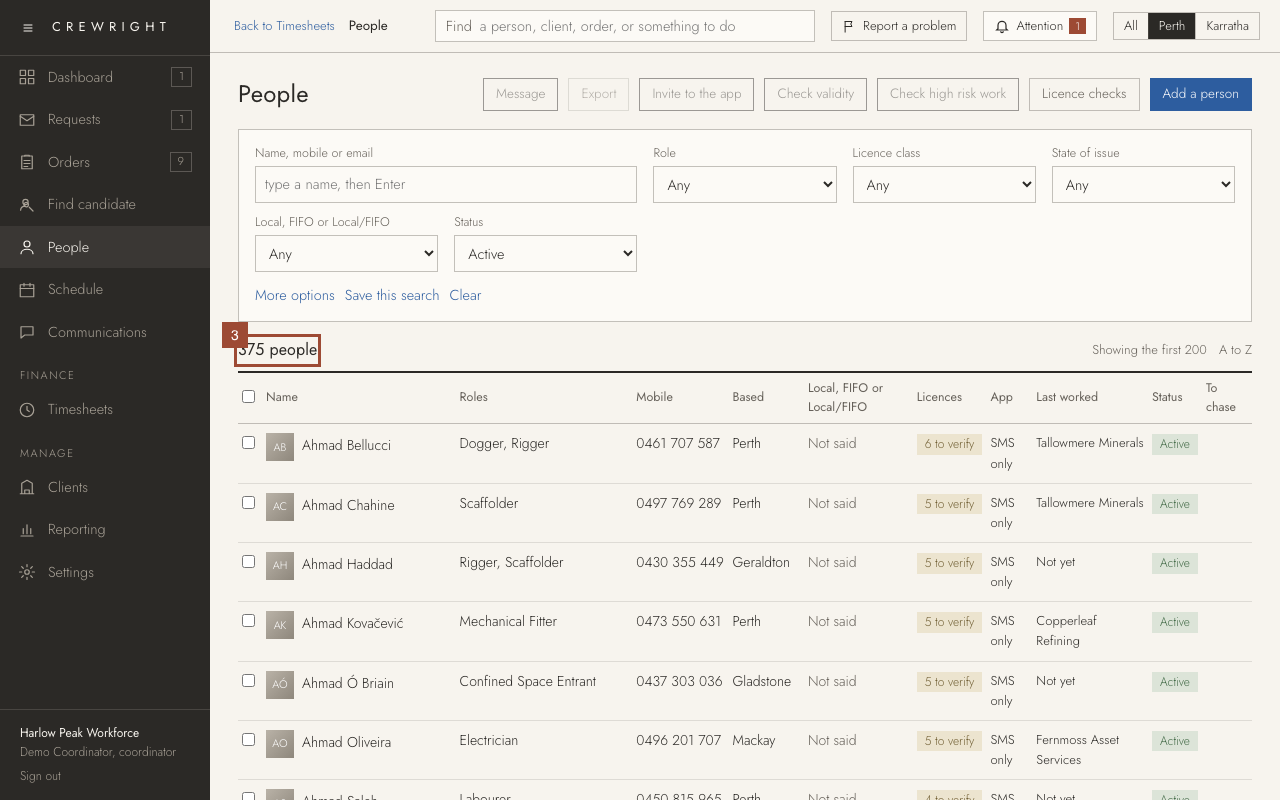
4. Press All to see every branch again.
Done Done. Your choice stays on this computer until you change it. A person with no home base shows only under All; an order with no office and no site shows under every branch.