Help · Worker (the phone app)
Send a photo of a ticket
When you get a new ticket or renew one, send a photo of it from the phone. The office checks it before it counts.
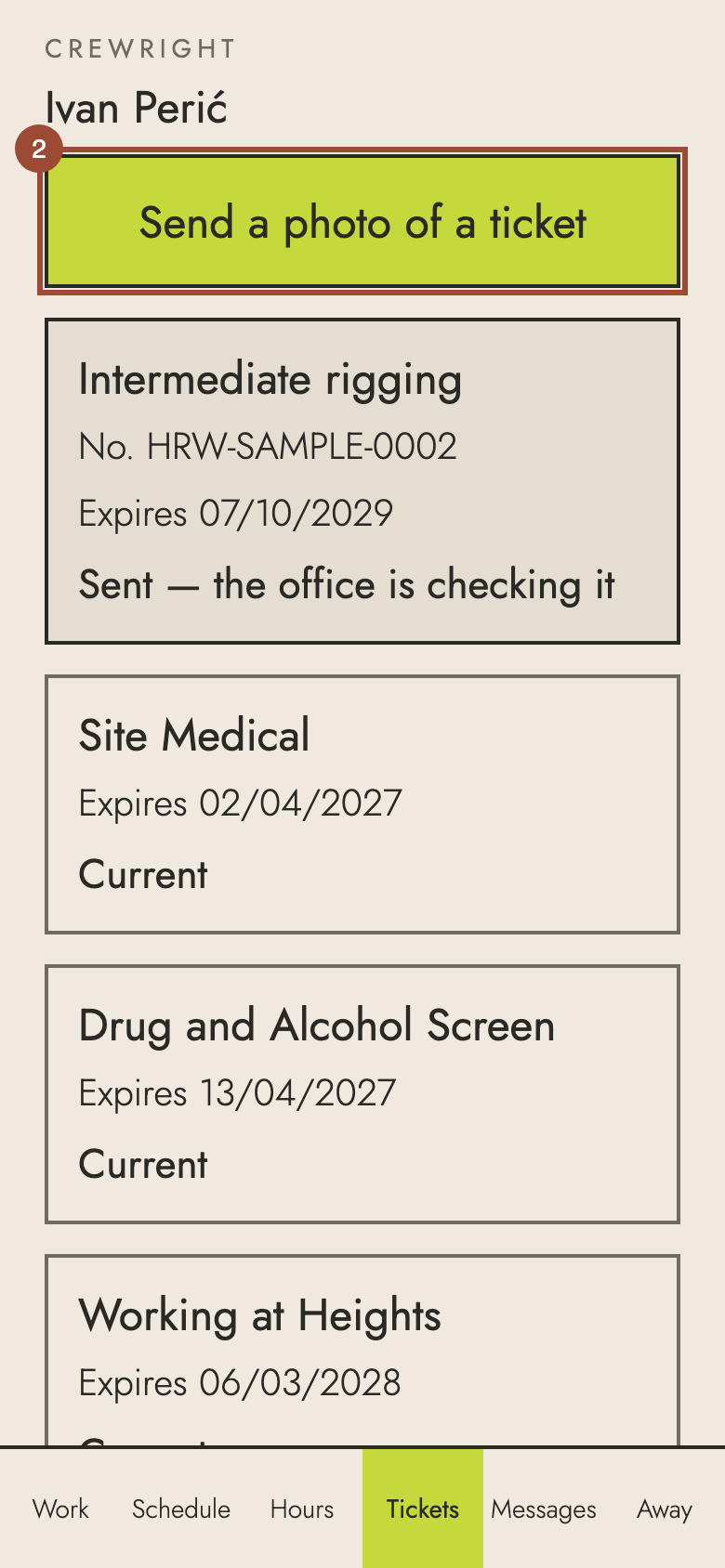
1. Open Tickets. It shows what you hold, what is expiring and what your role needs.

2. Press Send a photo of a ticket.
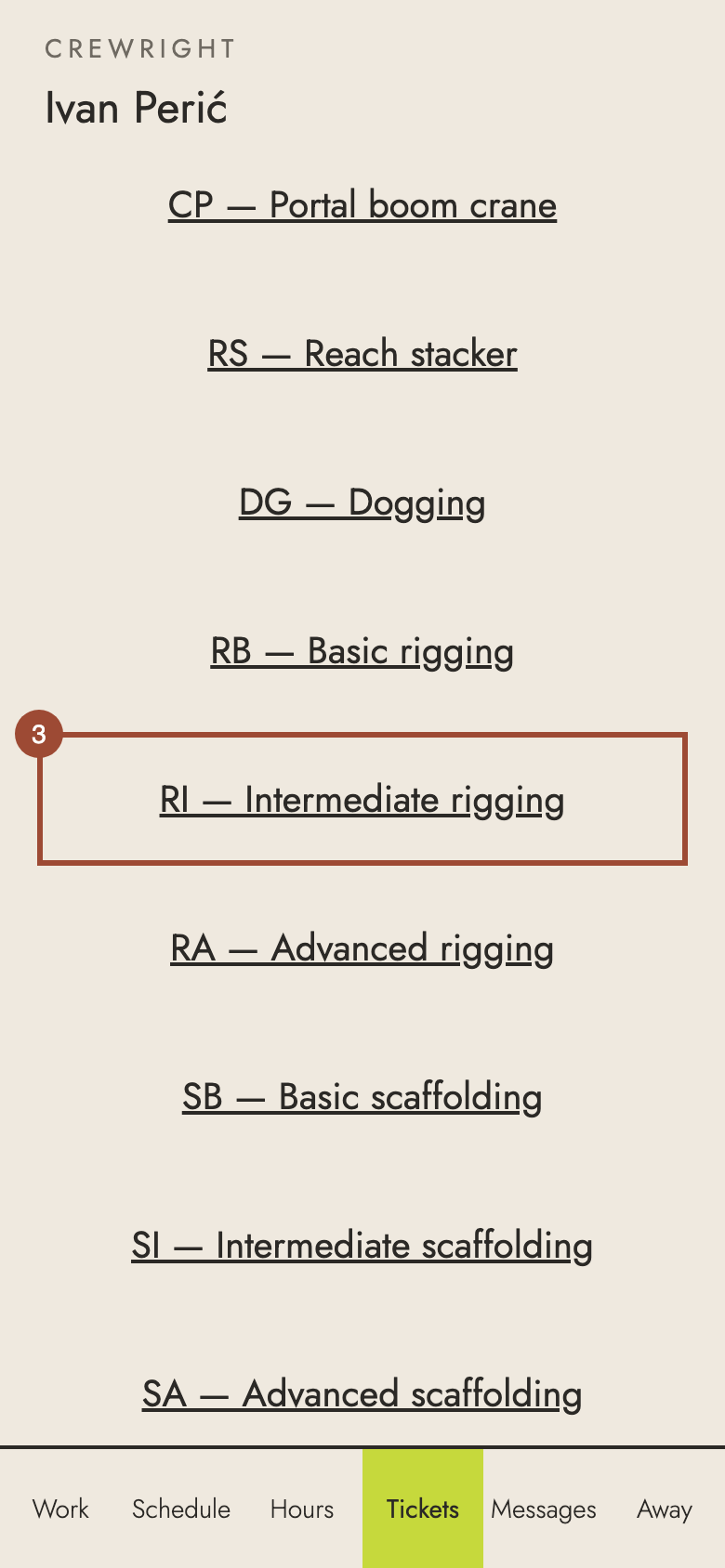
3. Choose what it is: here, RI — Intermediate rigging.
4. Press Take a photo to use the camera, or Choose from my photos for one you have already taken.
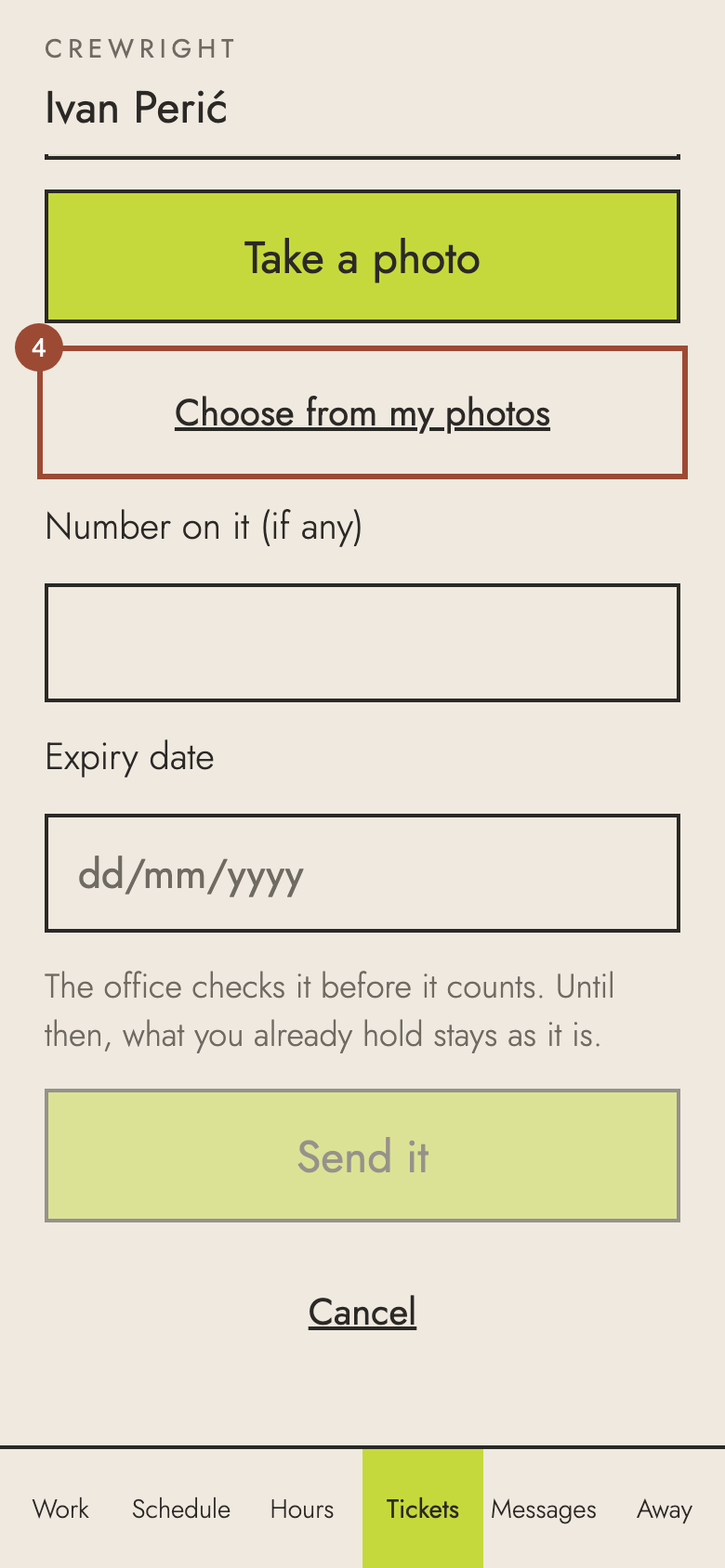
5. Type the number on it, if it has one.
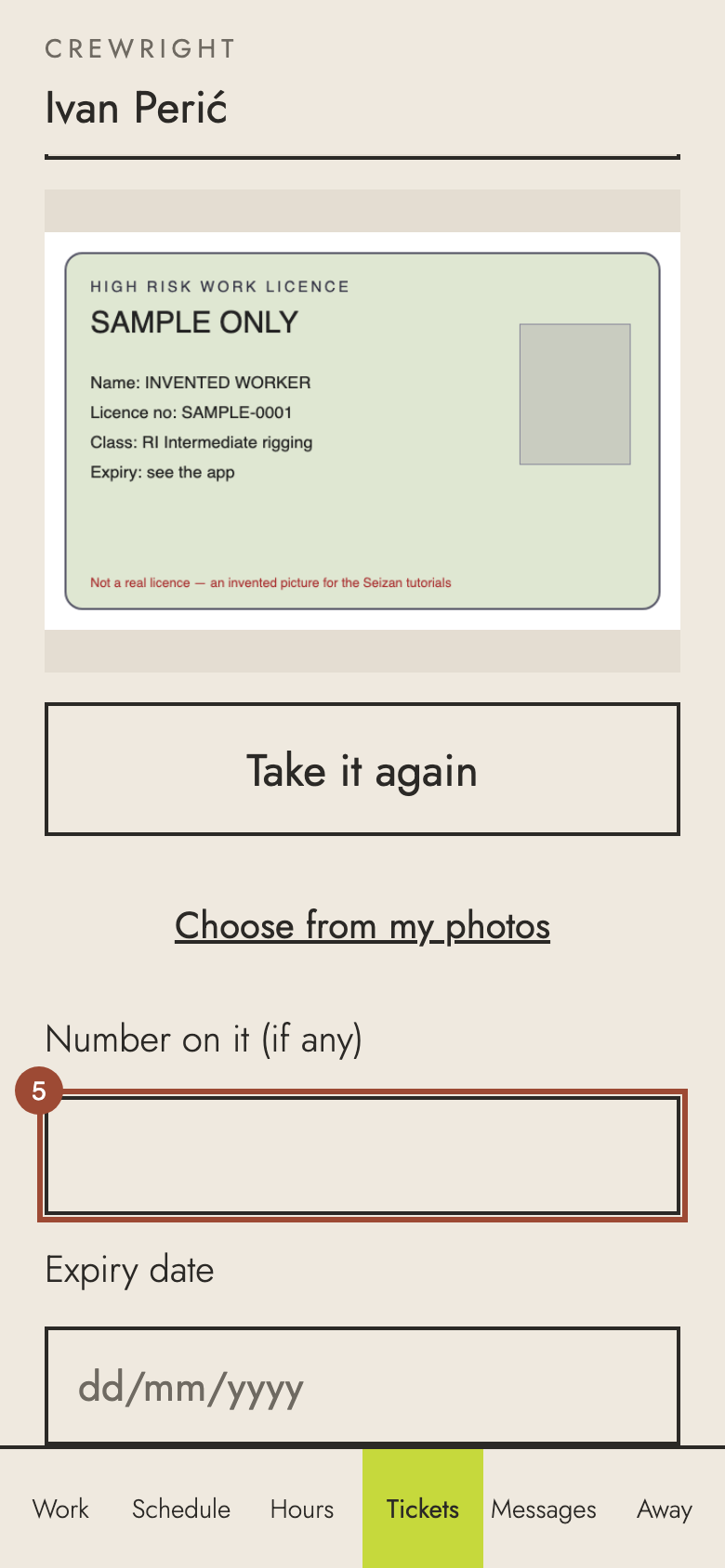
6. Type its expiry date, day/month/year.
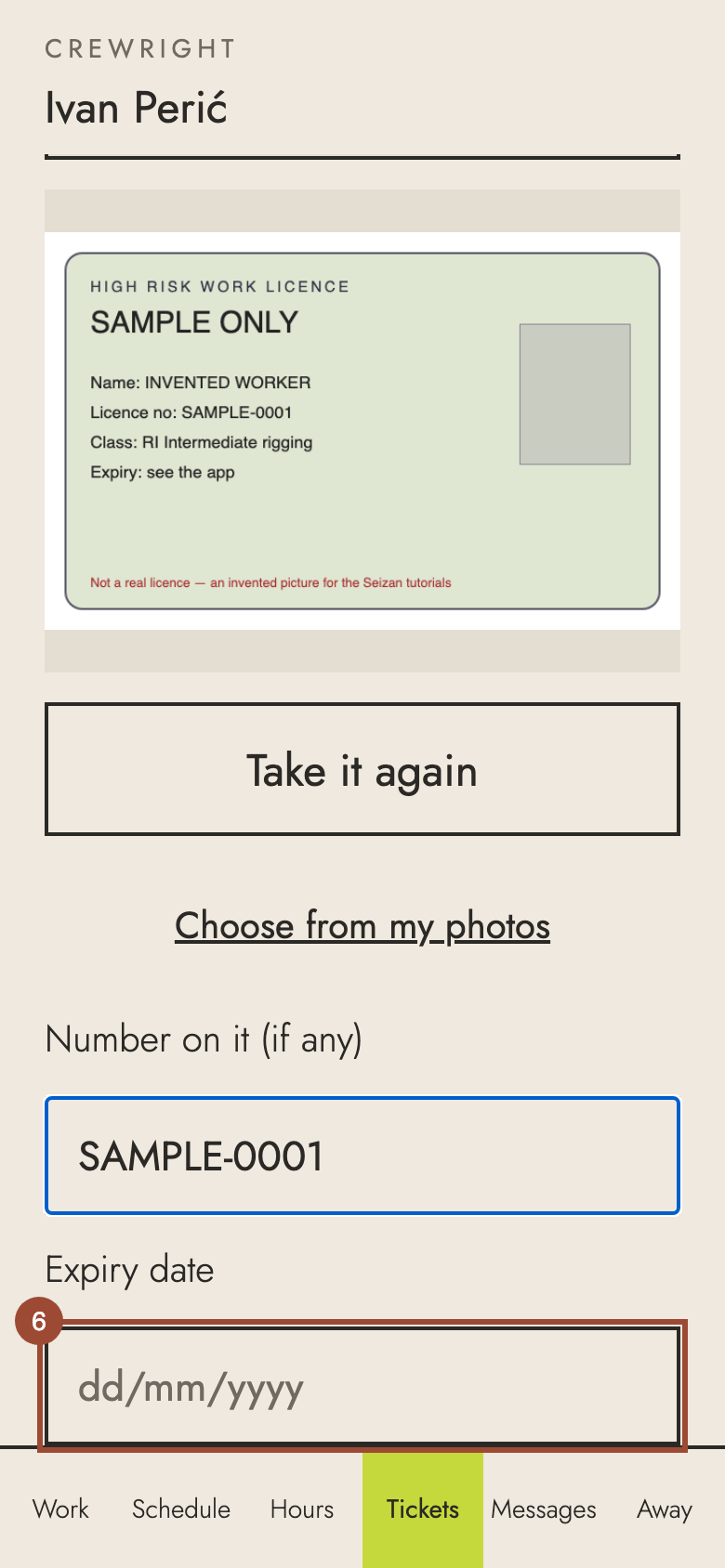
7. Press Send it.
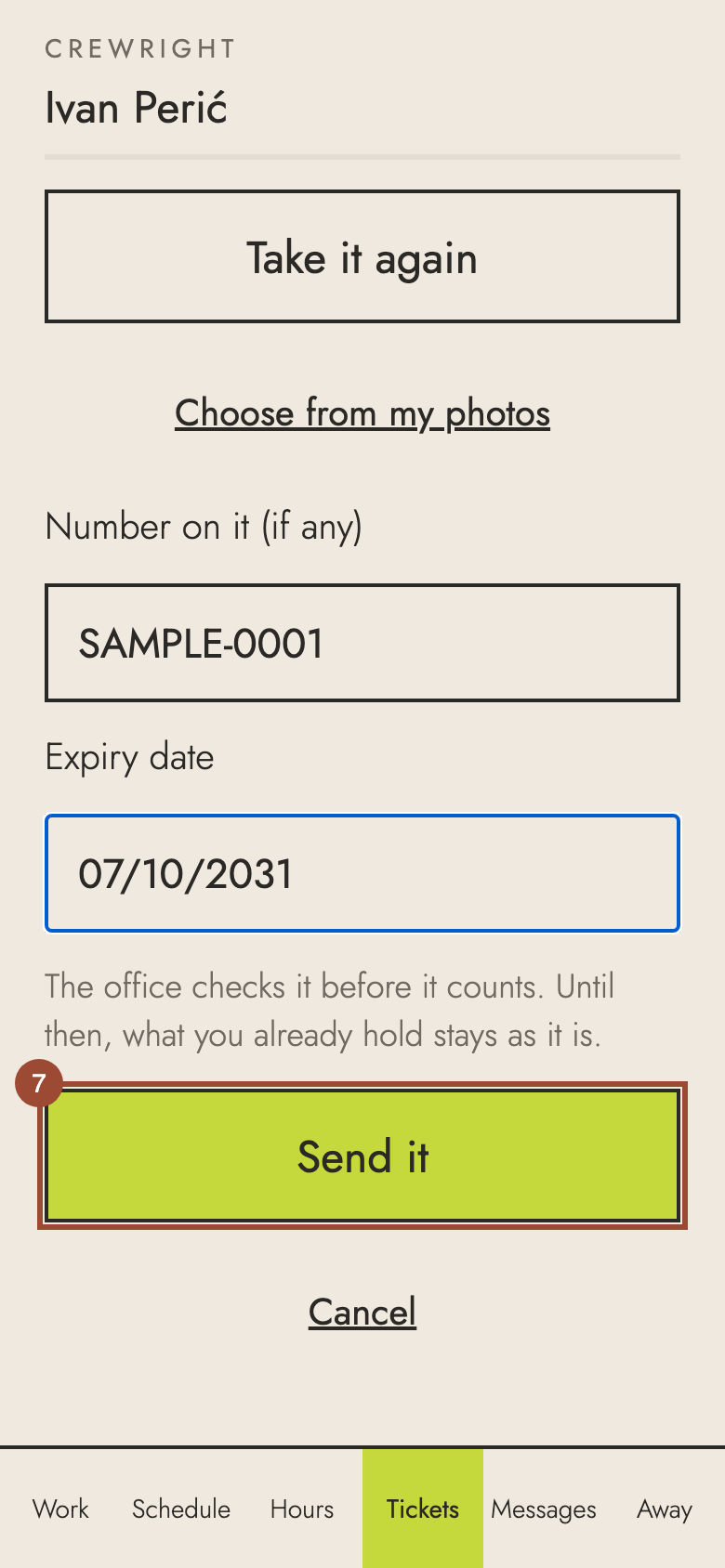
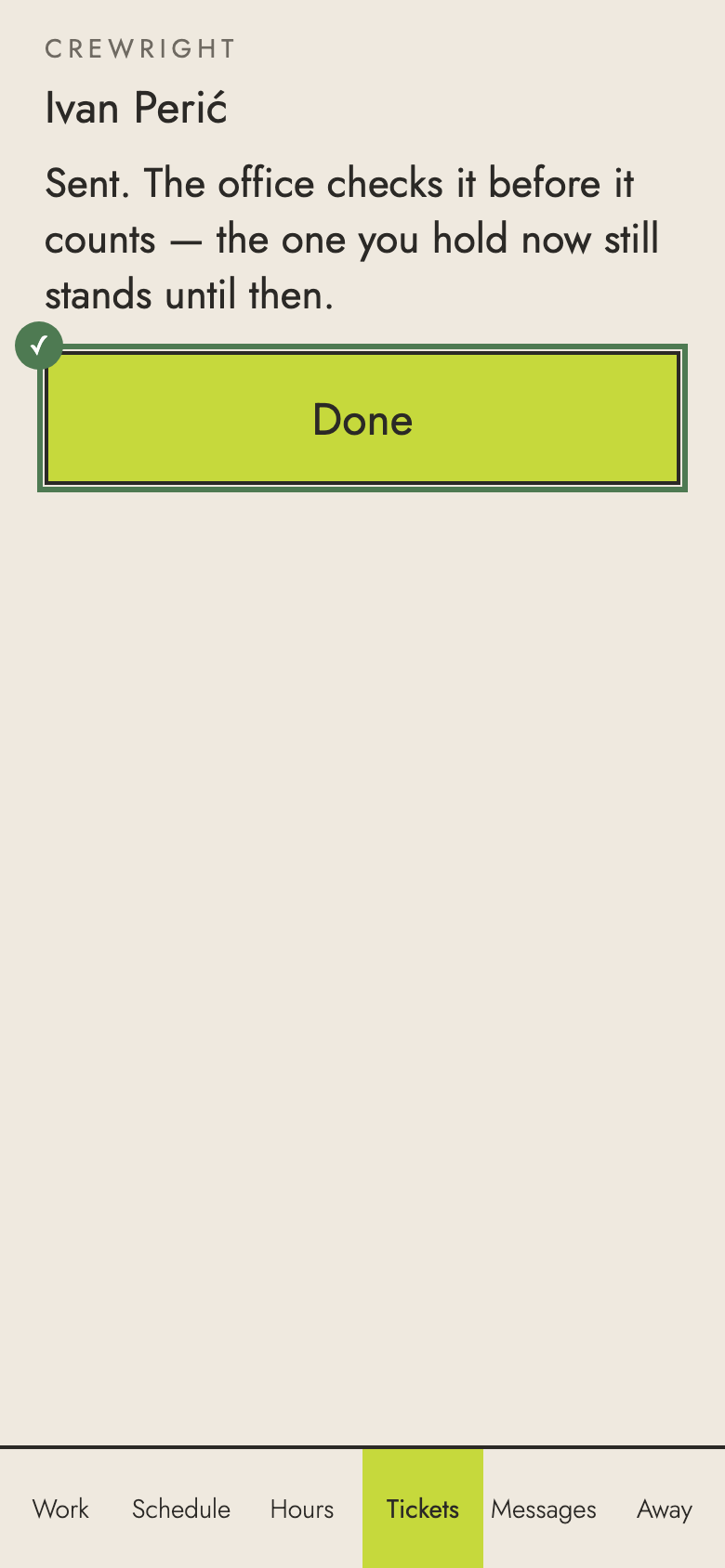
✓ Sent. The office checks it; until then, what you already hold stays as it is.